


Содержание
Введение
OpenVPN — это программное обеспечение с открытым исходным кодом для виртуальных частных сетей (VPN), использующее протоколы SSL/TLS для зашифрованной связи. Оно обеспечивает безопасный удалённый доступ и соединения между сайтами и широко используется для защиты сетевой связи и контроля доступа.
Требования
- Шлюз Omada
- Ноутбук или ПК
Настройка
Настройка сервера OpenVPN
Шлюз Omada выступает в роли сервера OpenVPN, позволяя клиентам безопасно подключаться к интрасети или интернету.
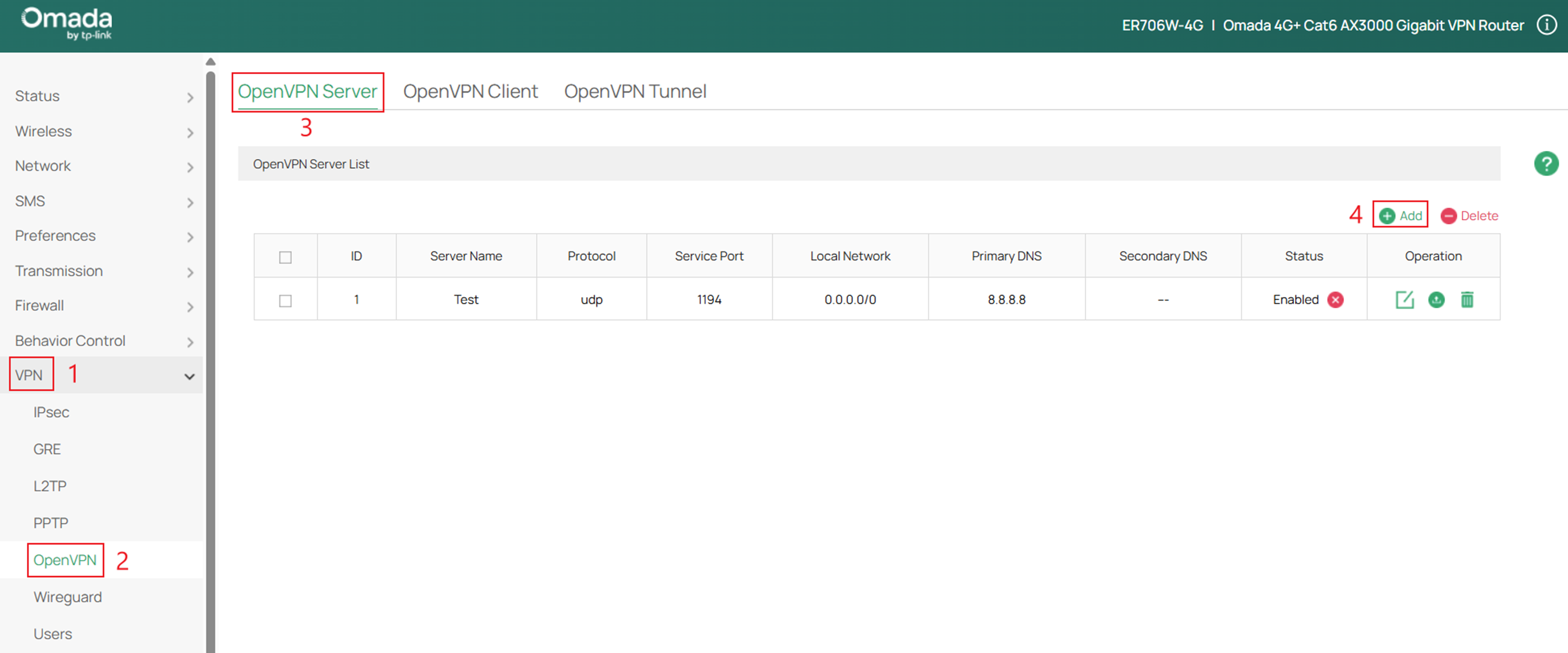
Шаг 1. Войдите в маршрутизатор через веб-браузер, перейдите в VPN > OpenVPN > Сервер OpenVPN > и нажмите Добавить. Чтобы войти в шлюз Omada, обратитесь к этому руководству: Как войти на веб-страницу управления устройства Omada (автономный режим)
Шаг 2. Заполните необходимые параметры и нажмите ОК.
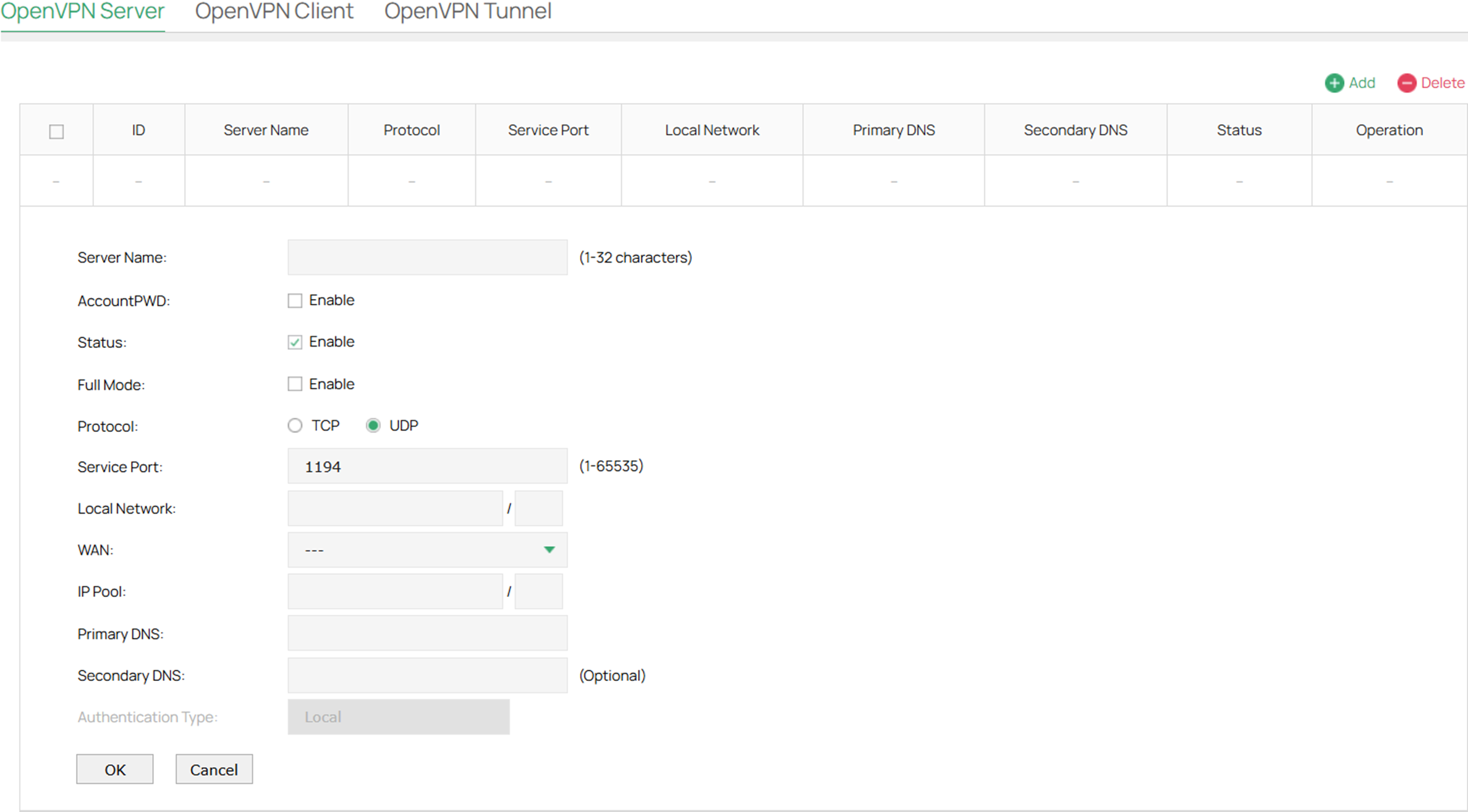
Имя сервера: Введите имя для идентификации VPN-сервера.
AccountPWD: При включении этого параметра OpenVPN будет использовать имя пользователя и пароль для аутентификации пользователей.
Статус: Установите флажок, чтобы включить сервер OpenVPN.
Полный режим: Выберите этот параметр, чтобы разрешить прохождение всего трафика клиентов через туннель.
Протокол: Выберите протокол связи для шлюза, работающего в качестве сервера OpenVPN. Доступны два протокола: TCP и UDP.
Порт службы: Введите порт VPN-службы, к которому подключается VPN-устройство. Порт по умолчанию — 1194.
Локальная сеть: Выберите сеть на локальной стороне VPN-туннеля. Политика VPN будет применяться только к выбранной локальной сети.
WAN: Выберите WAN-порт, на котором устанавливается VPN-туннель. Каждый WAN-порт поддерживает только один OpenVPN-туннель, когда шлюз работает в качестве сервера OpenVPN.
Пул IP-адресов: Введите IP-адрес и маску подсети, чтобы определить диапазон пула IP-адресов VPN. VPN-сервер назначит IP-адрес удалённому хосту при установке туннеля. Вы можете указать любой разумный IP-адрес, который не будет пересекаться с IP-адресами локальной сети на маршрутизаторе локальной стороны.
Чтобы избежать конфликтов IP-адресов, пул IP-адресов сервера OpenVPN не может включать IP-адрес LDAP-сервера.
Основной DNS: Укажите основной DNS-сервер, который будет передаваться клиентам.
Вторичный DNS: Укажите вторичный DNS-сервер, который будет передаваться клиентам.
Тип аутентификации: Укажите метод аутентификации, используемый сервером OpenVPN.
Локальная: Используйте встроенный сервер аутентификации для аутентификации при создании туннеля. Если у вас нет дополнительного внешнего сервера, вы можете выбрать локальную аутентификацию.
LDAP: Используйте внешний LDAP-сервер для аутентификации при создании туннеля.
Профиль LDAP: Укажите запись LDAP, настроенную вами в разделе Аутентификация > LDAP.
Шаг 3. Если вы выбрали опцию AccountPWD и Тип аутентификации: Локальная, перейдите в VPN > Пользователи > и нажмите Добавить.
Если вы выбрали Тип аутентификации: LDAP, обратитесь к: Как настроить LDAP на шлюзе Omada.
Если AccountPWD не был включён, перейдите к шагу 5.
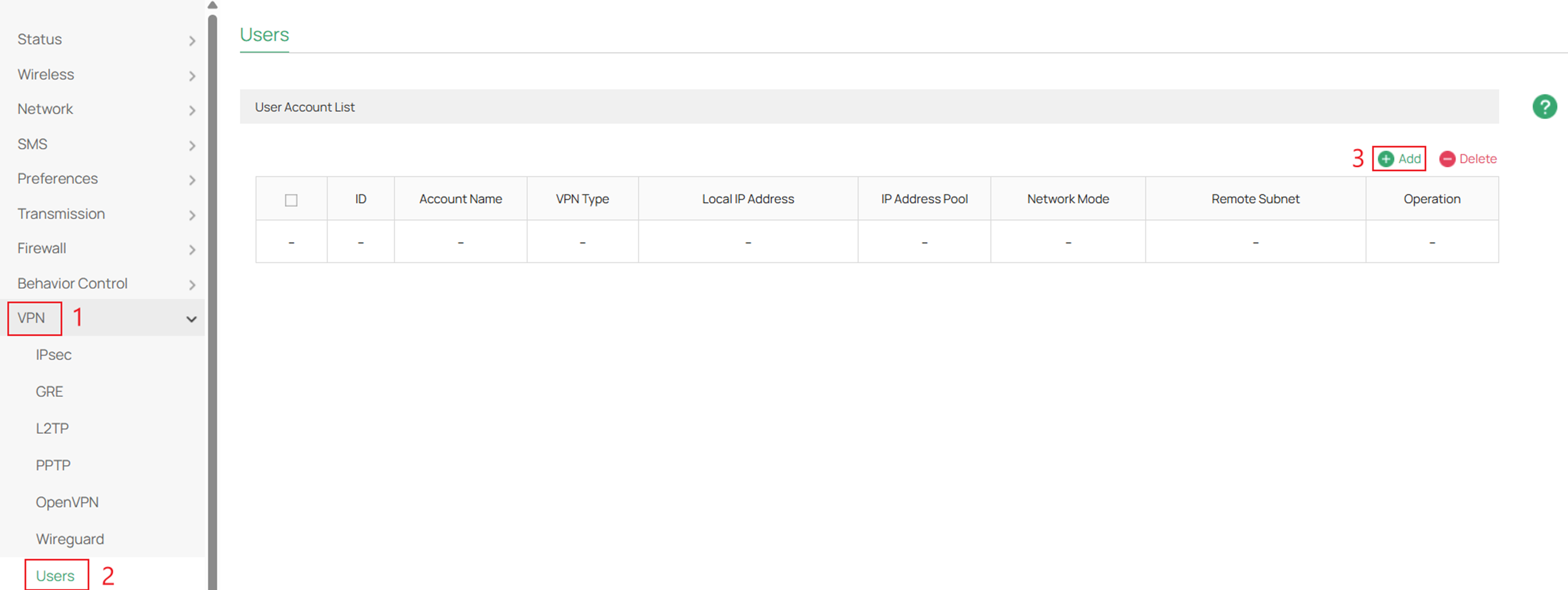
Шаг 4. Заполните необходимые параметры для локальной учетной записи пользователя и нажмите ОК, чтобы применить.
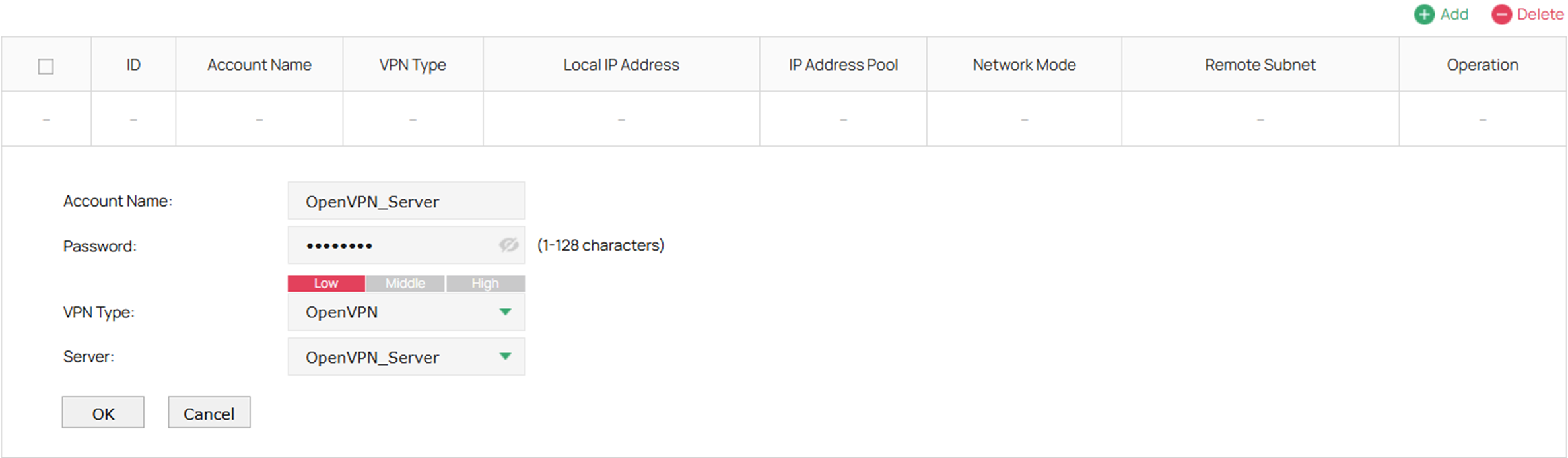
Имя учетной записи: Имя учетной записи, используемое для VPN-туннеля.
Пароль: Пароль для локальной учетной записи.
Тип VPN: Укажите протокол для VPN-туннеля. Доступны три типа: L2TP, PPTP и OpenVPN.
Сервер: Выберите сервер OpenVPN, к которому принадлежит пользователь. Можно выбрать только сервер с включённой аутентификацией по имени пользователя и паролю.
Шаг 5. Перейдите в VPN > OpenVPN > Сервер OpenVPN и экспортируйте сертификат OpenVPN в столбце Действие.
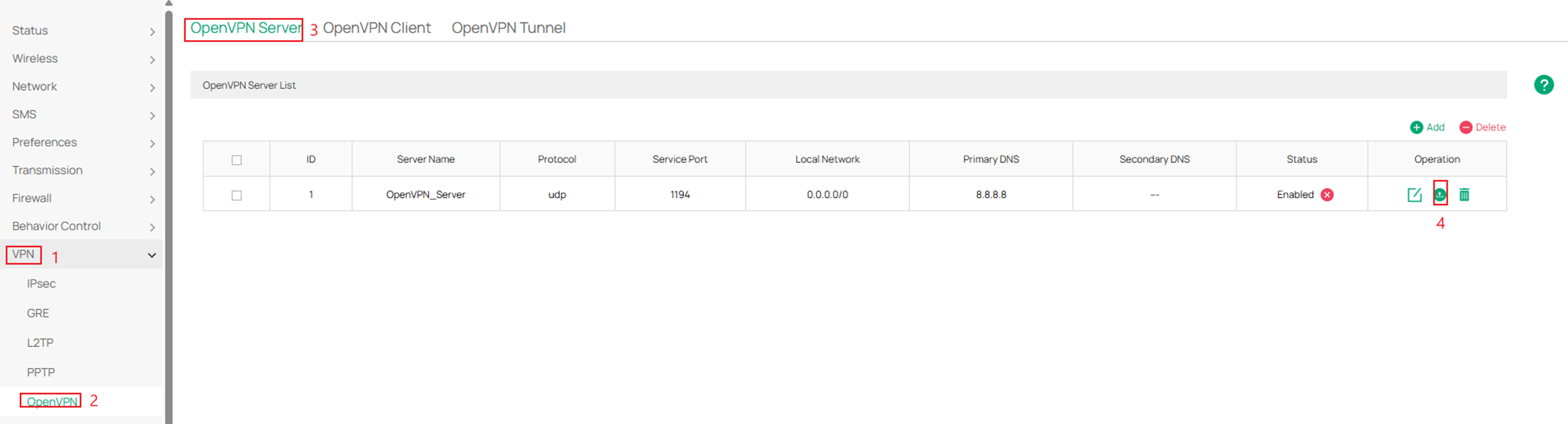
Шаг 6. После экспорта сертификата OpenVPN загрузите сертификат в клиент OpenVPN. Обратитесь к: Как настроить OpenVPN-подключение с шлюзами Omada на клиентских устройствах с различными операционными системами.
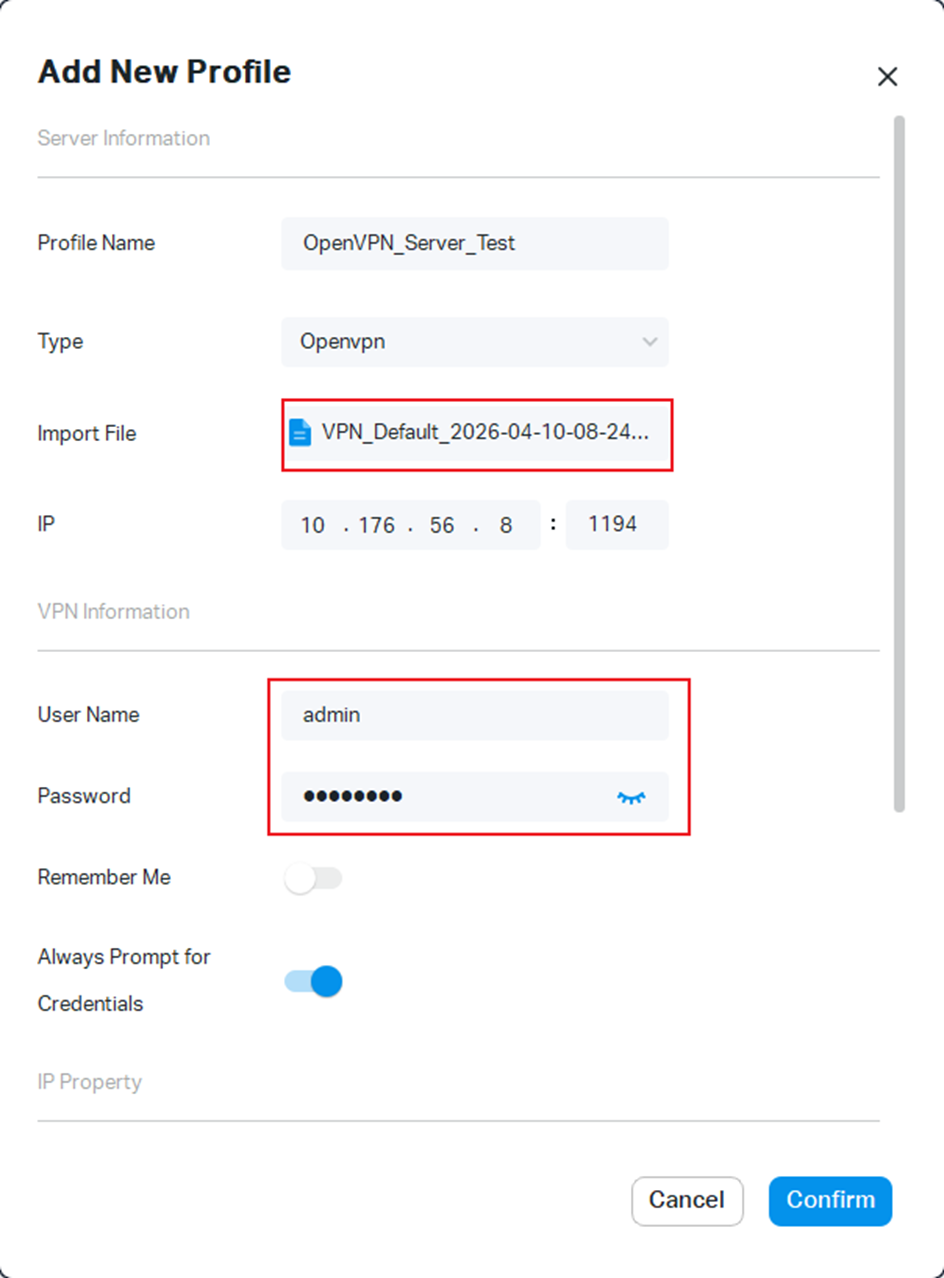
Настройка клиента OpenVPN
Шлюз Omada выступает в роли клиента OpenVPN, позволяя клиентам в локальной сети безопасно подключаться к удалённым сайтам или интернету.
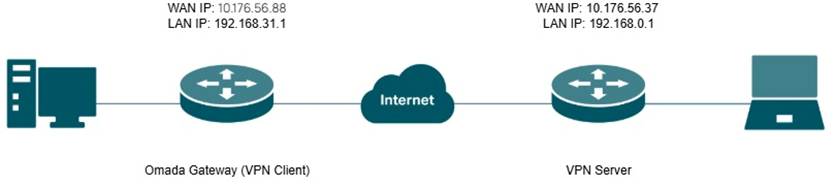
Шаг 1. Экспортируйте файл OpenVPN с сервера, с которым вы устанавливаете туннель.
Шаг 2. Войдите в маршрутизатор через веб-браузер, перейдите в VPN > OpenVPN > Клиент OpenVPN и нажмите Добавить.
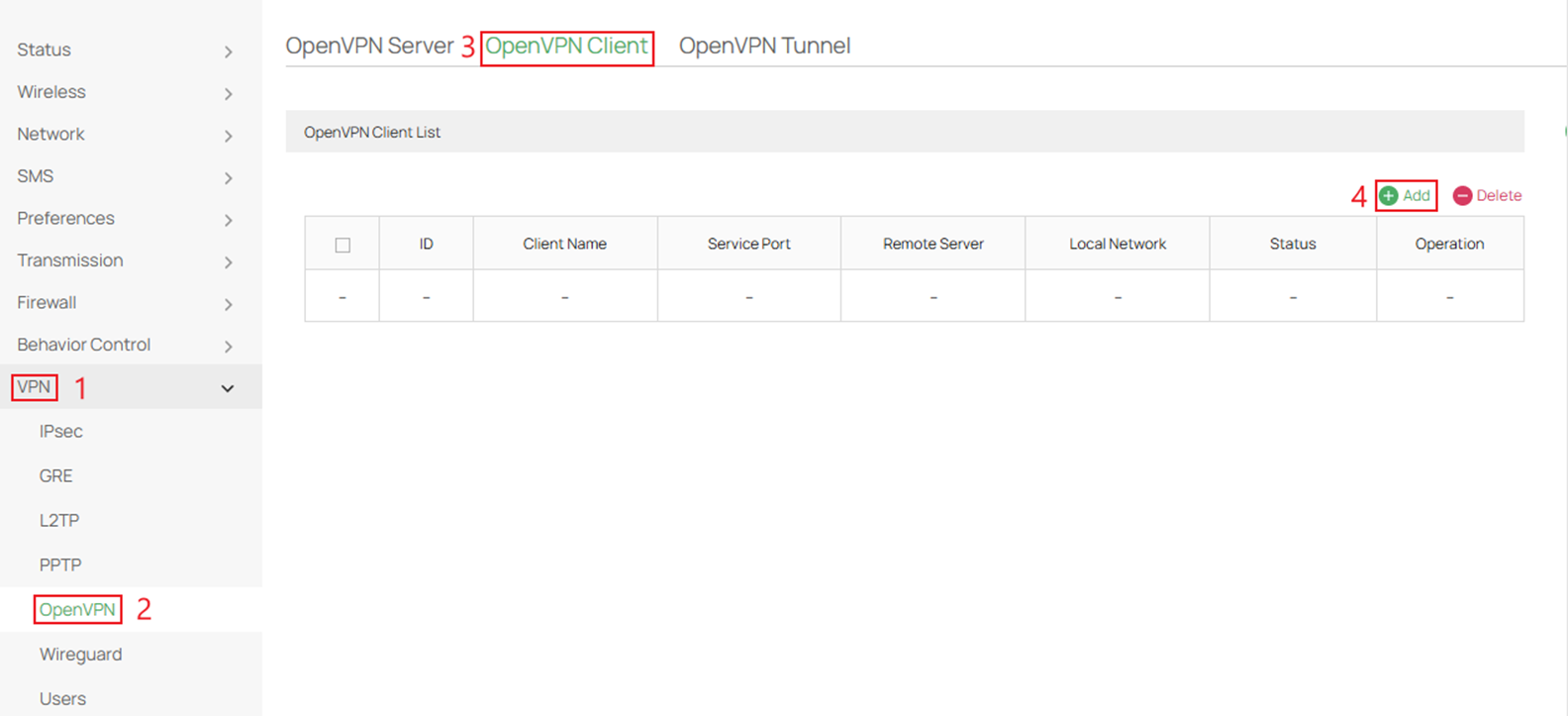
Шаг 3. Заполните параметры, импортируйте OVPN-файл с сервера и нажмите ОК.
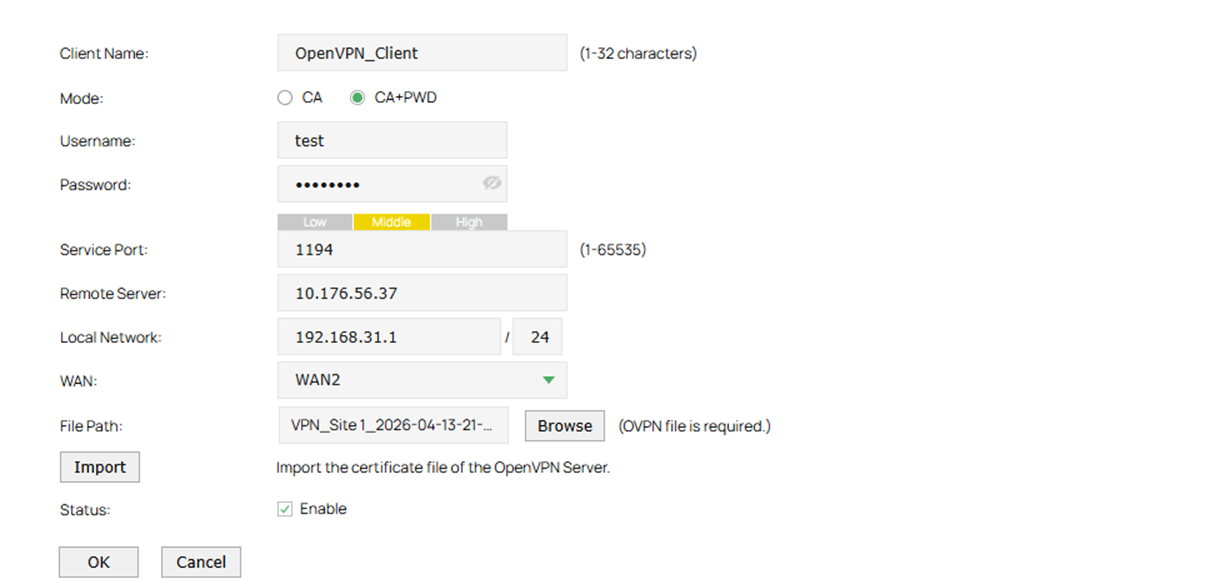
Имя клиента: Укажите имя клиента OpenVPN.
Режим: Выберите метод аутентификации, используемый клиентом. В режиме ca требуется только файл сертификата. В режиме ca+pwd требуются также имя пользователя и пароль.
Имя пользователя: Введите имя пользователя, необходимое для аутентификации клиента.
Пароль: Введите пароль, необходимый для аутентификации клиента.
Статус: Установите флажок, чтобы включить клиент OpenVPN.
Порт службы: Введите порт VPN-службы, к которому подключается VPN-устройство. Порт по умолчанию — 1194.
Удалённый сервер: Введите IP-адрес или доменное имя сервера OpenVPN.
Локальная сеть: Выберите подсети, которым разрешено проходить через туннель со стороны клиента. Политика VPN будет применяться только к выбранной локальной сети.
WAN: Выберите WAN-порт, на котором устанавливается VPN-туннель.
Путь к файлу: Укажите путь к файлу конфигурации OpenVPN с расширением .ovpn, сгенерированному сервером OpenVPN.
Импорт: Нажмите эту кнопку, чтобы импортировать файл OpenVPN с расширением .ovpn, сгенерированный сервером OpenVPN. Можно импортировать только один файл. Если сертификат и файл конфигурации были сгенерированы сервером OpenVPN отдельно, объедините два файла и импортируйте общий файл.
Проверка
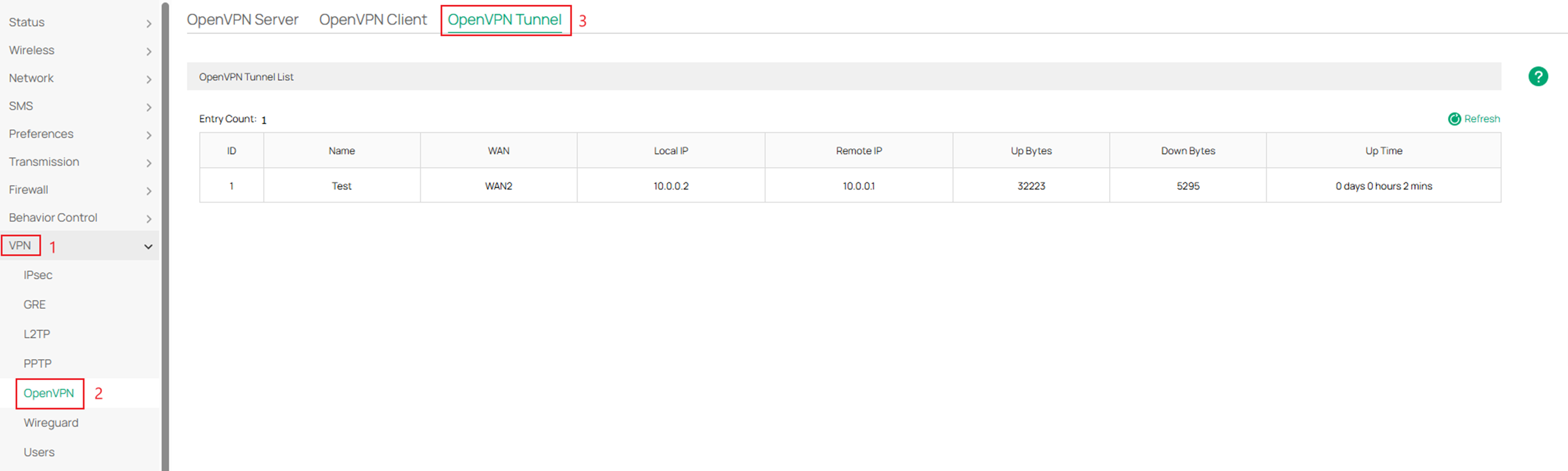
Перейдите в VPN > OpenVPN > Туннель OpenVPN, чтобы просмотреть текущее состояние туннеля.
Заключение
В этом руководстве показано, как успешно настроить OpenVPN на шлюзе Omada в автономном режиме для конфигурации как сервера, так и клиента. Выполнив эти шаги, можно установить безопасный удалённый доступ и соединение между сайтами, обеспечив зашифрованную связь и надёжный доступ к сети.
Чтобы узнать больше о каждой функции и настройке, посетите Домашнюю страницу поддержки и скачайте или ознакомьтесь с руководством для вашего продукта.
Вопросы и ответы
В1: Почему моё удалённое устройство не устанавливает туннель к моему серверу OpenVPN, размещённому на шлюзе Omada?
О1: Проверьте, использует ли шлюз публичный или частный IP-адрес на своём WAN-интерфейсе. Если используется частный IP-адрес, сначала настройте переадресацию портов на основном маршрутизаторе. Убедитесь, что настройки как на клиентской, так и на серверной стороне правильны и совпадают.
