


Contents
Issue 1. The Controller cannot discover the gateway
Issue 2. The Controller cannot adopt the gateway
Issue 1. The Controller cannot discover the gateway
Issue 2. The Controller Cannot Adopt the gateway
Omada Cloud-Based Controller (CBC)
Issue 1. The Controller cannot discover the gateway
Issue 2. The Controller cannot adopt the gateway
Introduction
If an Omada Gateway cannot be discovered, adopted, or managed by an Omada Controller, the issue is typically related to network connectivity, device credentials, controller communication, or configuration mismatches.
This guide explains how to troubleshoot Omada Gateway discovery and adoption failures on Omada Software Controllers, Hardware Controllers, and Cloud-Based Controllers, including common error messages, status changes, and recommended solutions.
Requirements
- Omada Software Controller v6.0 or later
- Omada Hardware Controller v6.0 or later
- Omada Cloud-Based Controller (CBC)
Omada Software Controller
Issue 1. The Controller cannot discover the gateway
If your Software Controller cannot discover the gateway, follow the steps below.
Step 1. Verify the gateway is in the correct site
- Ensure that the gateway has been assigned to the same Omada site as the Controller.
- If the gateway belongs to another site, refer to How to Manage Omada Devices at Different Sites Across the Internet Using Omada Controller.
- If the gateway still cannot be discovered after being added to the correct site, refer to What Should I Do if the Omada Controller (v6 or Later) Fails to Adopt Devices?
Step 2. Verify Mesh is not enabled in Standalone Mode
If Mesh is enabled while the gateway is operating in Standalone Mode, remove the mesh configuration before attempting to discover and adopt the gateway through Omada Controller.
Issue 2. The Controller cannot adopt the gateway
Scenario 1. Incorrect username or password
Symptom: After clicking Adopt, the Controller displays Incorrect username or password.

Solution
The default username and password are both admin.
- If the gateway was previously managed in Standalone Mode, enter the same credentials used to access the Web GUI.
- If the gateway was previously managed by another Omada Controller, enter the Device Account credentials configured on that Controller (Network Config > Site Settings > Device Account).
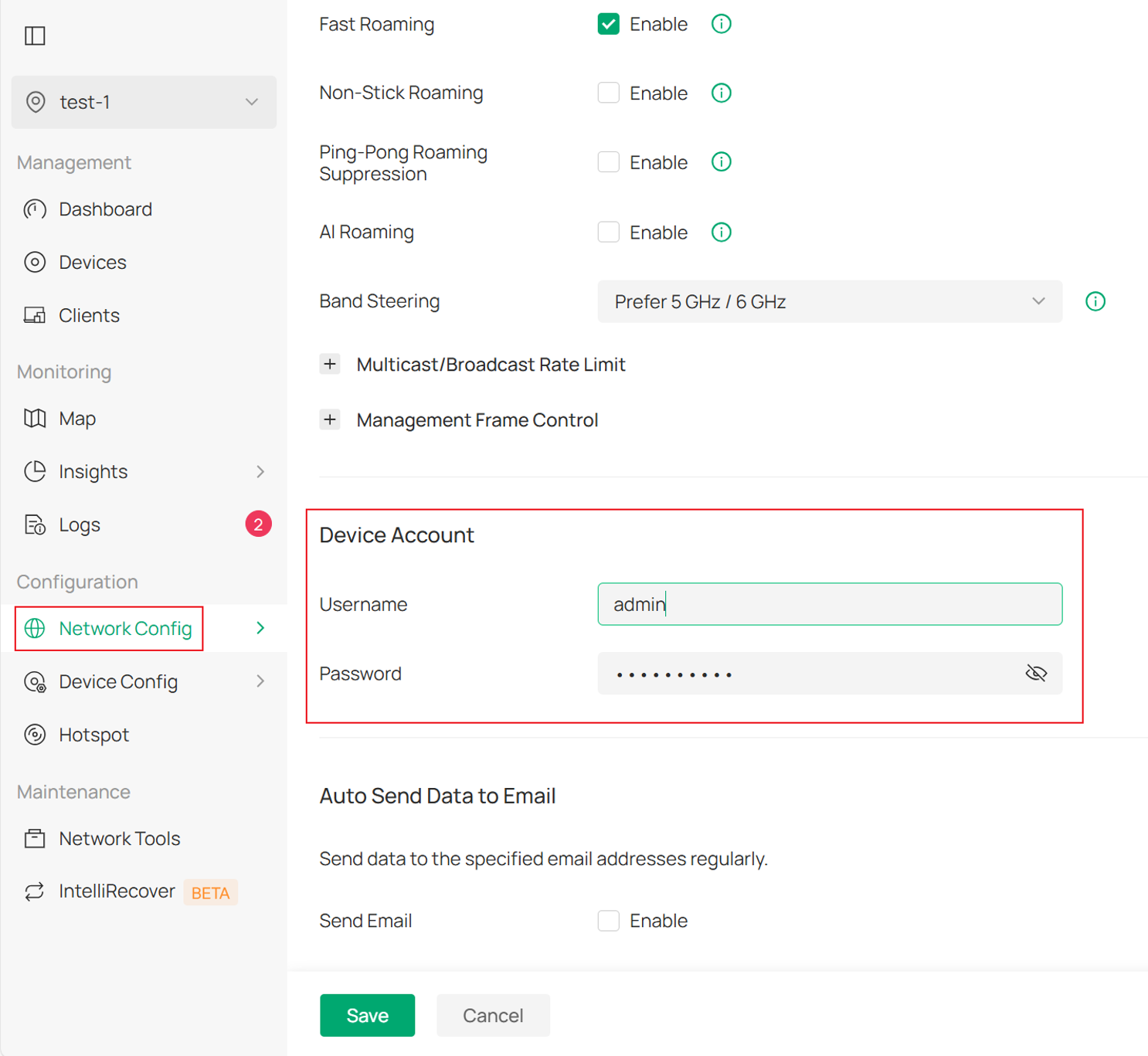
- If the correct credentials cannot be determined, reset the gateway to factory defaults and try again.
Scenario 2. The Device did not respond to the adoption command
Symptom: If below error message appears after clicking Adopt, it indicates that the device is unable to establish a TCP connection with the Controller and therefore cannot process the adoption request.

Solution
This error usually indicates that communication between the gateway and the Controller has been interrupted. This issue may be caused by failed TCP connectivity or by discovery packets and discovery responses (UDP) being unable to reach the Controller.
Verify the following:
- Confirm that the gateway is connected to the network and reachable from the PC running the Software Controller by using the Ping tool.
- Verify that the Controller IP address belongs to the gateway's LAN network. If the Controller is in another network, use the Discovery Utility or Inform URL to specify the Controller address
- Verify that all required ports are open, and that no firewall, antivirus software, network policy or NAT device is blocking communication and discovery of traffic between the gateway and the Controller. For ports required to be enabled, refer to the guide Which Ports do Omada SDN Controller and Omada Discovery Utility Use (above Controller 5.0.15).
- Verify that device discovery traffic and Controller discovery responses can reach their destinations successfully. In some network environments, Controller discovery response packets (UDP) may be blocked, filtered, or unable to reach the gateway, which can prevent proper discovery or adoption.
Scenario 3. The gateway repeatedly cycles between ADOPTING, ADOPT FAILED, and DISCONNECTED
Cause: The LAN configuration configured on the Controller does not match the gateway's current LAN configuration.
Solution
By default, the Controller uses 192.168.0.1/24 as the Default LAN network.
If the gateway was previously configured with a different LAN subnet while operating in Standalone Mode, update the Controller LAN settings to match the gateway's existing LAN configuration before adoption.
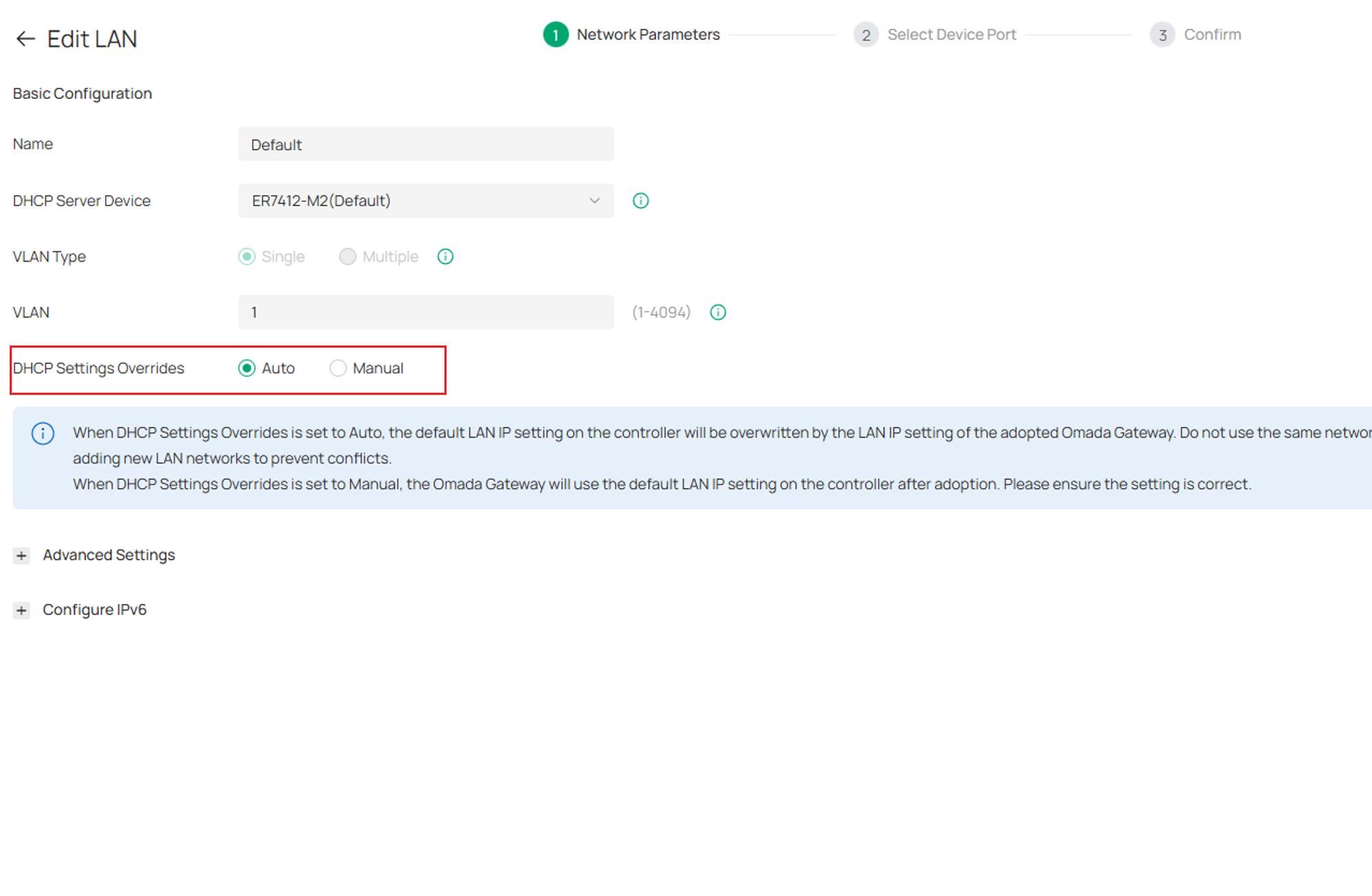
Alternatively, use LAN Override to apply the appropriate LAN settings during adoption.
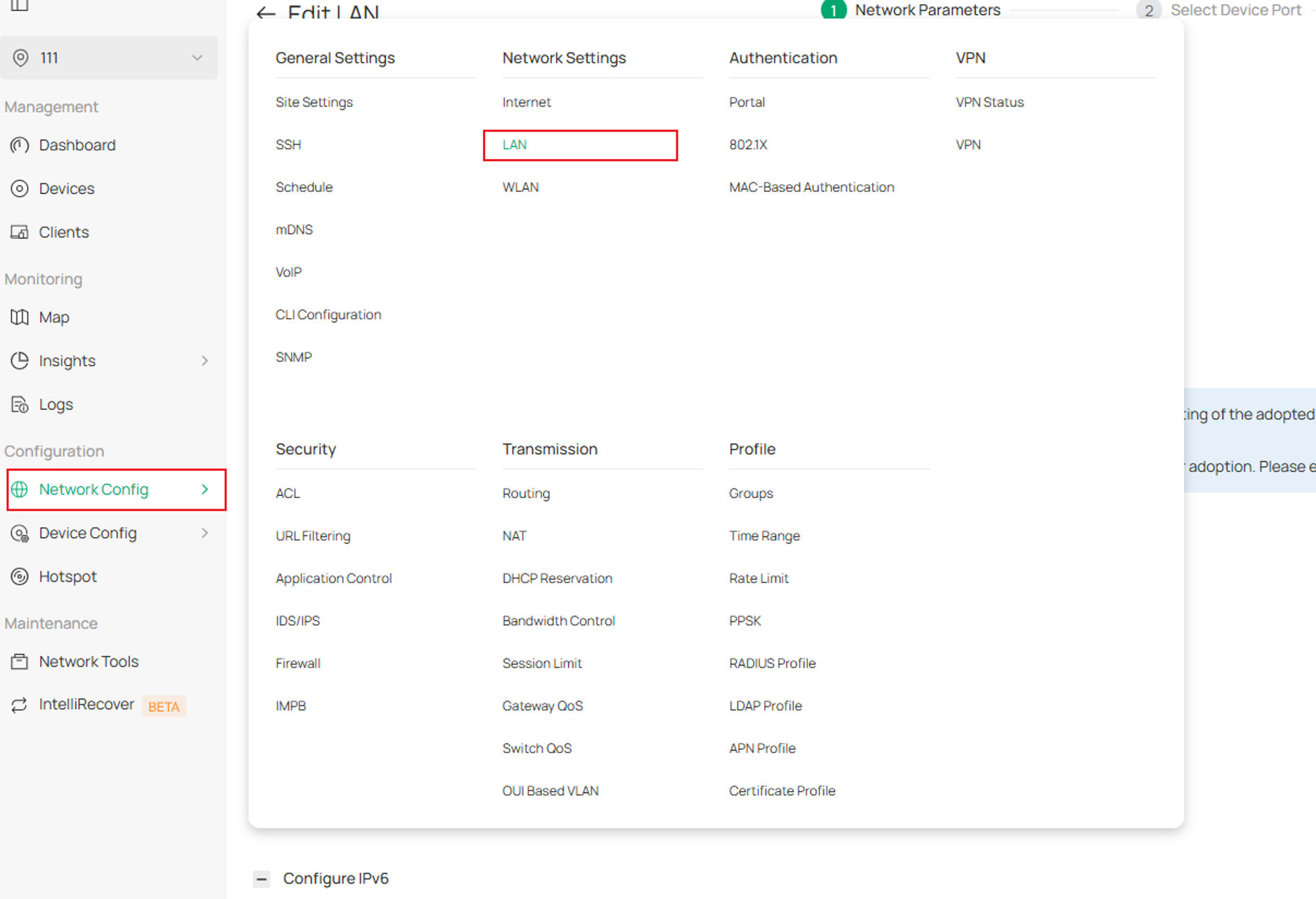
To configure LAN Override:
- Navigate to Network Config > Network Settings > LAN.
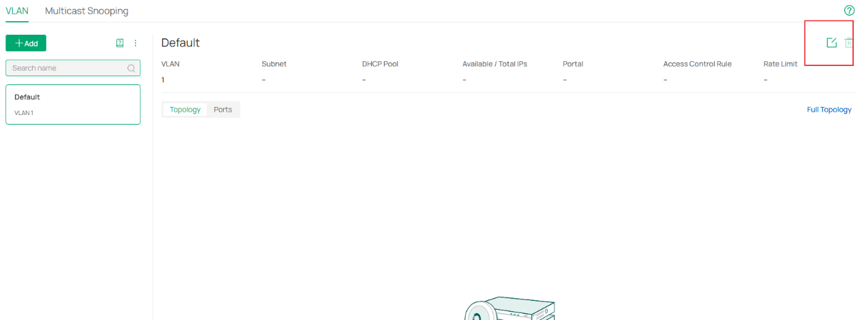
- Click Edit for the Default Network.
- Configure the required DHCP Settings Override and LAN parameters.
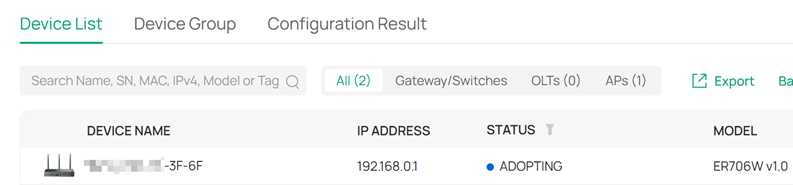
Scenario 4. The gateway remains in CONFIGURING and then becomes DISCONNECTED
Symptom: The gateway remains in the CONFIGURING state and subsequently changes to DISCONNECTED.
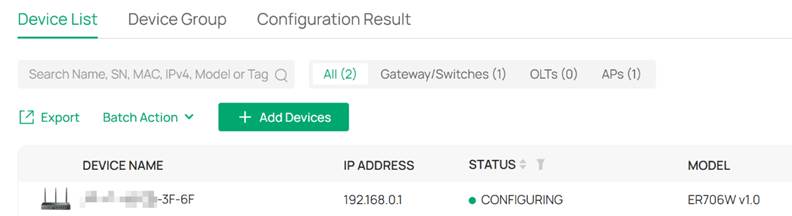
Solution
- Verify that the WAN settings configured on the Controller match the gateway's current network configuration.
- If the gateway is being adopted across a VPN tunnel, ensure that WAN, VPN, and LAN settings have been correctly preconfigured on the Controller before adoption.
- If an incorrect configuration has already been applied, reset the gateway and repeat the adoption process.
Omada Hardware Controller
Issue 1. The Controller cannot discover the gateway
Step 1. Verify the gateway belongs to the correct site
- Ensure that the gateway has been assigned to the same site as the Hardware Controller.
- If not, refer to How to Manage Omada Devices at Different Sites Across the Internet Using Omada Controller.
Step 2. Verify network connectivity
- Confirm that the gateway is reachable using the Hardware Controller Ping tool.
- If the gateway and Controller are located on different VLANs or subnets, use the Discovery Utility or configure the Inform URL to adopt the gateway.
Step 3. Verify Mesh is not enabled in Standalone Mode
If the gateway is operating in Standalone Mode with Mesh enabled, remove the mesh configuration before adopting the gateway.
Issue 2. The Controller Cannot Adopt the gateway

Scenario 1. Incorrect username or password
Follow the same troubleshooting steps described under:
Software Controller > Issue 2 > Scenario 1
Scenario 2. The Device did not respond to the adoption command
This error indicates that the gateway cannot establish communication with the Hardware Controller.

Verify the following:
- The gateway is reachable using the Hardware Controller Ping tool.
- The Controller IP address belongs to the gateway LAN network.
- Required ports are open on any firewall or NAT device between the gateway and the network. For ports required to be enabled, refer to the guide Which Ports do Omada SDN Controller and Omada Discovery Utility Use (above Controller 5.0.15).
Scenario 3. The gateway repeatedly cycles between ADOPTING, ADOPT FAILED, and DISCONNECTED
If the gateway uses a different LAN subnet from the Controller's default LAN configuration, configure the Controller LAN settings to match the gateway before adoption.
Omada Cloud-Based Controller (CBC)
Note: Before using CBC, verify that the gateway model appears in the CBC-Device Compatibility List
Refer to How to Discover Omada Devices via Omada Central for onboarding instructions
Issue 1. The Controller cannot discover the gateway
Scenario 1. Discovery through the Inform URL fails
Verify the following:
- The Inform URL matches the Cloud-Based Controller you are using.
- The gateway has a working Internet connection.
Scenario 2. The gateway is running in Mesh Mode
If the gateway is operating in Standalone Mode with Mesh enabled, remove the mesh configuration before adding the device to the Cloud-Based Controller.
Issue 2. The Controller cannot adopt the gateway
Scenario 1. The gateway remains in PRECONFIGURED
Symptom: The gateway remains in the PRECONFIGURED status after being added by Serial Number.
Solution
Verify the following:
- The gateway has Internet access.
- Cloud-Based Controller Management is enabled.
- The connection status is displayed as Online on the gateway management page.
Scenario 2. Incorrect username or password
Follow the same troubleshooting steps described under:
Software Controller > Issue 2 > Scenario 1
Scenario 3. The device did not respond to the adoption command
Verify the following:
- The gateway has Internet connectivity.
- Required ports are open on any firewall or NAT device.
- The gateway can communicate with the Cloud-Based Controller. For ports required to be enabled, refer to the guide Which Ports do Omada SDN Controller and Omada Discovery Utility Use (above Controller 5.0.15).
Scenario 4. The gateway remains in CONFIGURING and then becomes DISCONNECTED
Verify that WAN Settings Override is used appropriately and that the configured WAN settings match the gateway's network environment.
If necessary:
- Log in to the gateway in Standalone Mode.
- Correct the WAN settings.
- Restore Internet connectivity.
Once connectivity is restored, the gateway should reconnect to the Controller automatically.
If the issue persists, reset the gateway and repeat the adoption process.
Conclusion
Most gateway discovery and adoption issues are caused by connectivity problems, incorrect credentials, blocked controller communication, or configuration mismatches. If the issue persists after completing the troubleshooting steps in this guide, contact TP-Link Technical Support for further assistance.
To learn more about each function and configuration, please visit Support Home to download or check the manual for your product.
