


How to Configure VLANs in the Omada App v5.2.1 or Above


Contents
What's new in Omada App v5.3 and later
Configure VLAN settings on switch ports
Method 1: Apply a switch profile
Method 2: Configure custom port VLAN settings
Configure VLAN settings on Fusion Pro 2.5G gateway LAN ports (new in v5.3)
Introduction
VLANs (Virtual Local Area Networks) are a fundamental feature for network segmentation and traffic management in Omada networks. The Omada App allows VLANs to be created and managed directly from a mobile device, simplifying deployment and maintenance.
What's new in Omada App v5.3 and later
In addition to existing VLAN creation and switch port VLAN management capabilities, Omada App v5.3 and later introduces:
- Additional Network Wizard deployment options, including Guest Network and Surveillance Network.
- Surveillance Network deployment with recommended settings for IP cameras and NVRs.
- Gateway LAN port VLAN configuration on Fusion Pro 2.5G gateways.
This article explains how to:
- Create VLANs using the Omada App.
- Create Guest Networks and Surveillance Networks.
- Configure VLAN settings on switch ports.
- Configure VLAN settings on Fusion Pro 2.5G gateway ports.
Requirements
- Omada Network v6.2.10 or later
- Omada App v5.2.1 or later
- Omada Gateway, Omada Managed Switch, and/or Omada AP
Additional requirements for new v5.3 features
|
Feature |
Requirement |
|
Surveillance Network |
Fusion Pro 2.5G Gateway + Omada App v5.3.14 (iOS) or v5.3.54 (Android) or later |
|
Gateway LAN Port VLAN Configuration |
Fusion Pro 2.5G Gateway + Omada App v5.3.14 (iOS) or v5.3.54 (Android) or later |
Create a VLAN in Omada App
Step 1. Open the target site.
Launch the Omada App and open the target site.
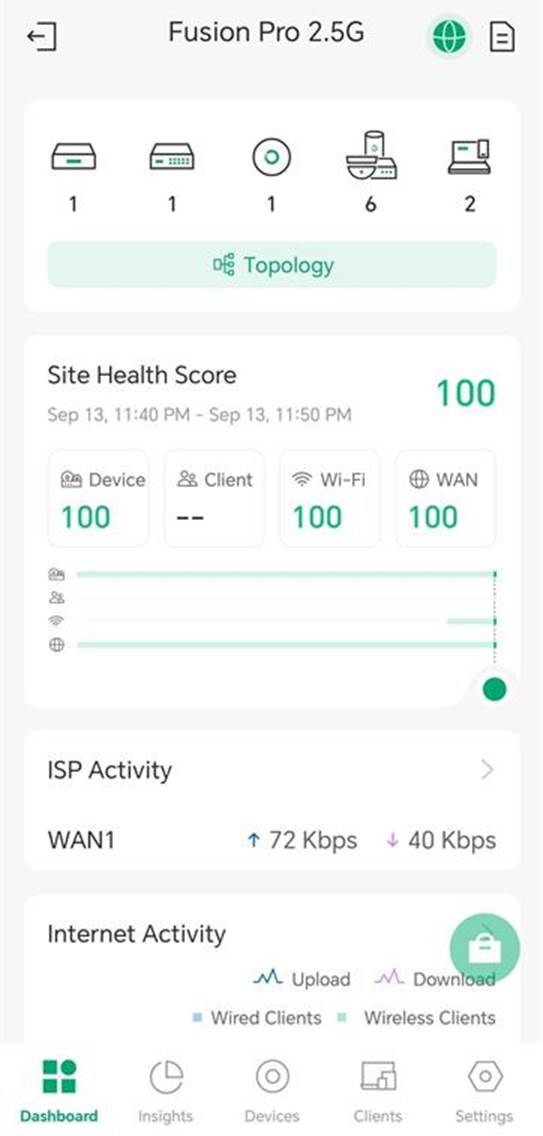
Step 2. Create a network.
There are two ways to create a network:
- Go to Settings > LAN Settings > VLAN to create and fully customize a VLAN network.
- Go to Quick Config > Network Wizard to create a network based on a predefined scenario, such as Guest Network, Surveillance Network, or Custom Network.
The following steps use Network Wizard as an example.
Navigate to Quick Config > Network Wizard and select the network type to create.
Surveillance Network (New in v5.3)
Creates a dedicated network for IP cameras and NVRs using recommended VLAN, DHCP, and isolation settings.
Port isolation is enabled by default to improve security and prevent unnecessary communication between surveillance devices.
Note: Surveillance Network is supported on Fusion Pro 2.5G gateways when managed using Omada App v5.3.14 (iOS) or v5.3.54 (Android) and later.
Guest Network
Creates a wireless guest network using recommended guest access settings.
Custom Network
Creates a VLAN using manually defined network settings.
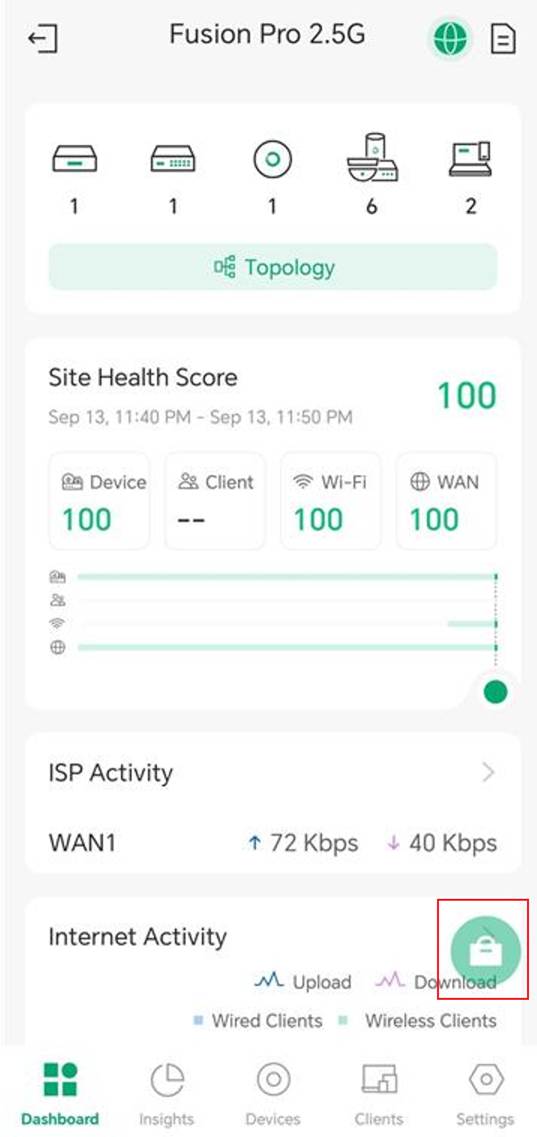
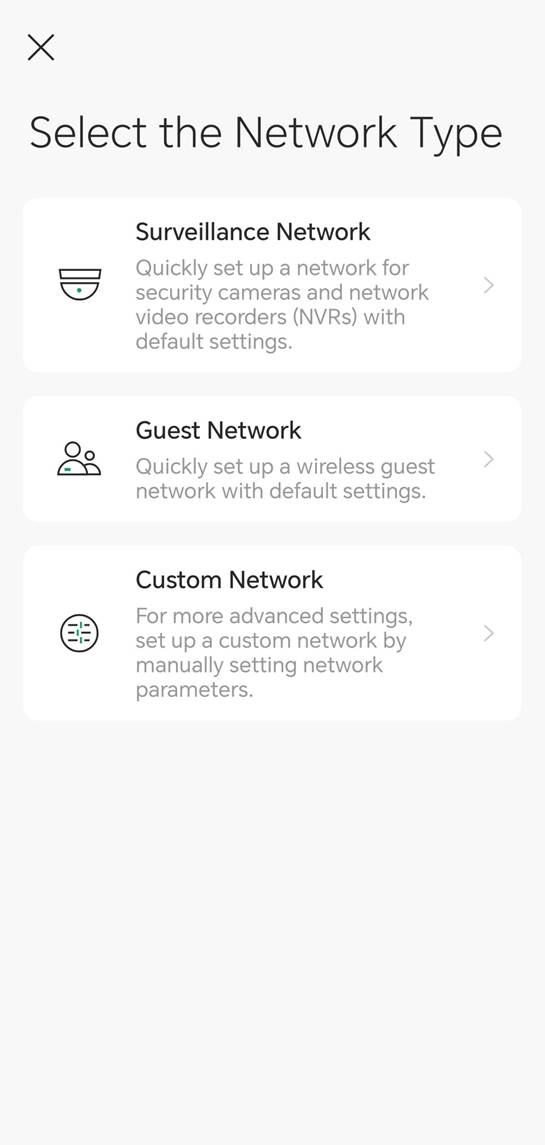
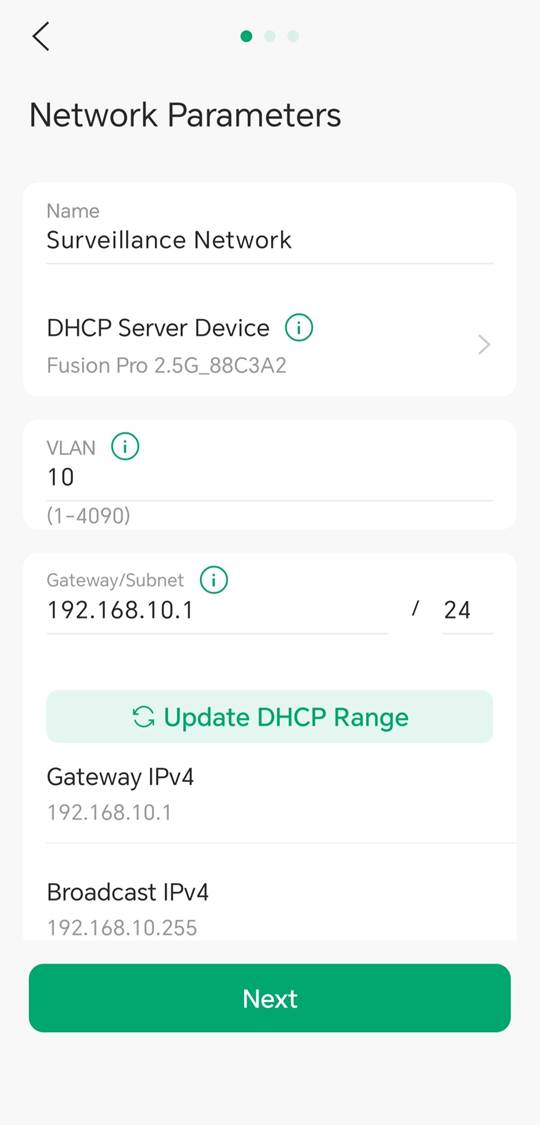
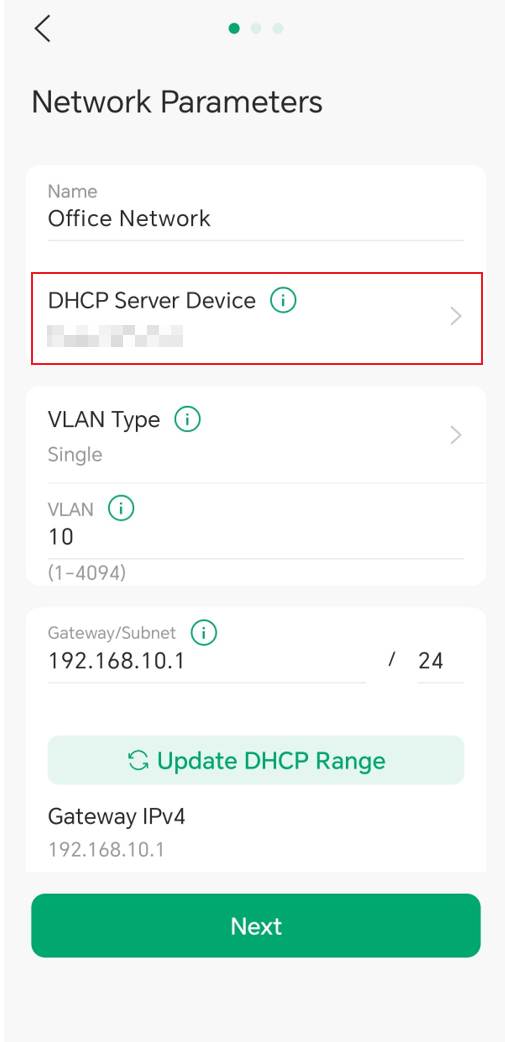
Step 3. Configure network settings.
Select the device that will function as the DHCP server for the network. This can be:
- Omada Gateway
- Omada Switch
- Third-party DHCP Server
- None
For a Custom Network, configure the following settings as needed:
- Name
- VLAN ID
- Gateway/Subnet
- DHCP Settings
If static IP addresses are used, DHCP can be disabled.
For a Surveillance Network, recommended values for these settings are automatically populated and can be modified if required.
Tap Next.
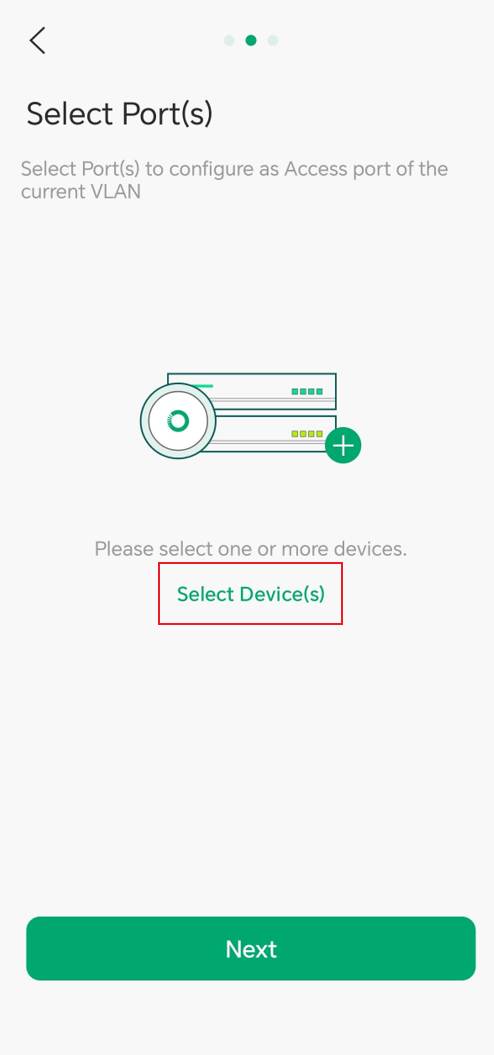
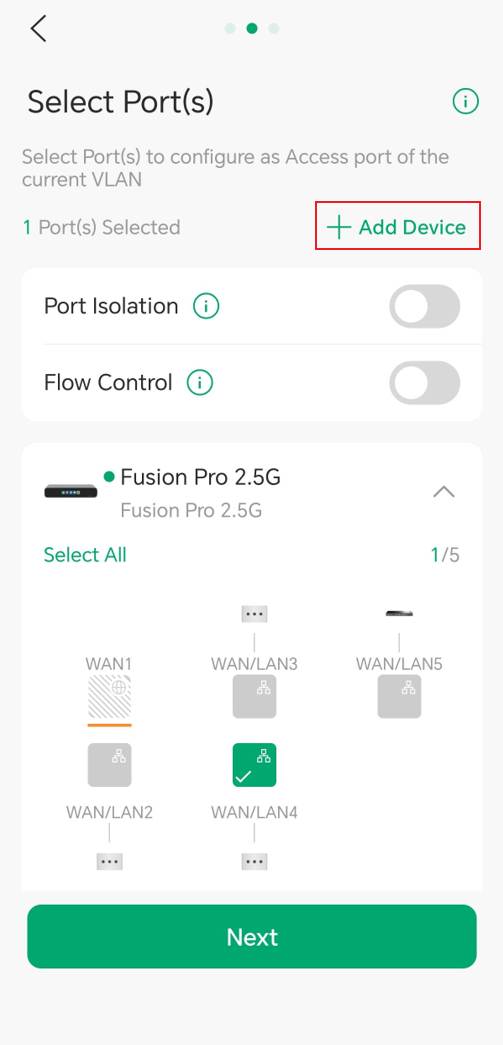
Step 4. Select device ports.
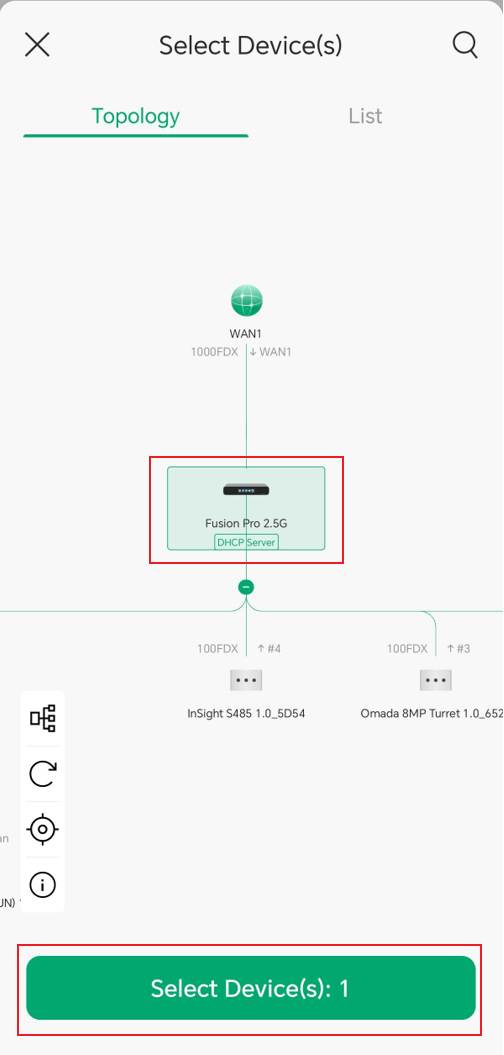
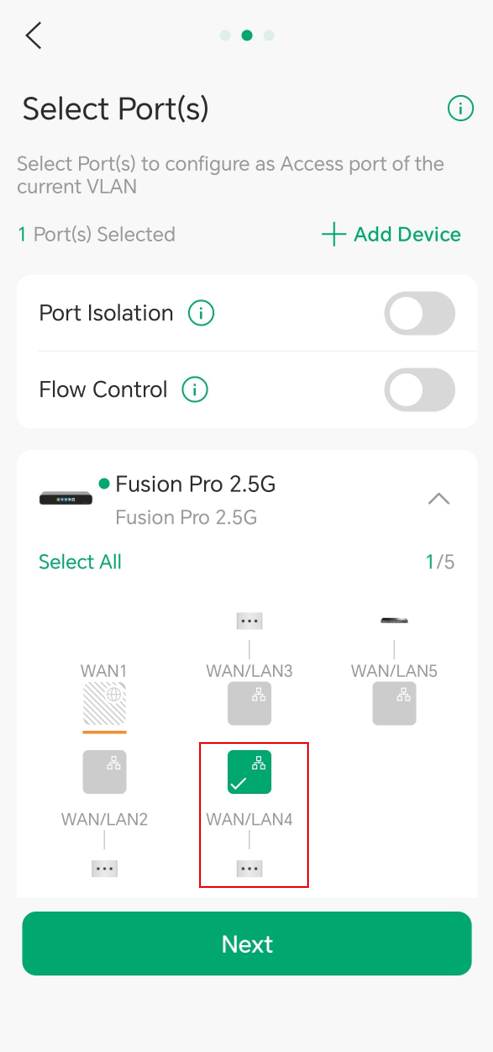
Select the device ports to add to the network. The available port options depend on the selected network type.
For general networks:
Select the desired switch ports as needed. Selected ports will be configured as access ports for the network.
Ports that are not selected retain their existing configuration.
It is recommended to select host-facing ports connected to endpoints such as:
- PCs
- Printers
- IP phones
- IP cameras
- Other client devices
Do not configure uplink ports as access ports, as this may interrupt network connectivity.
For Surveillance Network:
Ports connected to detected cameras are automatically selected. Ports can be manually selected or deselected as needed.
Selected ports will be configured as access ports for the Surveillance VLAN.
Tap Next to continue.
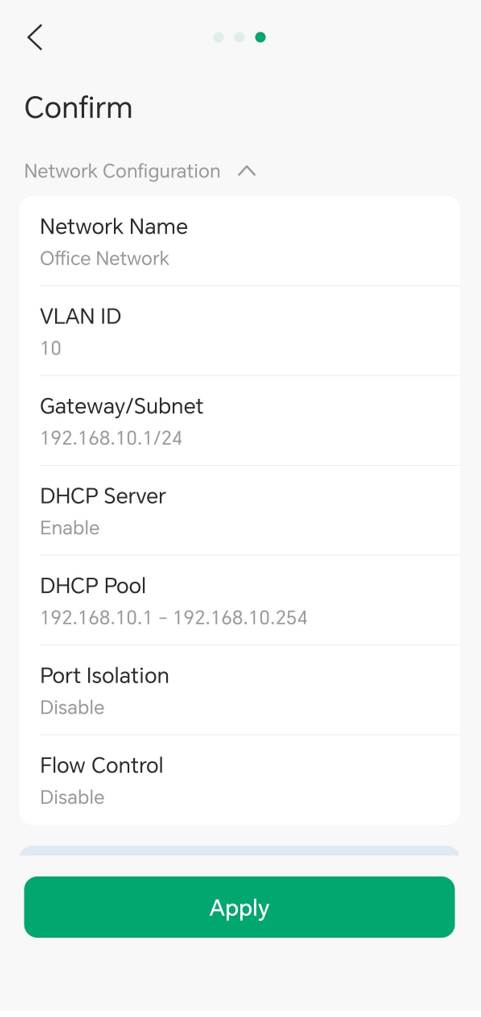
Step 5. Review the configuration.
Verify that all settings are correct. Tap Apply.
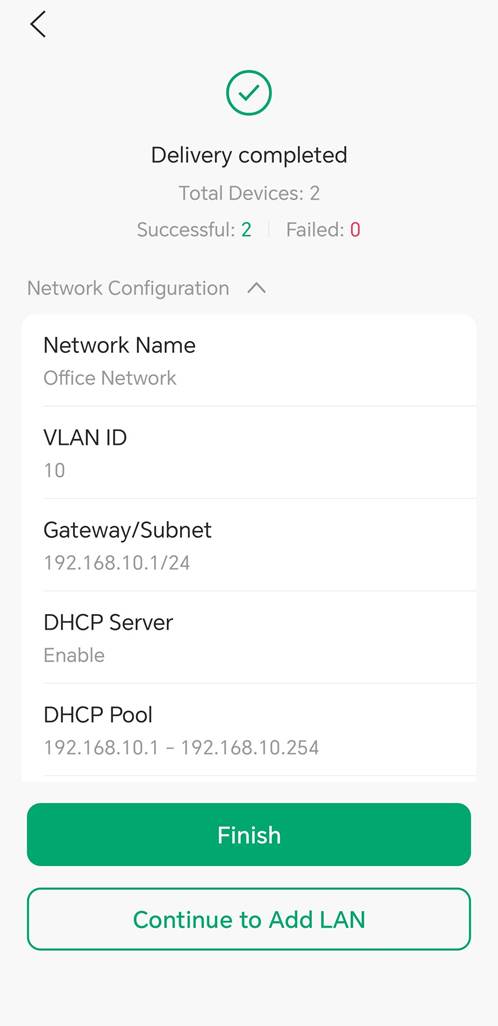
Step 6. Complete deployment.
Wait for the configuration to be delivered to the Omada devices.
Once deployment is complete, tap Finish.
Configure VLAN settings on switch ports
After creating a VLAN, VLAN settings can be modified for specific switch ports.
Omada App v5.2.1 or later provides two methods:
- Apply a Switch Profile
- Configure Custom Port VLAN Settings
Method 1: Apply a switch profile
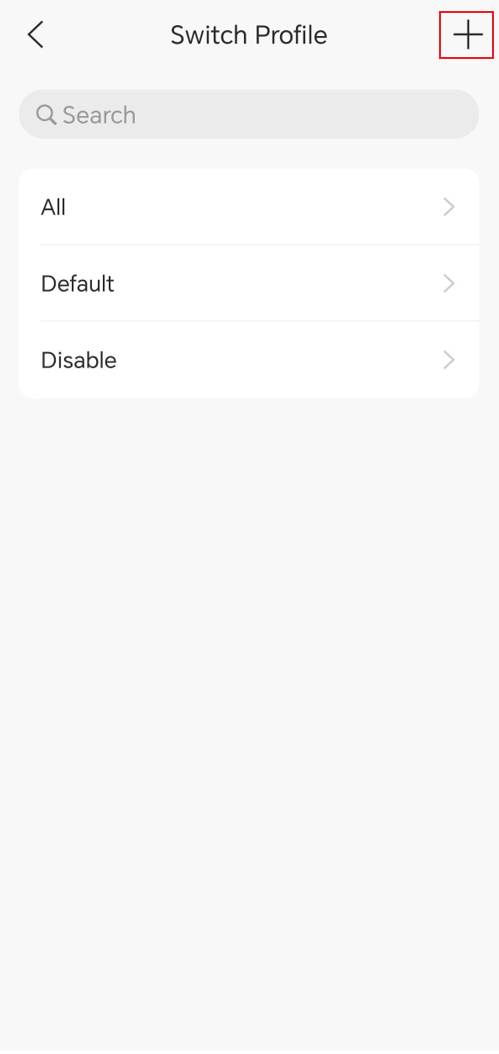
Step 1. Create a Switch Profile.
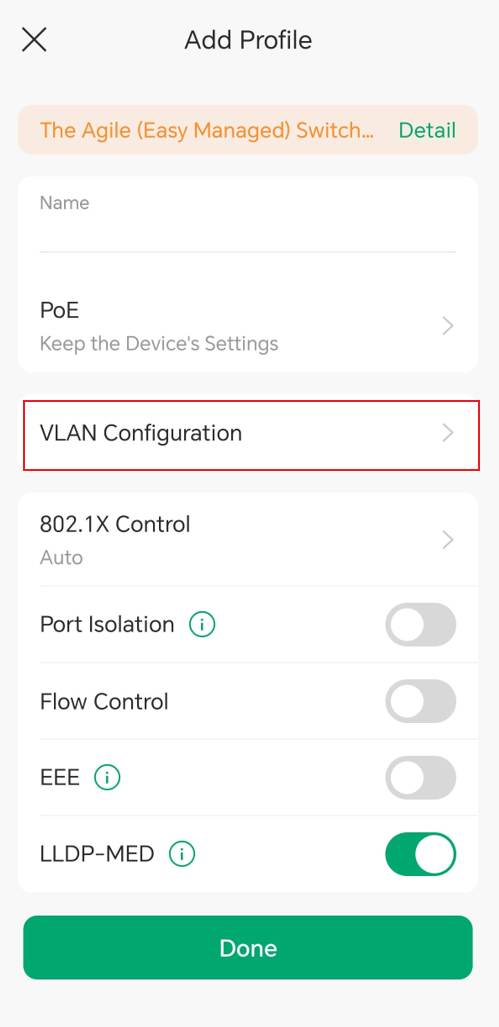
Navigate to Settings > LAN Settings > Switch Profile. Tap + to create a new Switch Profile.
Step 2. Open to VLAN Configuration.
Step 3. Configure VLAN settings.
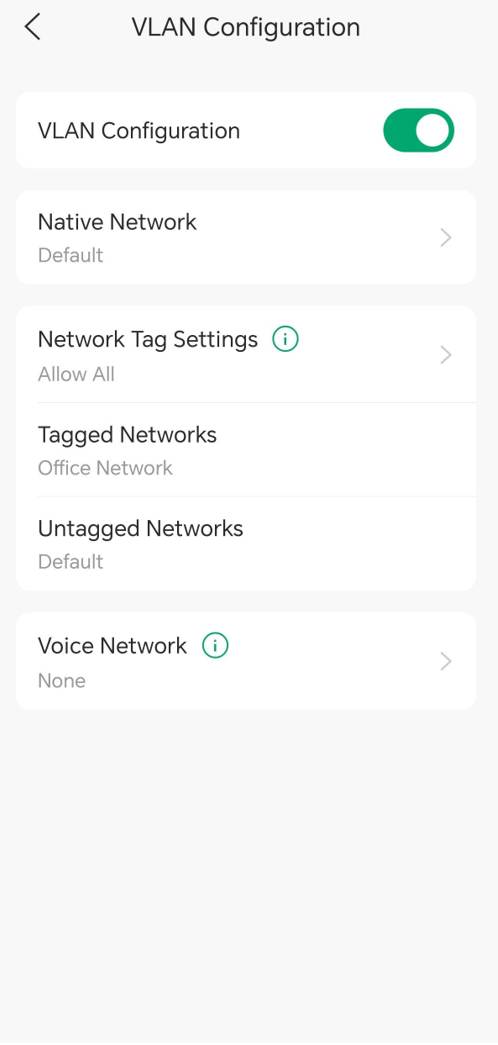
Enable VLAN Configuration and configure the required VLAN settings, such as:
- Native Network
- Tagged Networks
- Untagged Networks
- Other VLAN parameters
Step 4. Complete profile settings.
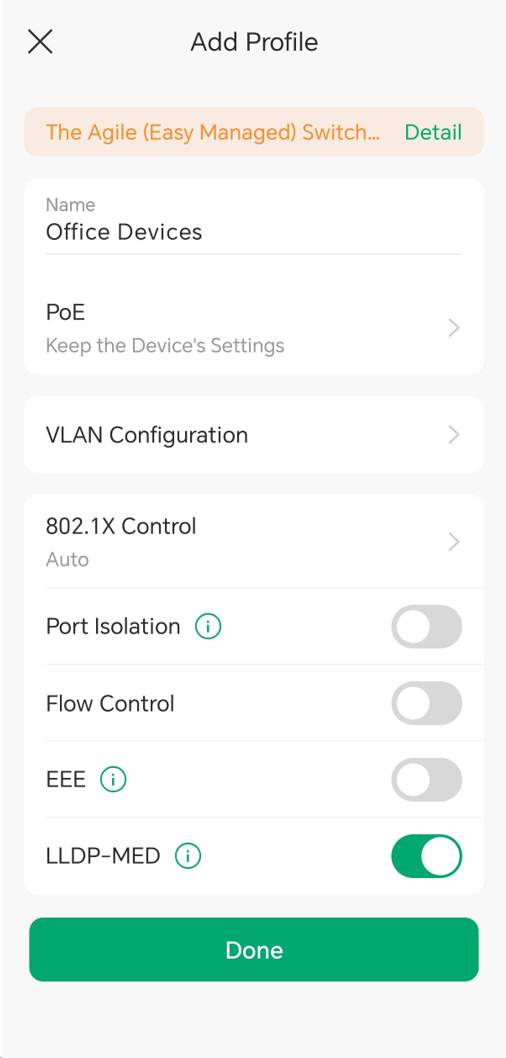
Return to the profile's general settings page and configure additional options as needed, such as:
- Profile Name
- 802.1X Authentication
- Port Isolation
Tap Done to save the profile.
Step 5. Select the target switch.
Navigate to Devices. Select the target switch.
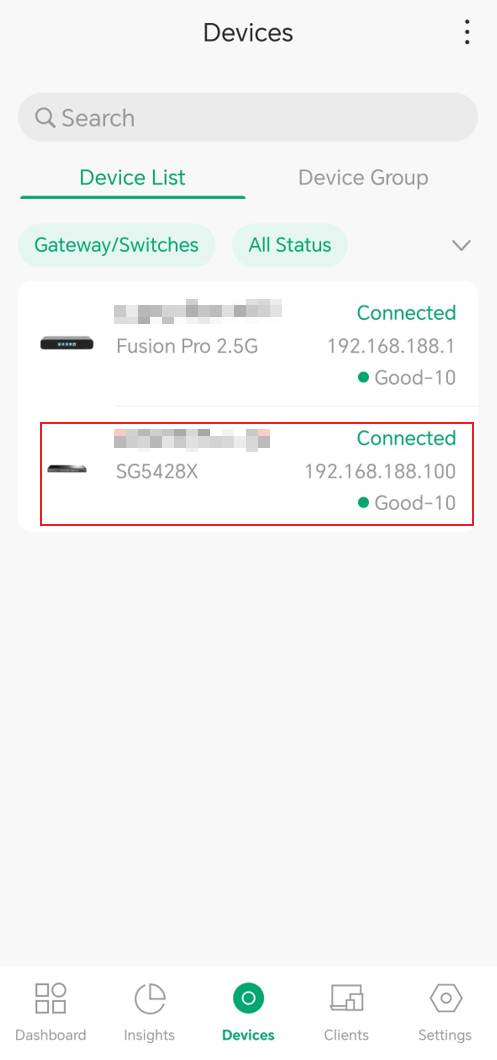
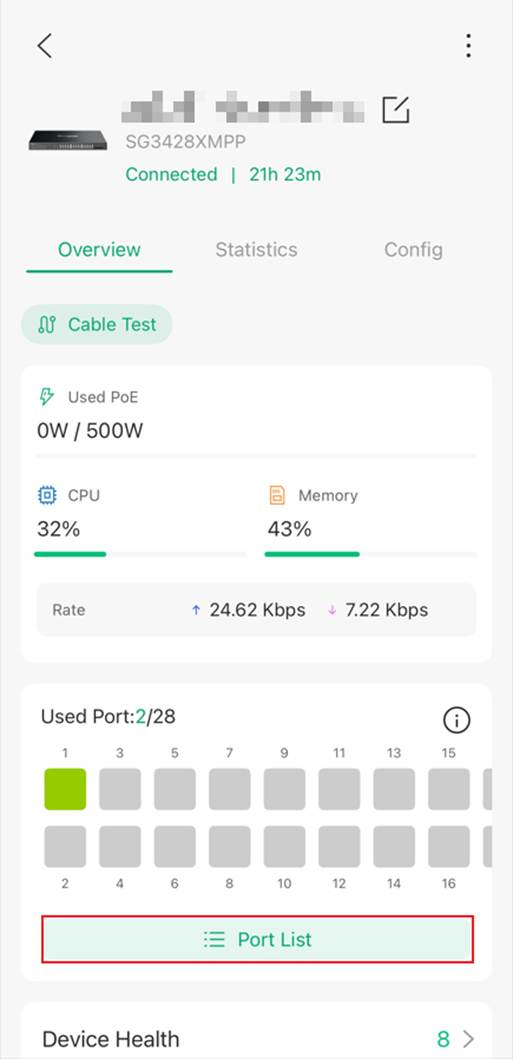
Step 6. Tap Port List.
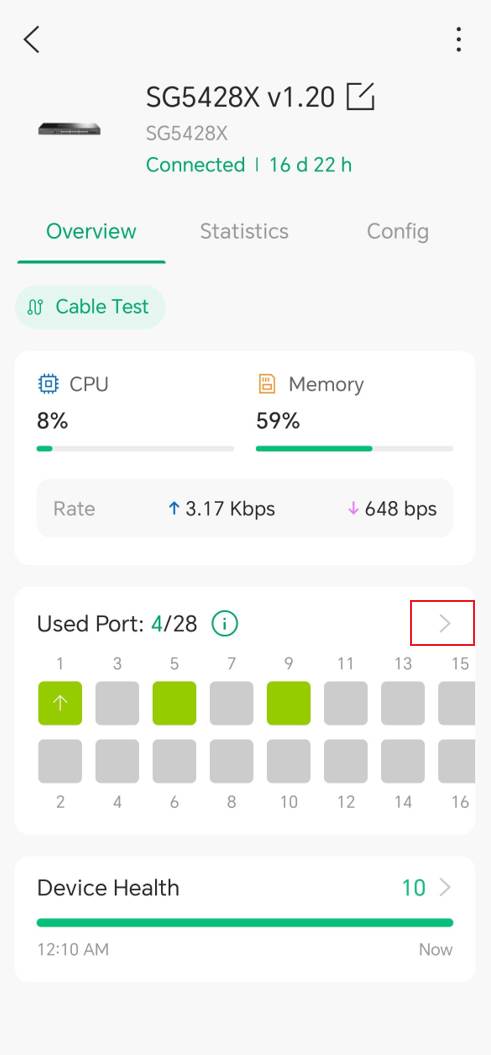
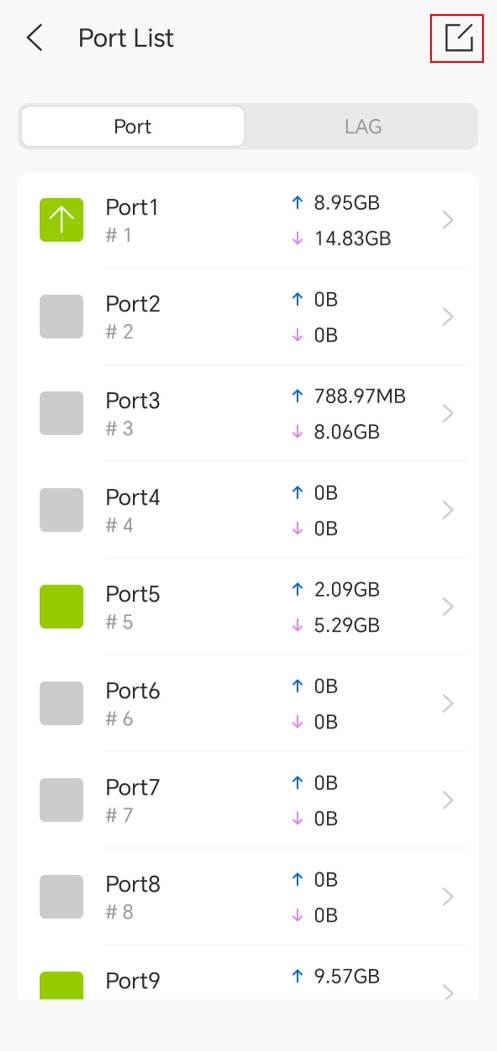
Step 7. Select ports.
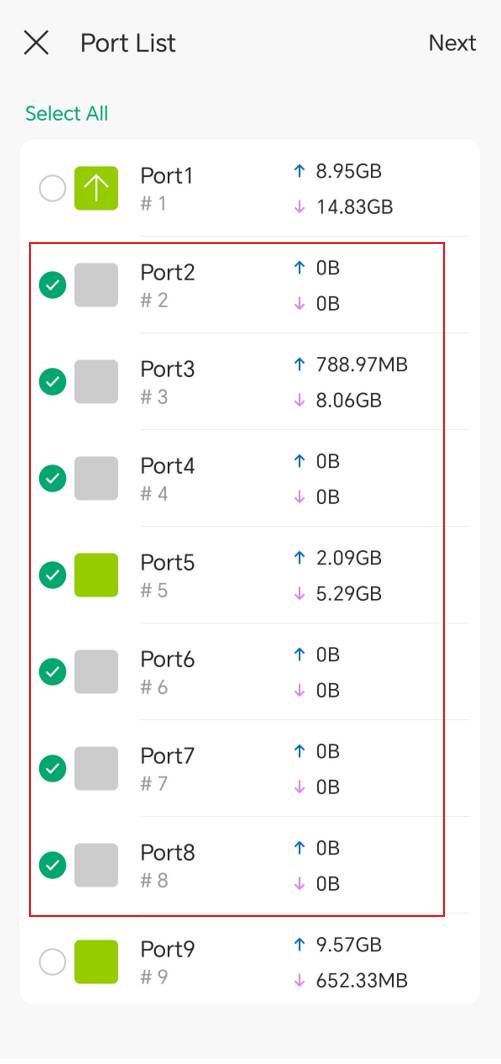
Select the port to be configured, or use batch editing to configure multiple ports.
In this example, ports 2 through 8 are selected.
Tap Next.
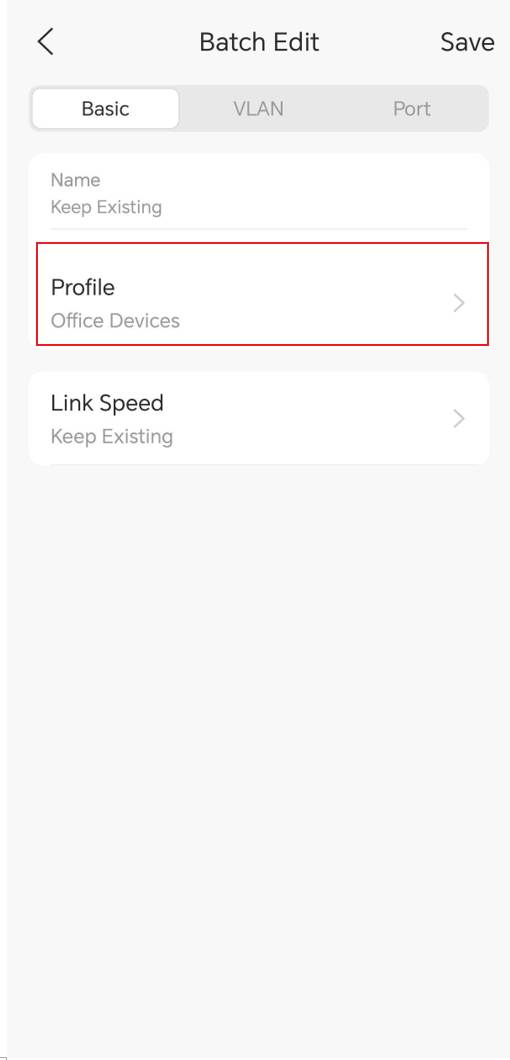
Step 8. Assign the Switch Profile.
Under Basic, assign the Switch Profile created earlier.
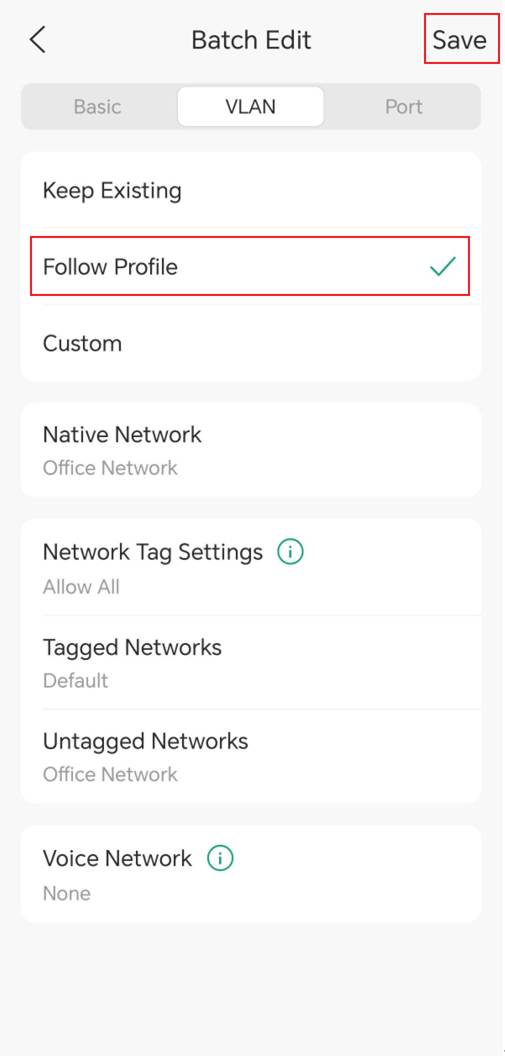
Step 9. Enable Follow Profile.
Navigate to VLAN and select Follow Profile.
Tap Save to apply the configuration.
Method 2: Configure custom port VLAN settings
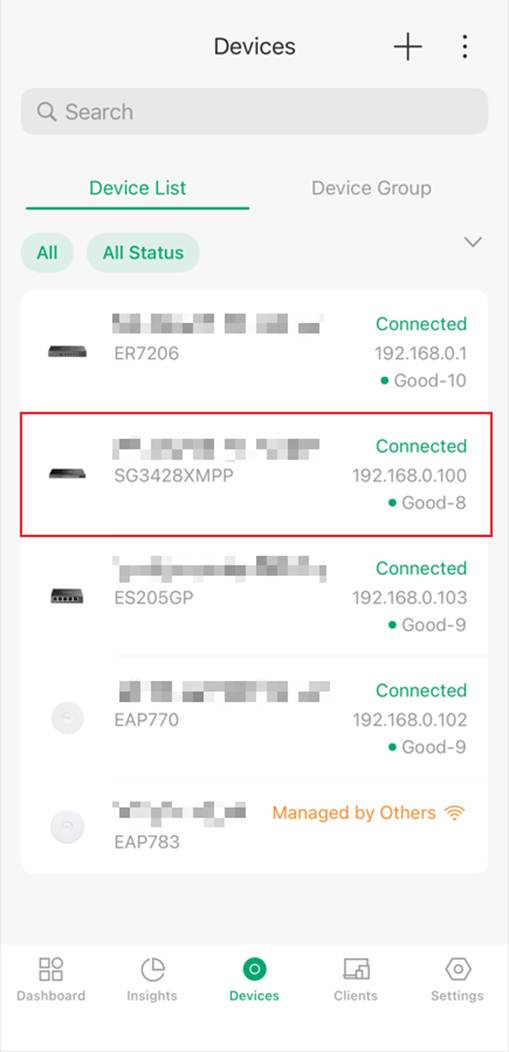
Step 1. Select the target switch.
Navigate to Devices. Select the target switch.
Step 2. Tap Port List.
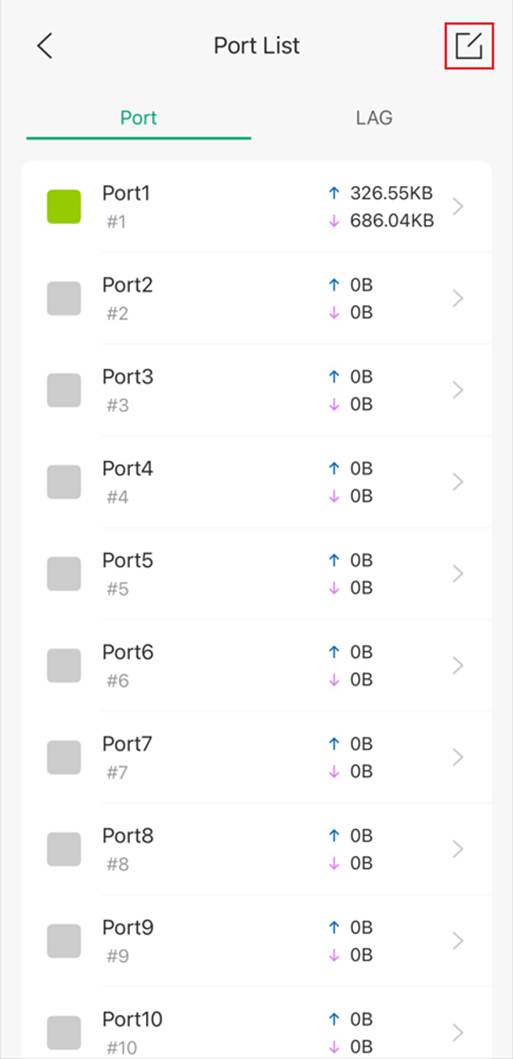
Step 3. Select ports.
Select the port to be configured, or use batch editing to configure multiple ports.
In this example, ports 2 through 8 are selected.
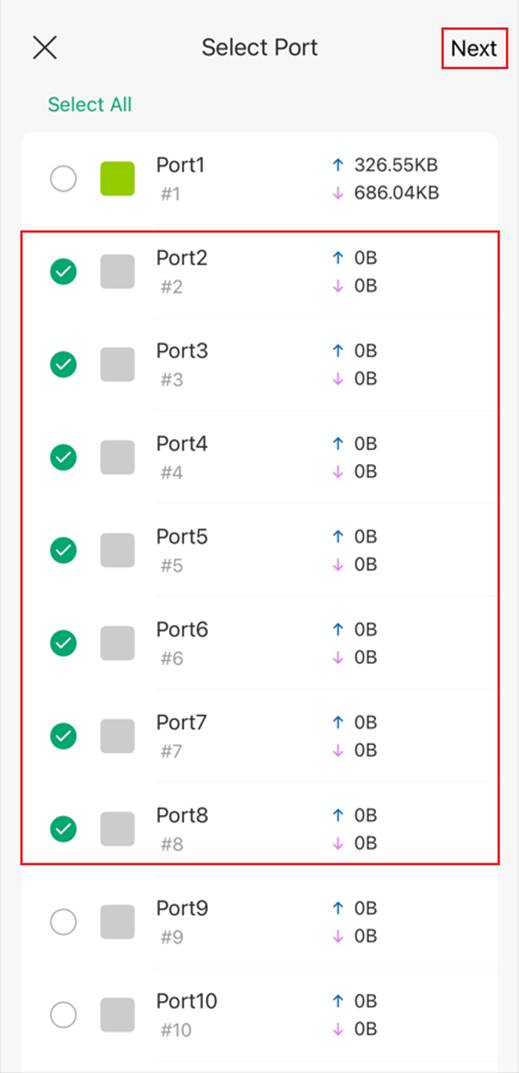
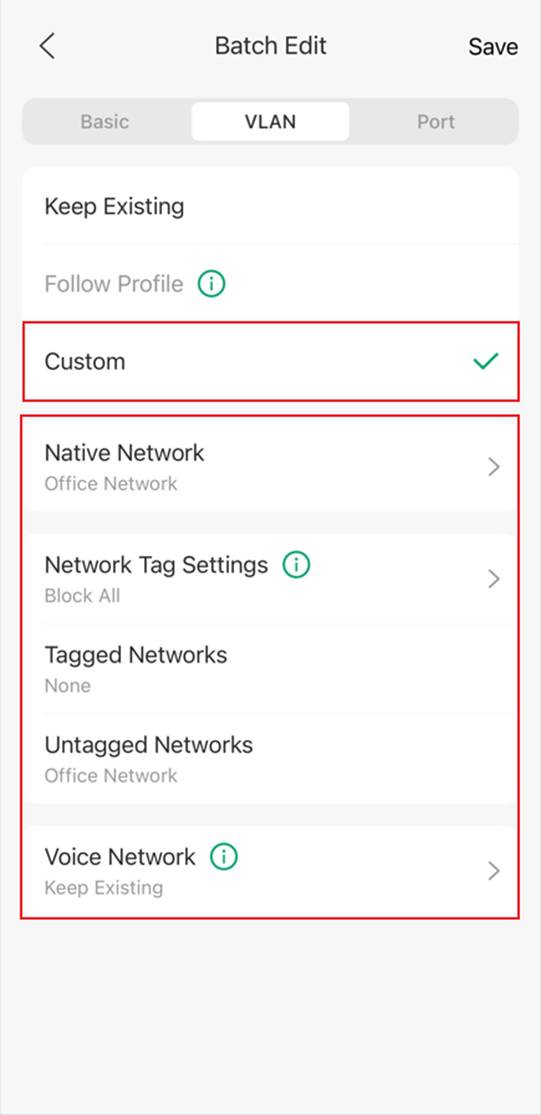
Step 4. Configure VLAN settings.
Under VLAN, select Custom.
Configure the required settings, such as:
- Native Network
- Tagged Networks
- Untagged Network
- Other VLAN parameters
Tap Save to apply the configuration.
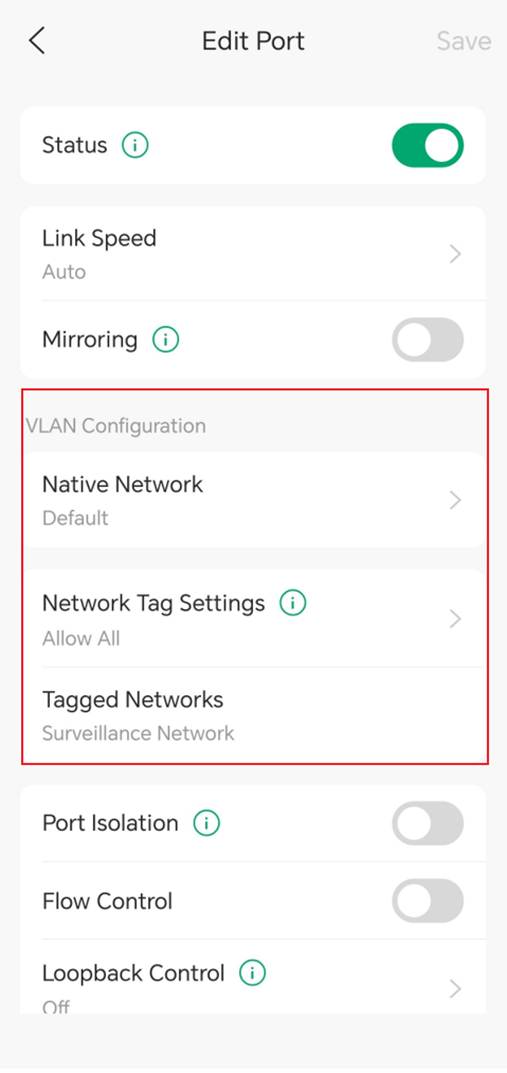
Configure VLAN settings on Fusion Pro 2.5G gateway LAN ports (new in v5.3)
Fusion Pro 2.5G gateways support VLAN configuration directly on LAN ports through the Omada App.
The configuration procedure is similar to Method 2: Configure custom port VLAN settings.
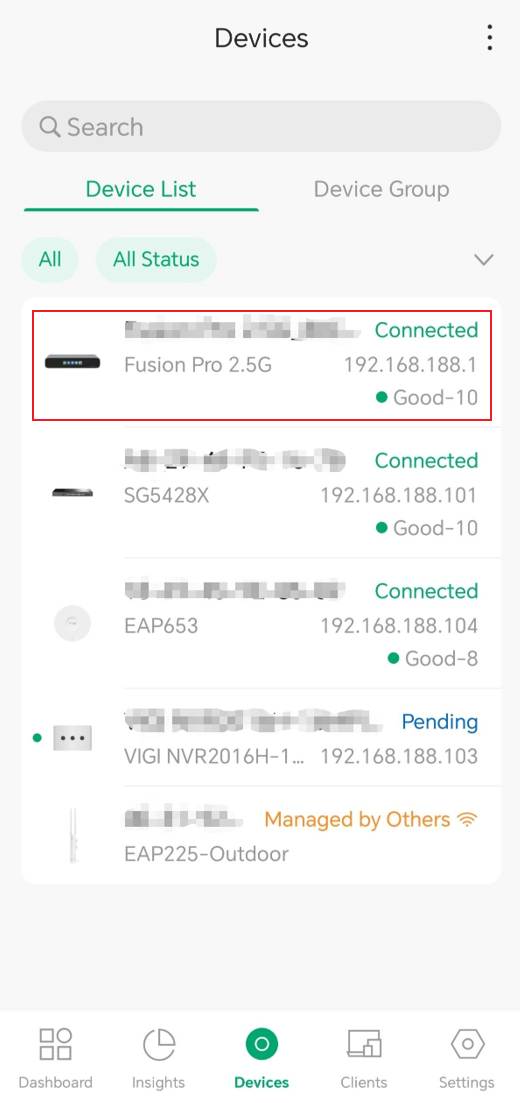
Step 1. Select the Fusion Pro 2.5G gateway
Navigate to Devices and select the Fusion Pro 2.5G gateway.
Step 2. Select a LAN port.
Select the LAN port to configure.
Port 5 is used in this example.
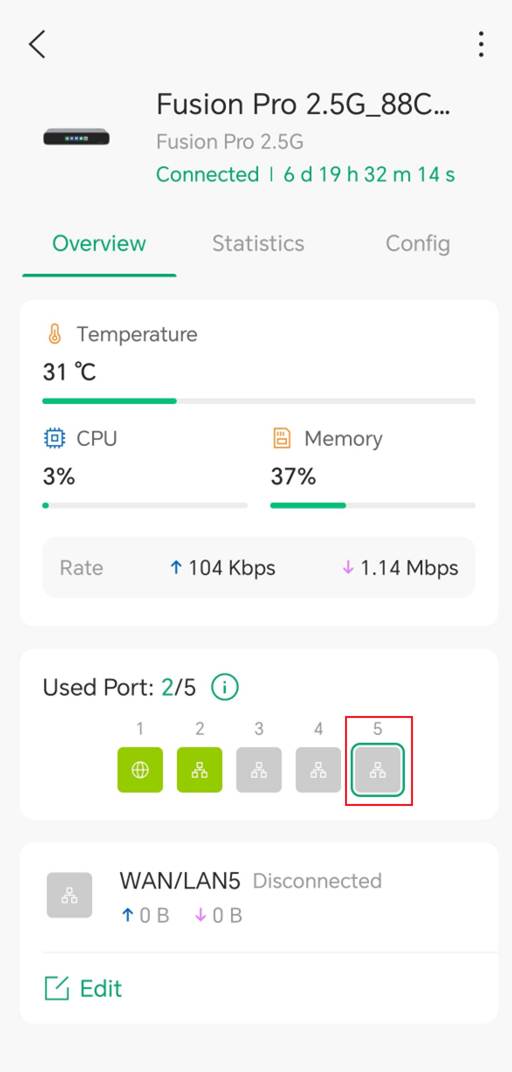
Step 3. Configure VLAN settings.
Configure the required VLAN settings, including:
- Native Network
- Networks Tag Settings
- Tagged Network
Tap Save to apply the configuration.
Conclusion
The Omada App provides multiple options for VLAN deployment and port configuration based on different network requirements. VLANs can be created through LAN Settings or Network Wizard, while switch ports can be configured using Switch Profiles or custom VLAN settings. Supported Omada App v5.3 releases further extend these capabilities with Surveillance Network deployment and Fusion Pro 2.5G gateway LAN port VLAN configuration.
To learn more about each function and configuration, please visit Support Home to download or check the manual for your product.
