


How to Configure Port Mirroring on Omada Gateways


Contents
Configuration for Controller mode
Configuration for Standalone Mode
Introduction
This article describes how to configure port mirroring for Gateways on Omada Controller and Standalone Mode.
Port Mirroring is a feature that copies network traffic from one or more ports and sends it to another port for monitoring or analysis. This is commonly used for troubleshooting network issues, monitoring traffic, or performing traffic analysis using packet capture tools.
Requirements
- Omada Gateway
- Omada Controller (If adopted by controller)
Configuration
Some explanations you may need to know before configuring Port Mirror.
There are three types of mirror modes that can be selected: Ingress, Egress, and Ingress and Egress. The functions of the three modes are as follows:
Ingress: The packets received by the mirrored port will be copied to the mirroring port.
Egress: The packets sent by the mirrored port will be copied to the mirroring port.
Ingress and Egress: Both the incoming and outgoing packets through the mirrored port will be copied to the mirroring port.
There are two port types in Port Mirror function.
Mirroring Port: The packets through the mirrored port will be copied to this port. Usually, the mirroring port is connected to a data diagnostic device, which is used to analyze the mirrored packets for monitoring and troubleshooting the network.
Mirrored Port:The packets through this port will be copied to the mirroring port. Usually, the mirrored ports are the ports to be monitored.
Note:
1. A port cannot be configured as the mirrored port and the mirroring port simultaneously.
2. Only one port can be configured as the mirroring port.
Configuration for Controller mode
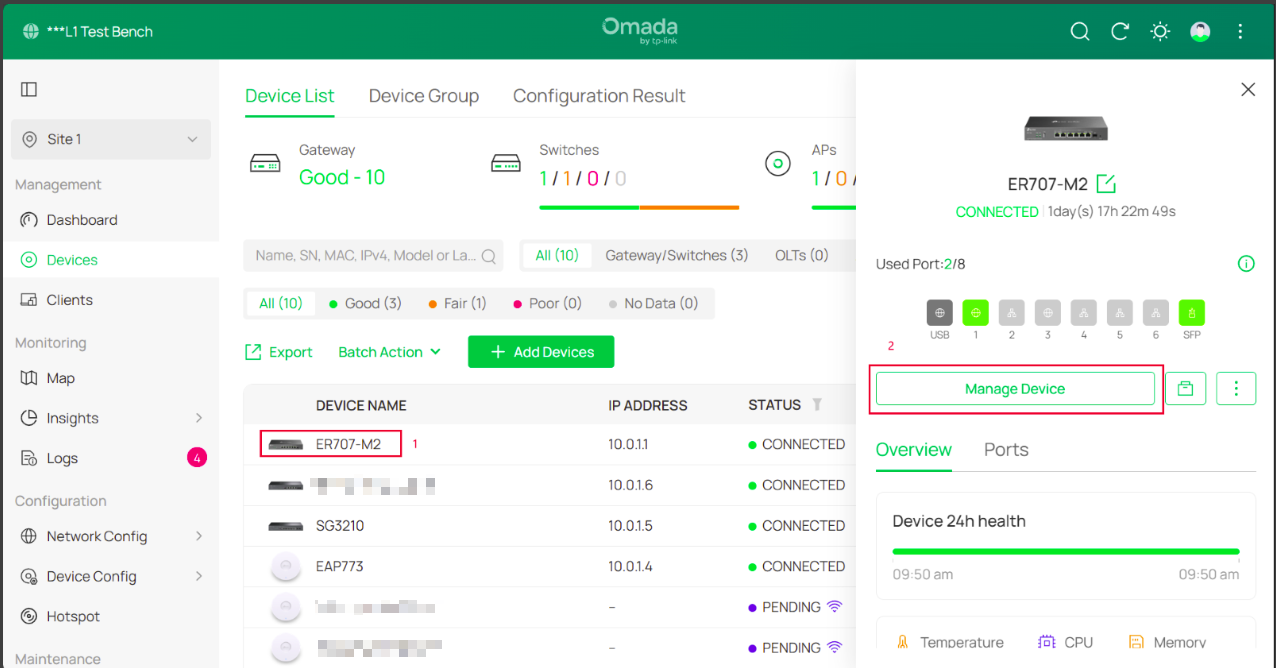
Step 1. From your Cloud Controller, navigate to the Site that you are trying to setup Port Mirroring on.
Step 2. Once on the Site, click on Devices.
Note: Make sure you are not on global view as the steps outlined below are based on the site view.
Step 3. Click on the gateway to bring up the Manage Device option. Click on Manage Device.
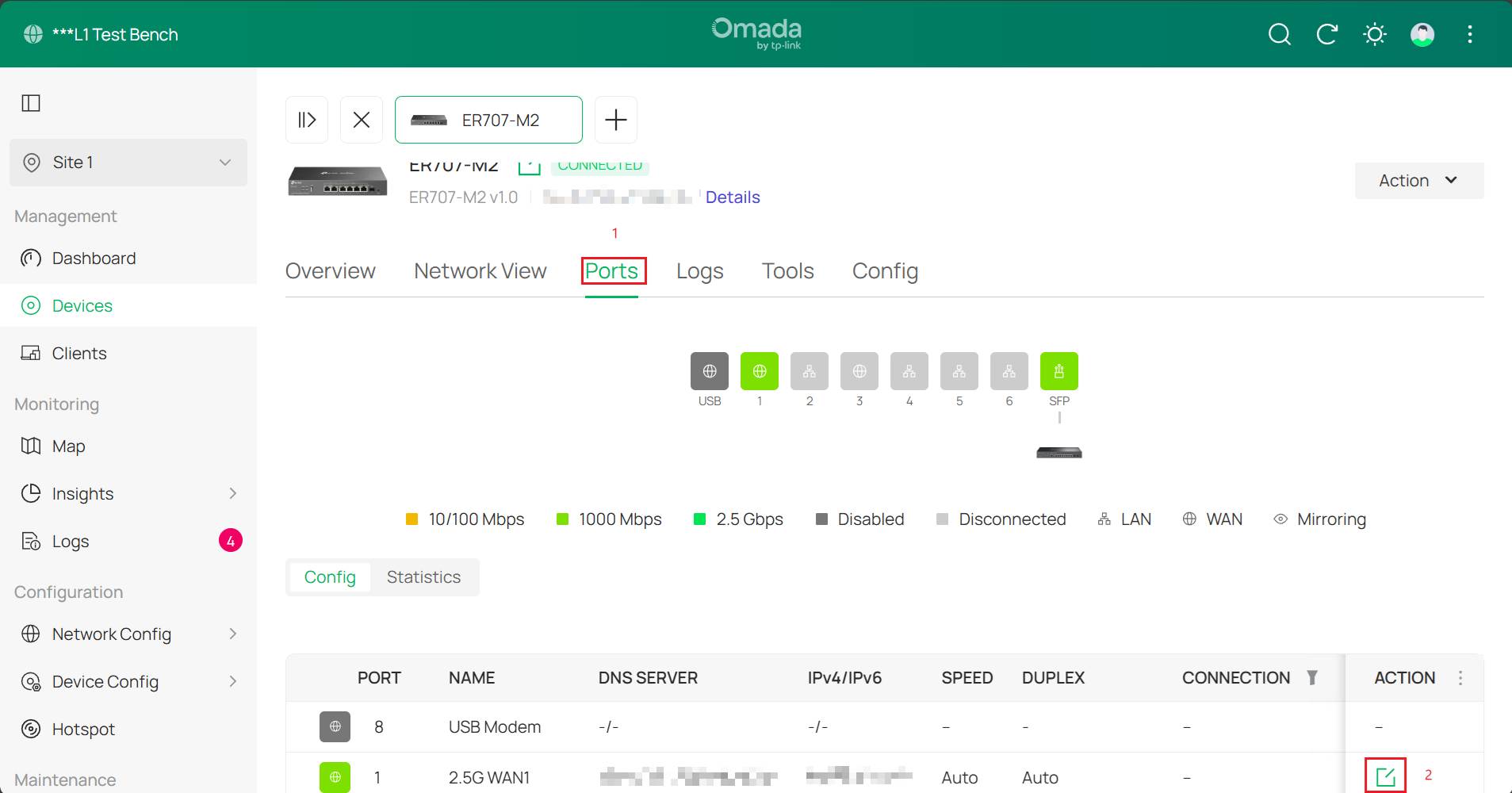
Step 4. Click on Ports to bring up the list of available ports on the gateway. Click on the edit option next to the port you want to set up mirroring on.
Step 5. Click on Config. Click on Enable next to the Mirroring option. Select the port that will be mirrored. Set the Mirror Mode to Ingress and Egress, set the Native VLAN that you will be capturing from.
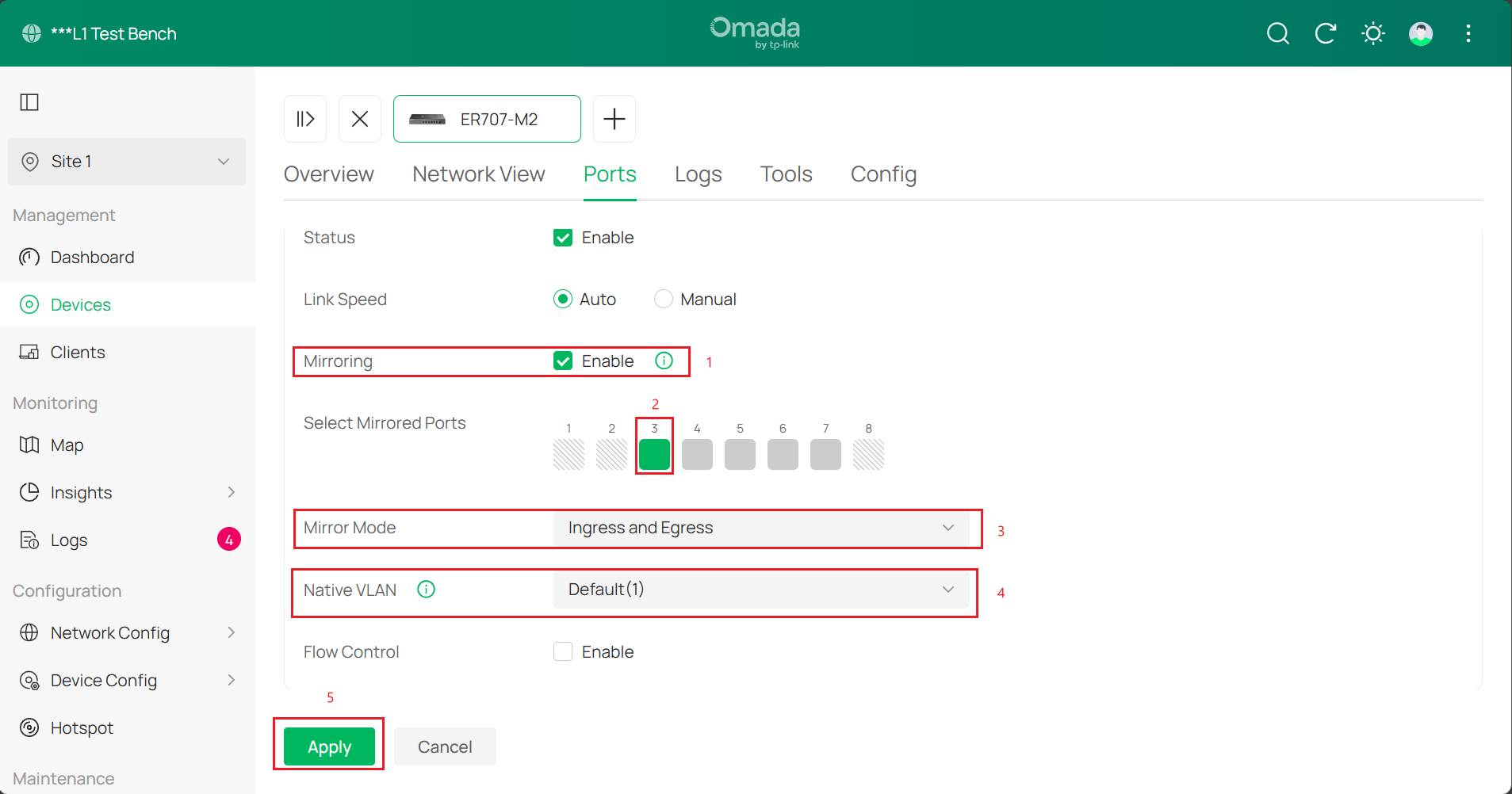
Note: When a physical WAN port is configured with multiple WAN connections, and all are VLAN-tagged, untagged packets received on the WAN port will be tagged with this specific PVID. This feature takes effect when the WAN port receives untagged packets from an ISP.
Configuration for Standalone Mode
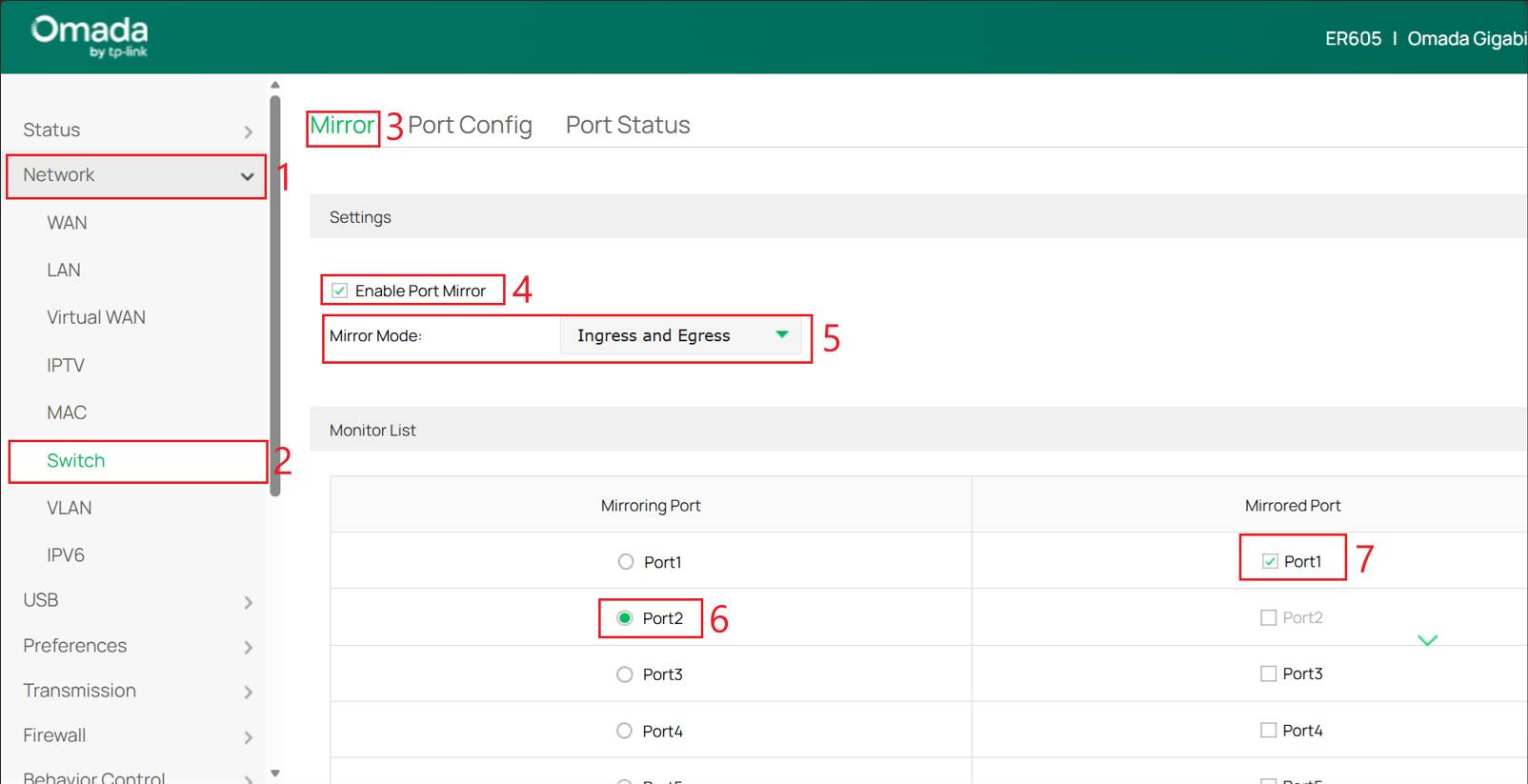
Step 1. Log in to your Omada gateway via its IP, which is set to 192.168.0.1 by default. If you have changed this, log in via the IP you set.
Step 2. Navigate to Network > Switch > Mirror. Click on the check box next to Enable Port Mirror, set the Mirror Mode to Ingress and Egress. Set the Mirroring Port and the Mirrored Port.
Conclusion
You have now successfully configured Port Mirroring.
To learn more about each function and configuration, please visit Support Home to download or check the manual for your product.
QA
Q1: What should I do if I do not see all traffic?
A1: Check to see that the Mirror Mode is set to Ingress and Egress.
Q2: What should I do if I do not see the mirrored port traffic?
A2: Check to see that the correct port has been set as the Mirroring Port, and the port you want to capture the traffic from is set as the Mirrored Port.
Q3: Can I mirror multiple source ports to one mirroring port.
A3: Yes, select all the applicable ports you want to mirror.
Q4: Can I use a wireless interface for port mirroring?
A4: No, port mirroring will only work on the ethernet interface of the gateways.
Q5: Can I mirror WAN traffic
A5: Yes, WAN ports can be mirrored. However, if VLAN tagging is involved, ensure the correct settings are configured to capture all relevant traffic.
