How to Configure 802.1Q VLAN on Omada Agile/Easy Managed Switches in Standalone Mode


Contents
Introduction
IEEE 802.1Q VLANs allow network administrators to logically segment a network into multiple broadcast domains while using the same physical switch infrastructure. This helps improve security, simplify network management, and reduce unnecessary broadcast traffic between devices. Omada Agile and Easy-Managed switches support 802.1Q VLAN configuration, enabling administrators to assign ports to specific VLANs as tagged or untagged members based on network requirements. This guide demonstrates how to configure 802.1Q VLANs on Omada Agile and Easy-Managed switches and explains the role of tagged and untagged ports within a VLAN environment.
Note: For 802.1Q setup in the Omada controller, please follow this guide: How to Configure 802.1Q VLAN on Omada Switches in Controller Mode
Requirements
- Omada Agile/Easy Managed Switch
Configuration
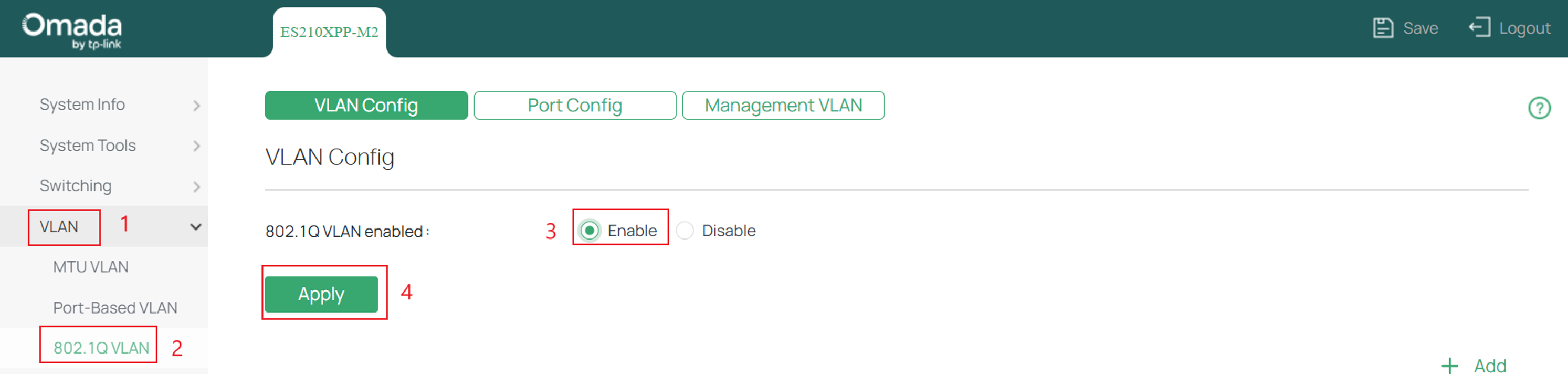
Step 1. Log into the switch and navigate to VLAN > 802.1Q VLAN > Enable 802.1Q and click Apply.
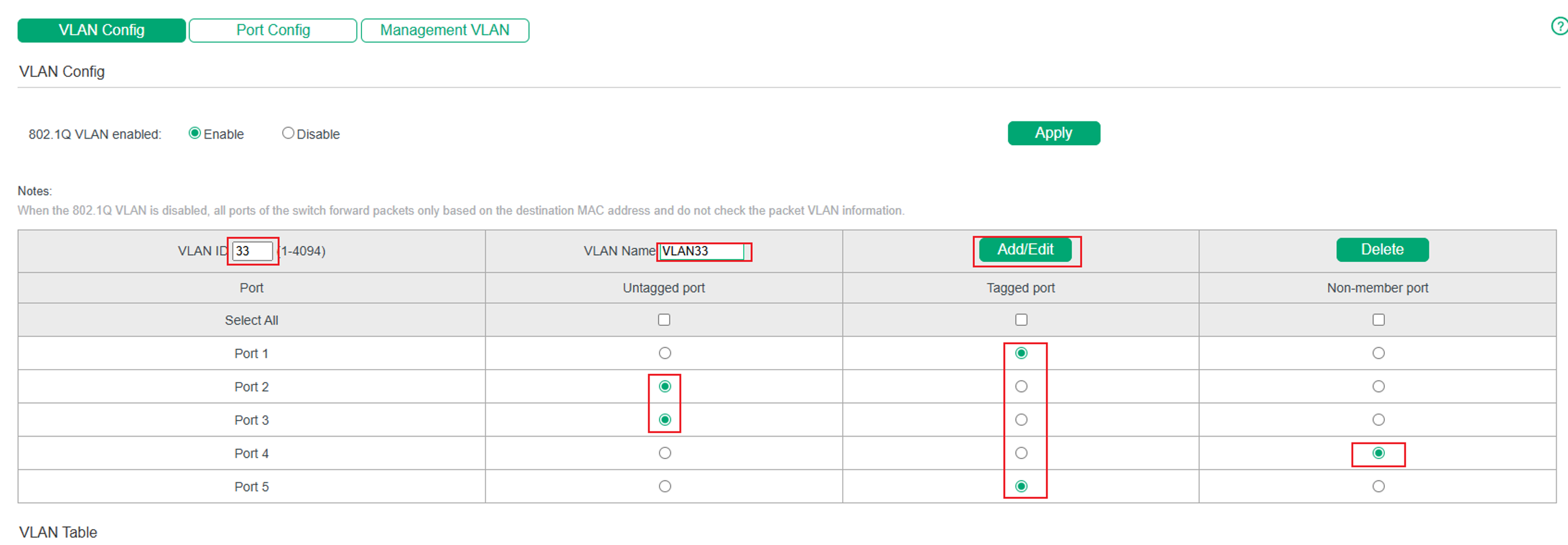
Step 2. Here are the parameters.
Port 1 is configured as Tagged because it is the uplink to another network device and must carry traffic for multiple VLANs.
Port 5 is also configured as Tagged because it is connected to an access point broadcasting an SSID that is mapped to this VLAN.
Configure any ports that should connect directly to end devices in this VLAN as Untagged.
Configure any ports that should not participate in this VLAN as Non-member.
Click Add/Edit once complete.
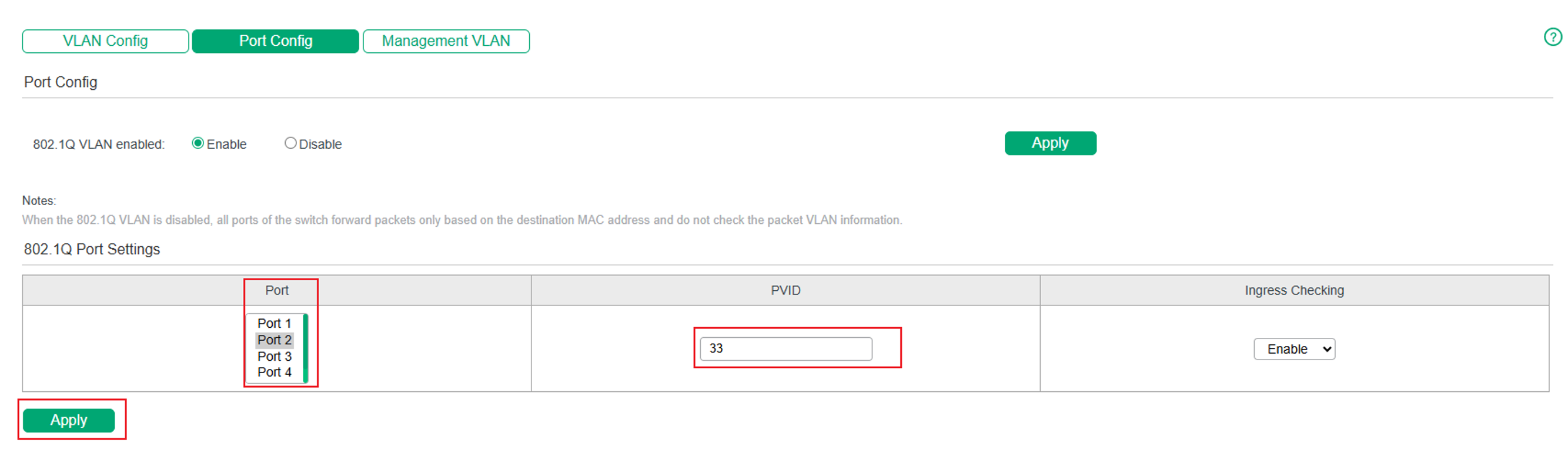
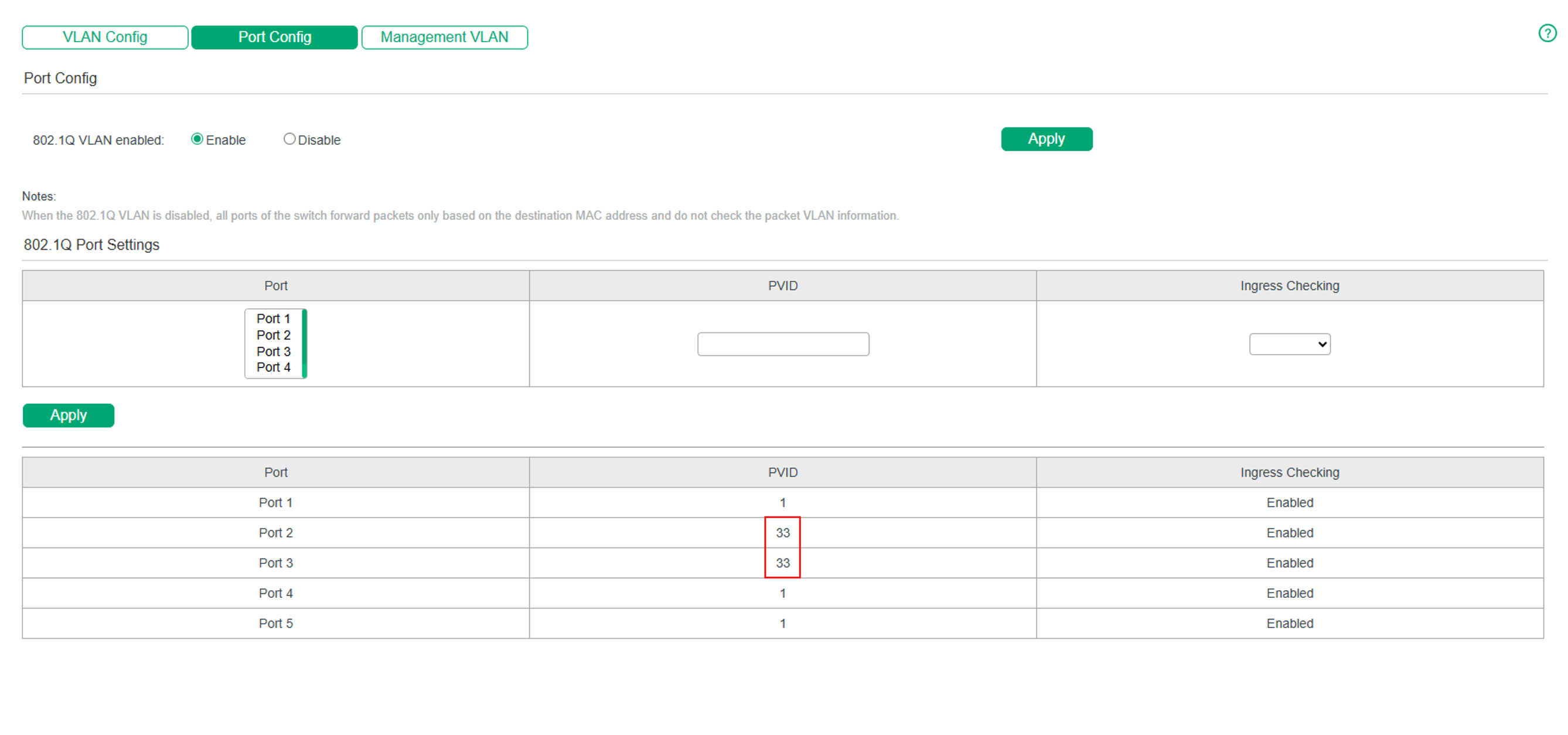
Step 3. Next, navigate to Port Config > select the access port under Port > set the PVID to the correct VLAN ID.
Click Apply once complete.
Conclusion
By configuring 802.1Q VLANs on an Omada Agile or Easy-Managed switch, you can logically separate network traffic while using the same physical switching infrastructure. Properly assigning tagged, untagged, and non-member ports ensures that VLAN traffic is forwarded correctly between switches, routers, access points, and end devices.
To learn more about each function and configuration, please visit Support Home to download or check the manual for your product.
QA
Q1: Why are my devices not getting an IP address
A1: Verify that the port is assigned to the correct VLAN and that the PVID matches the VLAN ID for untagged devices. Also ensure that a DHCP server is available for that VLAN.
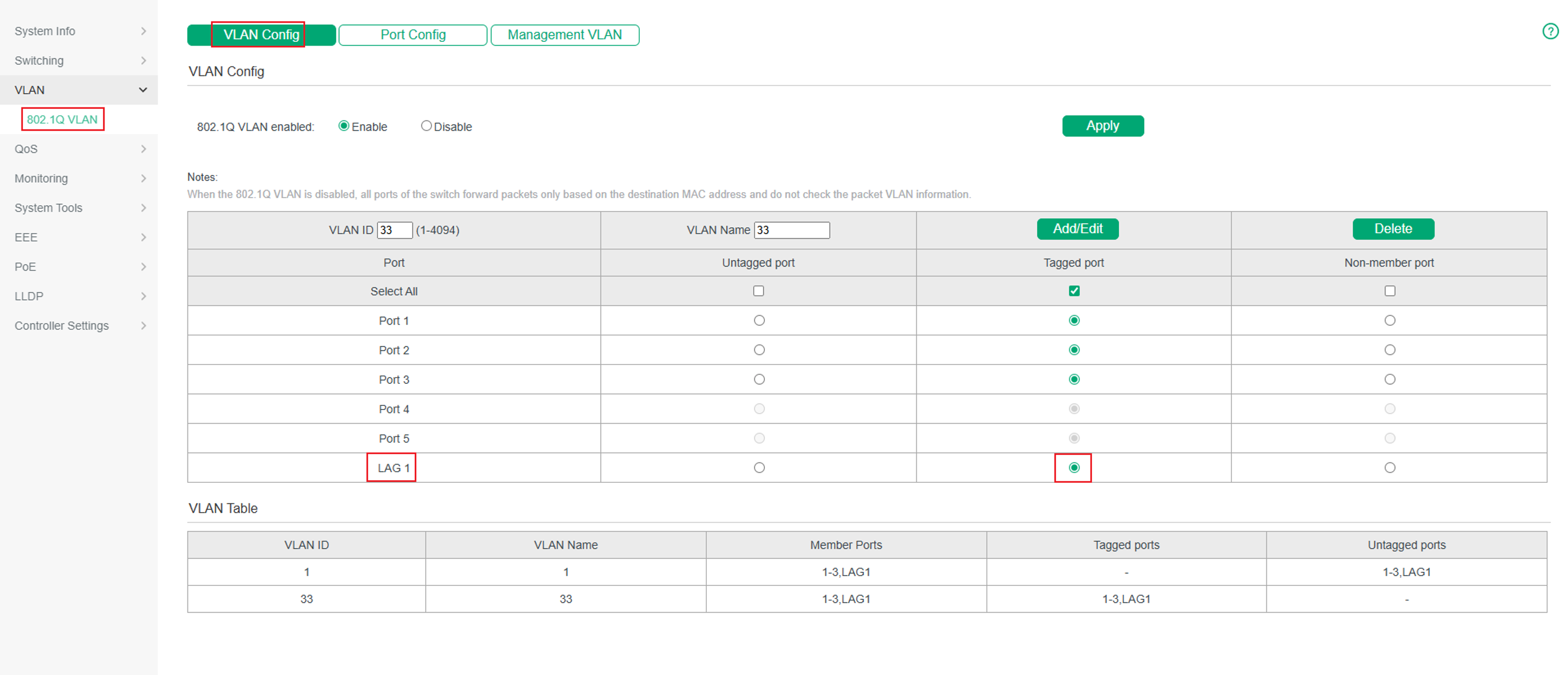
Q2: How to configure 802.1Q VLAN for Lag ports
A2: When configuring LAG ensure to plug one ethernet cable first and verify all the interfaces have the same VLAN, Speed, and Duplex configurations.