


How to Troubleshoot Wireless Issues on Omada Access Points


Contents
Issue 1: Wireless clients can't see the SSID of Omada EAP.
Issue 2: Wireless clients can see the SSID but have wireless connection problems
Introduction
Common wireless issues including:
- Wireless clients can’t see the SSID of Omada EAP.
- Wireless clients can see the SSID but have wireless connection problems.
- Slow wireless speed
You can follow the following suggestions to do some optimizations of these kinds of issues.
Requirements
-
Omada controller v6.0 or above
Common wireless issues
Issue 1: Wireless clients can’t see the SSID of Omada EAP.
1. Confirm the signal strength and wireless coverage distance.
1) Make sure the client is not too far away from AP. (The recommended distance between indoor AP and clients is less than 15 meters, and between outdoor AP and clients is less than 100 meters.)
2) Make sure there are few obstacles between AP and clients. (Such as buildings, trees)
2. Confirm the power supply methods
1) Confirm the power supply method and check if the EAP product is powered on.
2) Make sure the Ethernet Cable length between PoE switch/adapter is not too long. (We suggest using Cat5e or above Ethernet Cable. For Standard PoE, the recommended cable length is less than 100 meters. For Passive PoE, the recommended cable length is less than 60 meters)
3. Check the wireless configuration of EAP
1) Make sure “SSID Broadcast” is enabled in EAP. (Or EAP will not broadcast the SSID)
Network Config > Network Settings > WLAN > Advanced Settings.
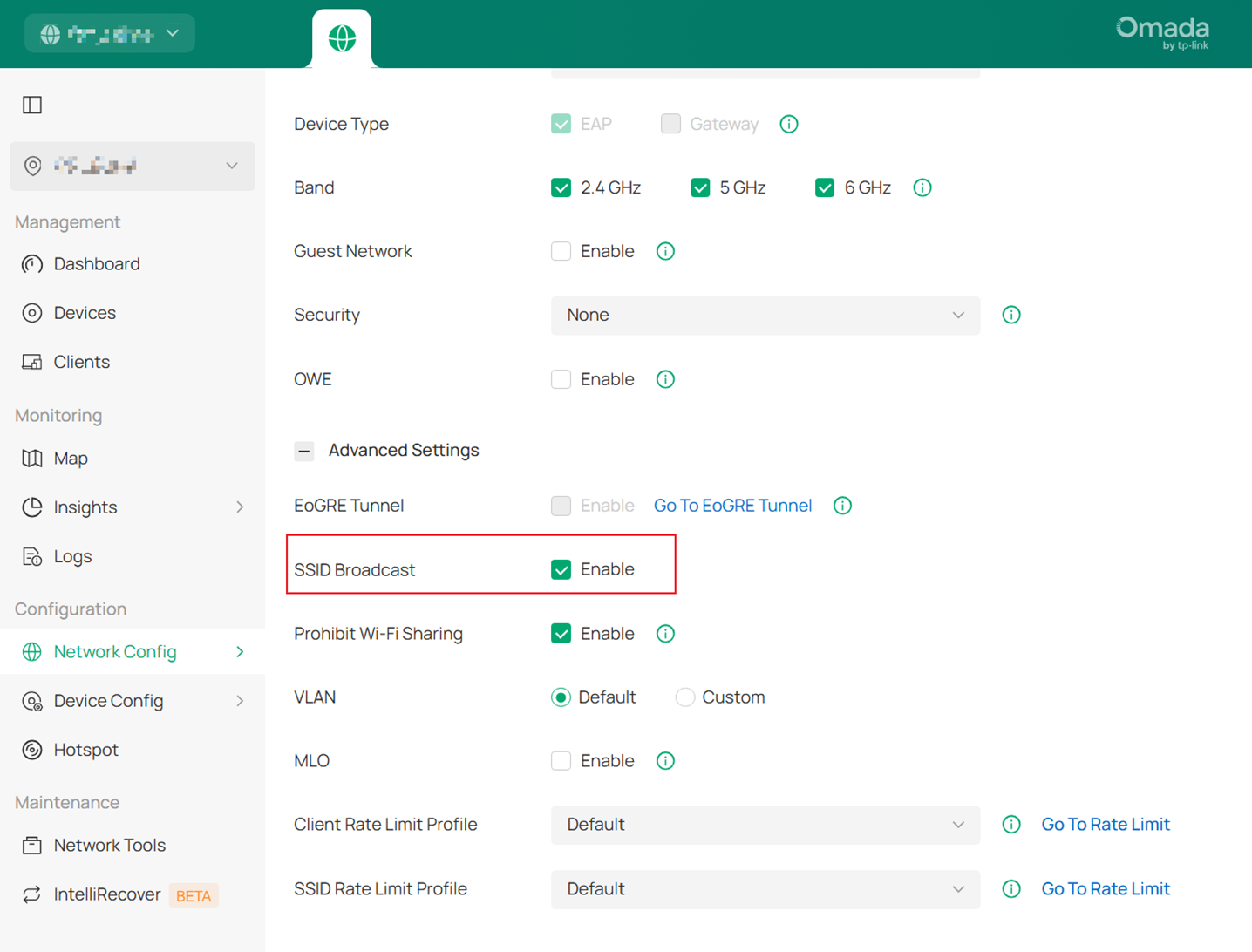
Note: For EAP devices with firmware compatible with Controller v6.1 or higher, the default SSID will disappear after two hours as part of a security update.
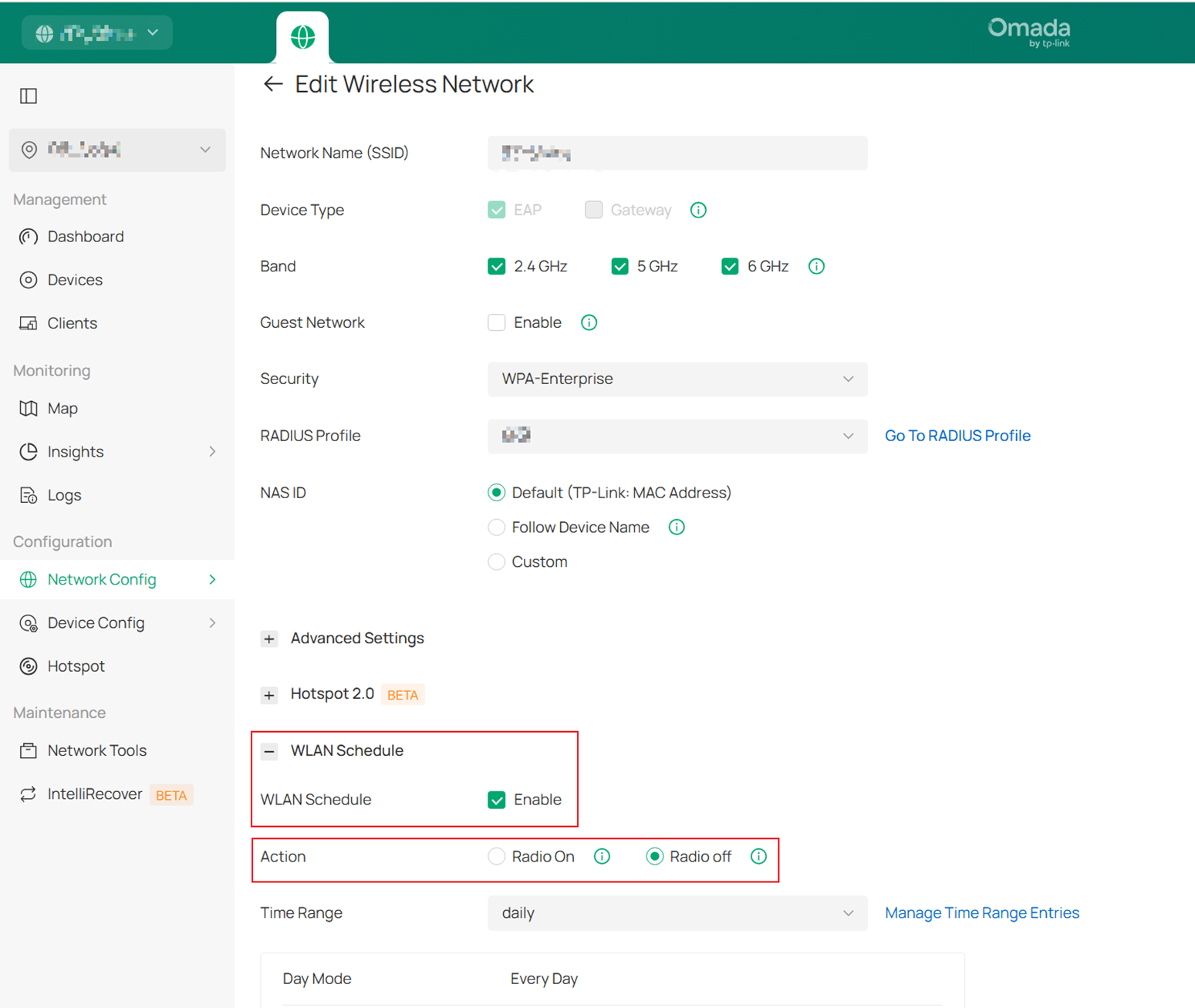
2) If you have enabled the “Scheduler” function of this SSID, and the Action is “Radio Off”, make sure the “Scheduler” function does not take effect during this period.
Network Config > Network Settings > WLAN > WLAN Schedule.
3) In Controller v6.3 and above, if you enabled Conditional SSID Broadcast Control and select Uplink/Internet as the detection condition, please check the uplink connection or Internet input when the SSID disappears. For further configuration details, please check: How to Configure Conditional SSID Broadcast Control on Omada Controller
4) Make sure you have set the correct SSID name. If EAP is managed by Omada Controller, make sure EAP shows in the “Connected” list. The wireless configuration will take effect only when EAP is “connected” with Omada Controller.

5) Check if you have set a 5G-only SSID. Some wireless clients do not support the 5G radio.
6) Check the wireless channel of the EAP device.
· For 2.4G SSID, please change to use channels from 1-11, as some wireless clients do not support 12/13.
· For 5G, please check if EAP is using DFS channels, as EAP will close SSID broadcasting if it detects a radar signal. (The SSID will disappear in less than 10 minutes in this situation)
4. Do wireless optimization for Omada EAP
Bad wireless disturbance may also cause the disappearance of SSID. You can refer to FAQ2511 to do wireless optimization.
Issue 2:Wireless clients can see the SSID but have wireless connection problems
1. Confirm the signal strength and wireless coverage distance
1) Make sure the client is not too far away from AP. (The recommended distance between indoor AP and clients is less than 15 meters, between outdoor AP and clients is less than 100 meters.)
2) Make sure there have few obstacles between AP and clients. (Such as buildings, trees)
Note: If the wifi is connected but the client can not obtain an IP address, please refer to What to do if your client cannot obtain an IP address after connecting to the EAP's Wi-Fi?
2. Confirm the power supply methods
1) Make sure the Ethernet Cable length between PoE switch/adapter is not too long. (We suggest using Cat5e or above Ethernet Cable. For Standard PoE, the recommended cable length is less than 100 meters. For Passive PoE, the recommended cable length is less than 60 meters)
2) Some EAP models with PoE out feature enabled require a more stable and higher PoE input. (If you are using these kinds of EAP products, make sure your PoE switch or PoE adapter meets the PoE requirements, or it may cause an insufficient power issue.)
2. Confirm the Capacity and mass flow application of clients
1) Check if EAP product is connected too many wireless clients that leads to overload. Please reduce devices appropriately and check the connection again. (The recommended client number of single band EAP is less than 25, of dual-band EAP is less than 60)
2) Check if there are many wireless clients running applications with big traffic, such as online video, P2P download, it may also cause the overloaded problems of EAP. For this situation, you can set a rate limit for each client in Omada Controller or Router.
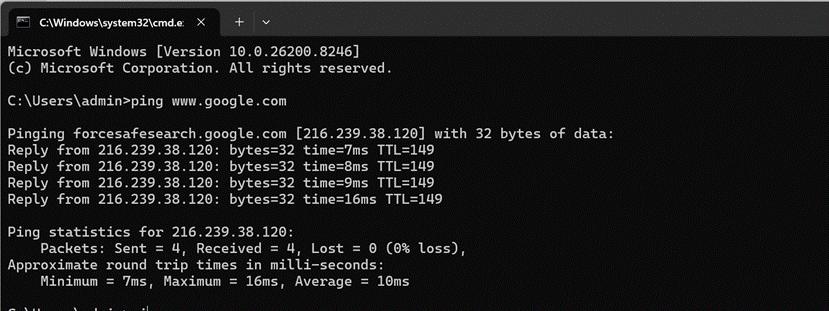
4. Do ping test to check the network connectivity between wireless client and Internet. (You can refer to FAQ425 to use the Ping Command.)
1) Ping the IP address of EAP.
2) Ping the IP address of gateway and DHCP Server. (It is usually the LAN IP address of Router. Make sure the DHCP Server of Router is working if wireless clients can’t get an IP address.)
3) Ping 8.8.8.8. (The DNS Server of Google)
4) Ping www.google.com.
5. Do wireless optimization for Omada EAP
Bad wireless disturbance may also cause these kinds of wireless issues. You can refer to FAQ2511 to do a wireless optimization.
Issue 3: Slow wireless speed
1. Confirm the wireless link speed between wireless clients and EAP
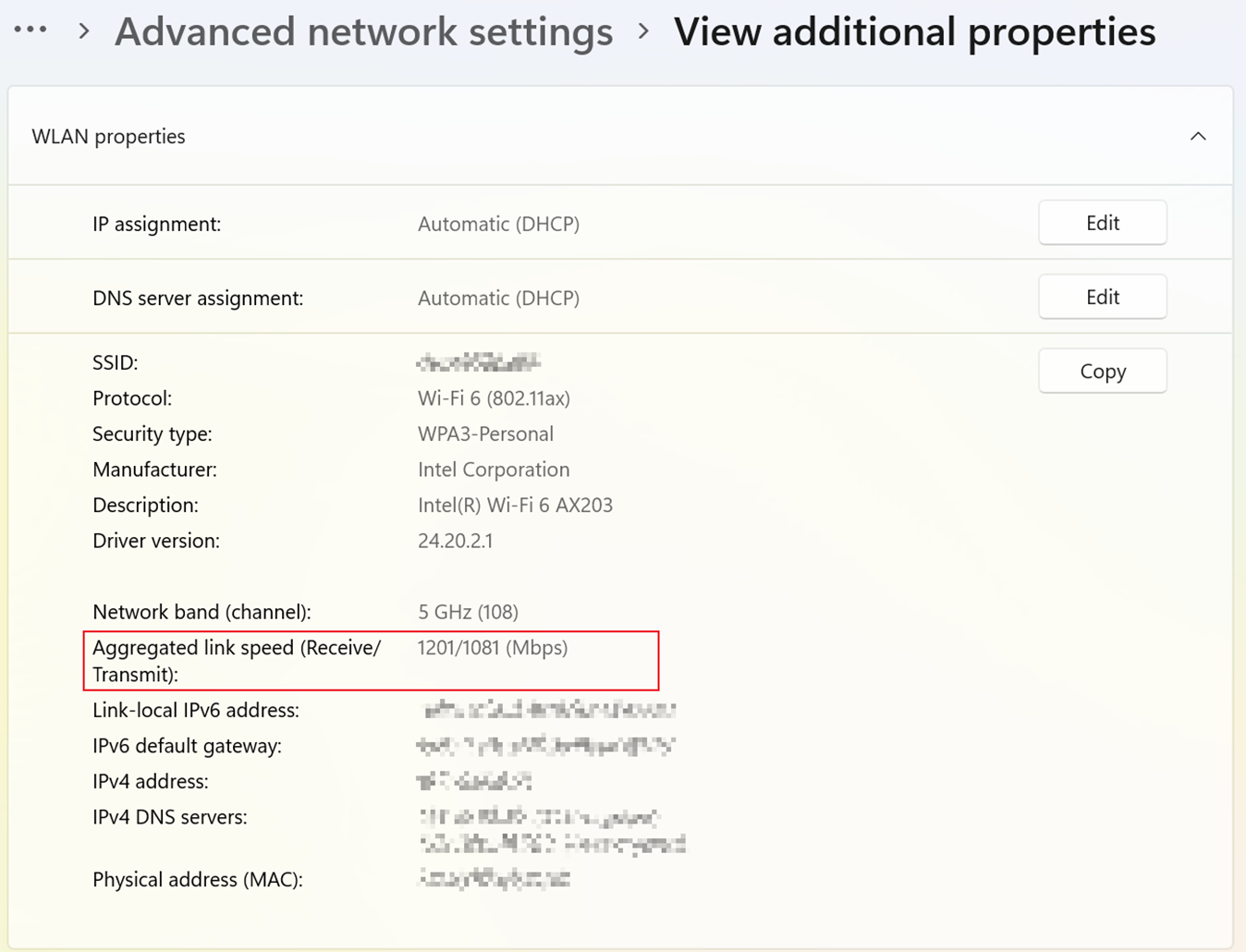
Check the wireless link speed of clients. Wireless speed depends on the wireless link speed which clients associate with EAP. Since different wireless devices have different wireless performance, they may have different wireless link speed. Generally speaking, the wireless speed of clients is about 1/3-1/2 of wireless link speed.
For how to check the link speed of wireless clients, you can refer to FAQ2265.
2. Confirm the speed test method
Try to use Speedtest® tools (https://www.speedtest.net ) to check the wireless speed of clients. But please note, the test result may be inaccurate sometimes. You may also use iperf or ixchariot to test speed more accurately
3. Confirm the signal strength and wireless coverage distance
1) Make sure the client is not too far away from AP. (The recommended distance between indoor AP and clients is less than 15 meters, between outdoor AP and clients is less than 100 meters.)
2) Make sure there have few obstacles between AP and clients. (Such as buildings, trees)
4. Confirm the Capacity and mass flow application of clients
1) Make sure EAP is not connected with too many wireless clients, it may cause an overloaded problem and affect the performance of EAP. (The recommended client number of single band EAP is less than 25, of dual-band EAP is less than 60)
2) Make sure there doesn’t have too many wireless clients doing big traffic applications, such as online video, P2P download, it may also cause the overloaded problem of EAP. For this situation, you can set a rate limit for each client in Omada Controller or Router.
5. Do wireless optimization for Omada EAP
A bad wireless disturbance may also cause slow wireless issues. You can refer to How to Optimize wireless performance for Omada EAPs | Omada Network Support to do wireless optimization.
Conclusion
You can do some troubleshooting based on the above suggestions. If they cannot help you solve your issue, please contact the technical support team. Find the contact number here Omada Network Support
To learn more about each function and configuration, please visit Support Home to download or check the manual for your product.
