


How to Troubleshoot Omada Gateway IPsec VPN Connection Failure


Contents
Introduction
Internet Protocol Security (IPsec) is a suite of protocols and services that provide security for IP networks. It is a widely used virtual private network (VPN) technology.
IPsec VPN requires remote users to install a dedicated VPN client or deploy a VPN gateway at the site. User access is checked by the client or gateway in terms of user authentication rules, security policy rules, or content security filtering.
To configure IPsec VPN on Omada Gateway in controller mode, please refer to How to configure IPsec VPN on Omada Gateway in Controller Mode (Controller v6.2 and above).
To configure IPsec VPN on Omada Gateway in standalone mode, please refer to How to Configure IPsec VPN on Omada Gateway in Standalone Mode.
This article provides detailed troubleshooting steps for IPsec VPN connection issues. Follow the troubleshooting steps based on your IPsec VPN mode.
Requirements
-
Omada Gateway or Omada Pro Gateway
Troubleshooting steps
Site-to-Site Mode
Step 1. Verify WAN connectivity between the gateways
Ensure the WAN IP addresses of both site gateways can reach each other.
If Gateway 2 is managed by an Omada Controller:
- Log in to the Controller.
- Navigate to Network Config > Firewall > Attack Defense.
- Disable Block ping from WAN.
If Gateway 2 is operating in standalone mode:
- Connect a PC to Gateway 1.
- Ping the WAN IP address of Gateway 2.
- Confirm the ping is successful.
Step 2. Verify whether only one gateway is behind NAT
If Gateway 1 has a public IP address and Gateway 2 is behind a NAT device:
- Configure the Remote Gateway field on Gateway 1 using either:
- An IP address, or
- A domain name (FQDN).
- When using an IP address, specify:
- 0.0.0.0, or
- The public IP address of the NAT device in front of Gateway 2.
- When using a domain name, use a fully qualified domain name (FQDN).
- Configure the negotiation modes as follows:
- Gateway 1: Responder
- Gateway 2: Initiator
- Set both Local ID and Remote ID to NAME mode.
Note: Depending on the VPN vendor, NAME mode may be referred to as FQDN.
Step 3. Verify whether both gateways are behind NAT
If both gateways are behind NAT devices, configure port forwarding on the NAT device in front of Gateway 1:
- UDP 500 (IKE)
- UDP 4500 (NAT Traversal)
All other IPsec settings should remain the same as those described in Step 2.
Step 4. Verify basic IPsec settings
Confirm that the following settings match on both gateways:
- Remote Gateway
- Local Subnet
- Remote Subnet
- Pre-shared Key (PSK)
- WAN Interface
Step 5. Verify the IPsec deployment mode
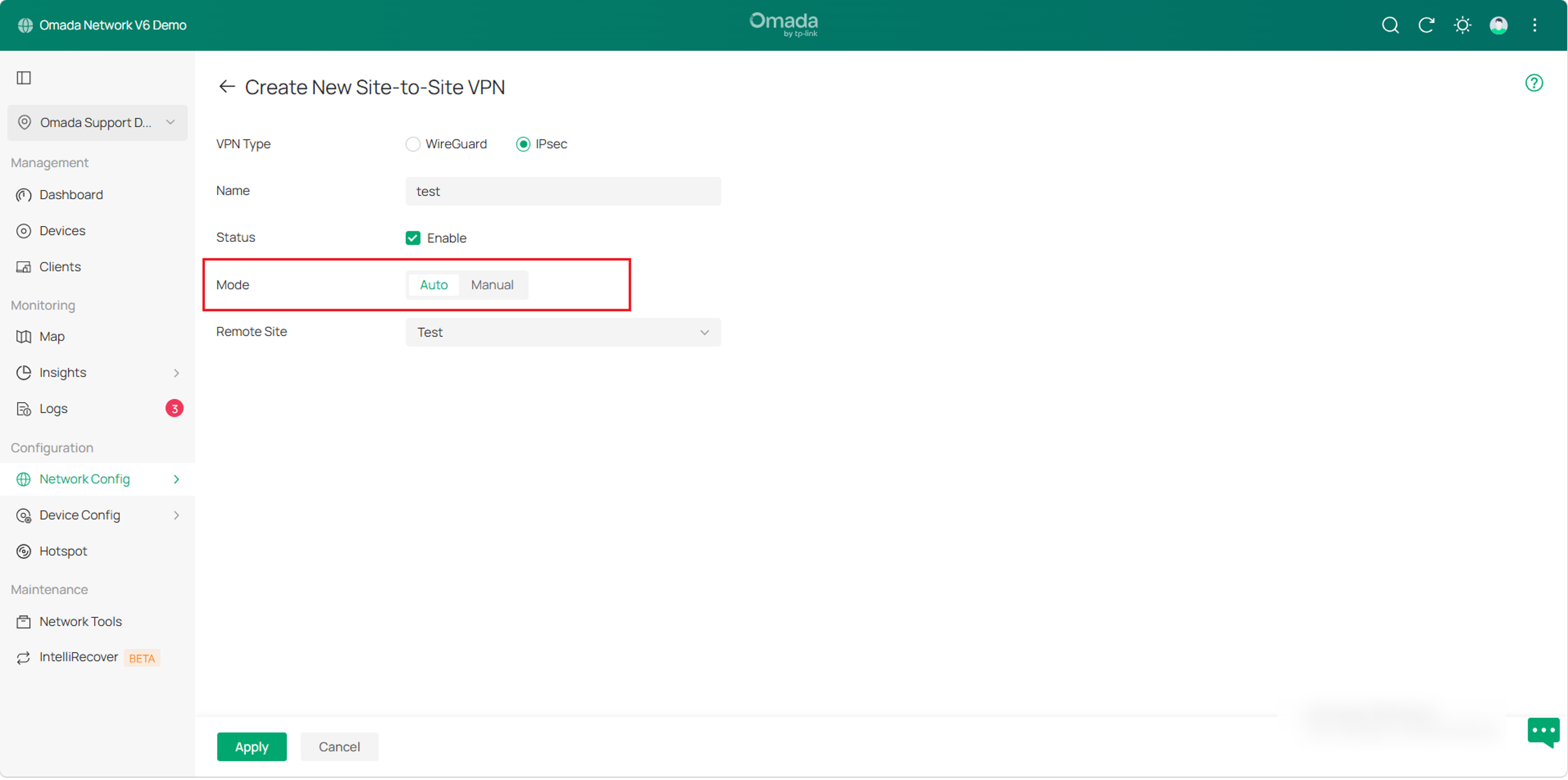
Check if Auto IPsec is being used. Auto IPsec is only supported when both sites are managed by the same Omada Controller. If the two gateways are managed by different Controllers or one is in standalone mode, Auto IPsec will not work.
It is recommended to use Manual IPsec for cross-controller or mixed-mode deployments.
Step 6. Verify Phase 1 (IKE) settings
Ensure the following Phase 1 settings match on both gateways:
- IKE Version
- Proposal
- Exchange Mode
- Local ID
- Remote ID
If a NAT device exists between the two gateways, use NAME mode as the identity type.
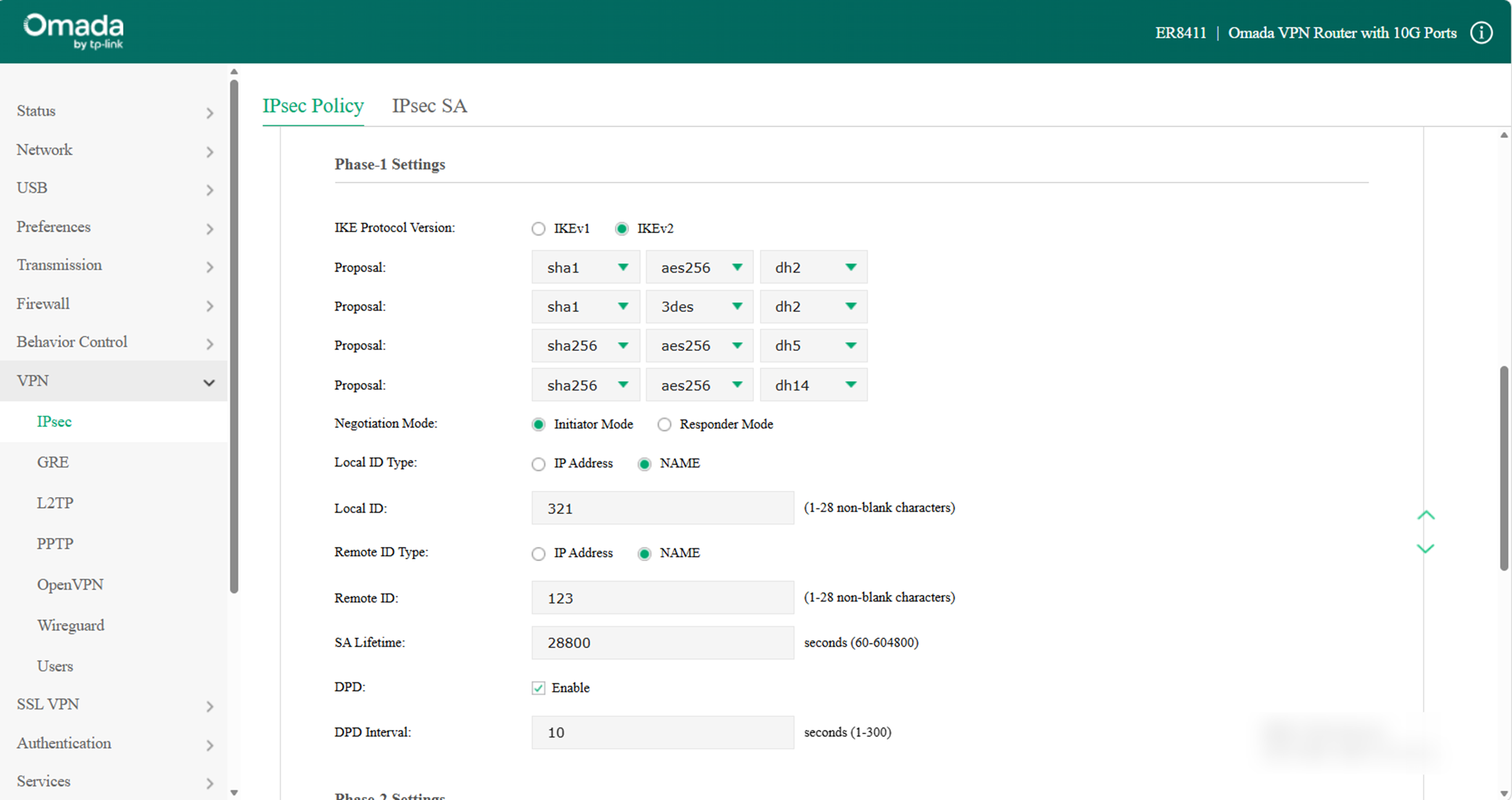
Note: IPsec IKEv1 supports only one remote subnet in each tunnel. To configure multiple remote subnet, please set IPsec protocol version to IKEv2.
Step 7. Verify Phase 2 (IPsec) settings
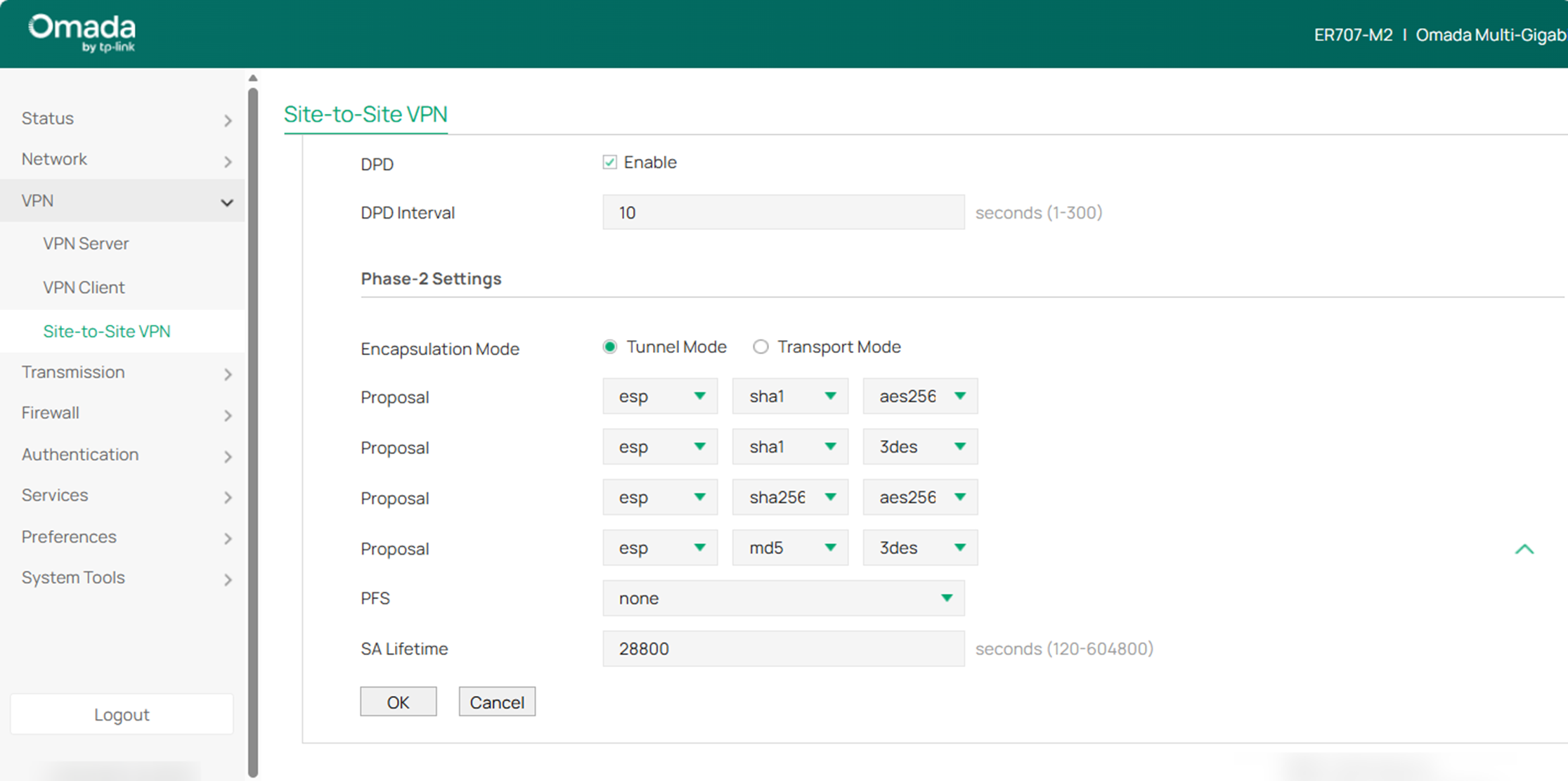
Check if the Phase-2 configurations of the two Site Gateways are matched: Encapsulation Mode, Proposal, and Perfect Forward Secrecy (PFS). By default, ESP protocol is used because AH cannot pass through NAT.
Step 8. Verify ISP support for IPsec traffic
Confirm if the ISP allows IPsec-related traffic (UDP 500, 4500) to pass through.
Step 9. Verify firewall or ACL rules
Verify if both Gateways have ACL rules that block IPsec-related traffic.
Client-to-Site Mode
Step 1. Verify connectivity to the gateway
Confirm that the client device can reach the gateway's WAN IP address.
If Gateway is managed by Controller, go to Network Config > Firewall > Attack Defense, disable Block ping from WAN, then ping the Gateway’s WAN IP on the client device.
Step 2. Verify the client device type
Different client operating systems require different ID settings.
- If the client device is using the iOS operating system, there can be NAT devices in front of the Gateway. Both Local ID Type and Remote ID Type should be set to NAME mode.
- If the client device is a Samsung device, there can be NAT devices in front of the Gateway. Both Local ID Type and Remote ID Type should remain in the default IP Address mode.
- If the client device is an Android device (except Samsung devices), there should be no NAT devices in front of the Gateway. Set Local ID Type to IP Address mode and Remote ID Type to NAME mode.
Step 3. Verify gateway configuration
- Basic configuration: Fill in the Remote Host with either 0.0.0.0 or the public IP of the client device's front-end.
- Phase-1 configuration: Ensure IKE Version is consistent with the client. Proposal can be set to sha256-aes256-dh14, or adjusted according to the algorithms supported by the client.
- Select Responder Mode for Negotiation Mode. Configure Local ID Type and Remote ID Type according to step 2.
- Phase-2 configuration: Proposal can be set to sha256-aes256-dh14.
Step 4. Verify proposal matching
Enable port mirroring for packet capture and capture the traffic packets of the WAN interface associated with the IPsec entry.
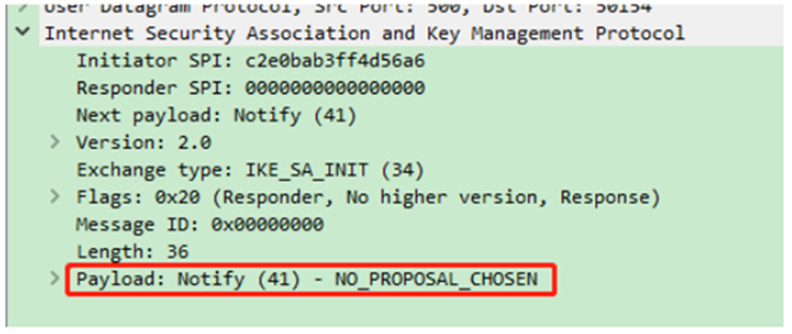
Use Wireshark to filter the ISAKMP packets. If the first ISAKMP packet replied by the Gateway contains the payload: Notify (41) - NOPROPOSALCHOSEN, it means the proposals do not match, as shown in the figure below.
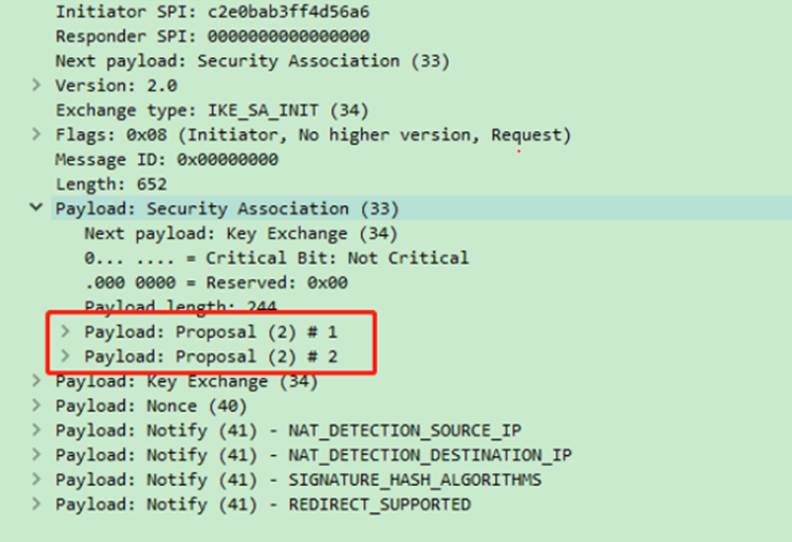
The first ISAKMP packet initiated by the client contains all security proposals. You can set the Gateway's proposal to include the options specified in the packet.
Verification
Check the connection status of the IPsec VPN tunnel.
For controller mode, navigate to Network Config > VPN Status > IPsec to check the tunnel status. For Standalone mode, navigate to Status > VPN Status > IPsec to check the tunnel status.
If the IPsec VPN tunnel is established successfully, two IPsec SA items will be displayed in the IPsec list.
Conclusion
IPsec VPN connection issues are typically caused by network reachability problems, NAT deployment, mismatched VPN parameters, or blocked IPsec traffic. By following the troubleshooting steps in this article, you can identify and resolve most common connection failures. If the issue persists, please contact Omada Technical Support for further assistance.
To learn more about each function and configuration, please visit Support Home to download or check the manual for your product.
