How to Export Recordings from an Omada NVR via GUI & Web UI


Contents
Option 1. Export recording files from Video
Option 2. Export recording files from Event
Option 1. Export a clip through the NVR GUI
Option 2. Export a clip through the NVR Web UI
Option 1. Record from Live View.
Option 2. Record from Playback.
Introduction
Omada NVRs provide several ways to export video through the local graphical user interface (GUI) and the browser-based Web UI. Use the following table to find the method that suits your needs.
The supported methods are shown below:
|
Export method |
Purpose |
Interface |
Path |
|
Search and Export |
Batch export continuous or event recording files from Video, or preview and export an event recording from Event. |
NVR GUI |
Search > Video or |
|
Clip and Export |
Select a specific time range from Playback and export the clip. |
NVR GUI / NVR Web UI |
Playback > Edit & Export (GUI) |
|
Record and Export |
Record the video currently playing in Live View or Playback and save it as a file. |
NVR Web UI |
Live View > Record or |
Requirements
- Omada NVR
- Local storage (HDDs on the NVR)
- Cameras
Before you begin: NVR GUI
Complete these preparations before using Search and Export or Clip and Export recordings through the NVR GUI.
Connect a USB storage device or external eSATA drive to the NVR and ensure that the device is detected.
Note: Recordings cannot be exported from the NVR GUI unless an external storage device is connected.
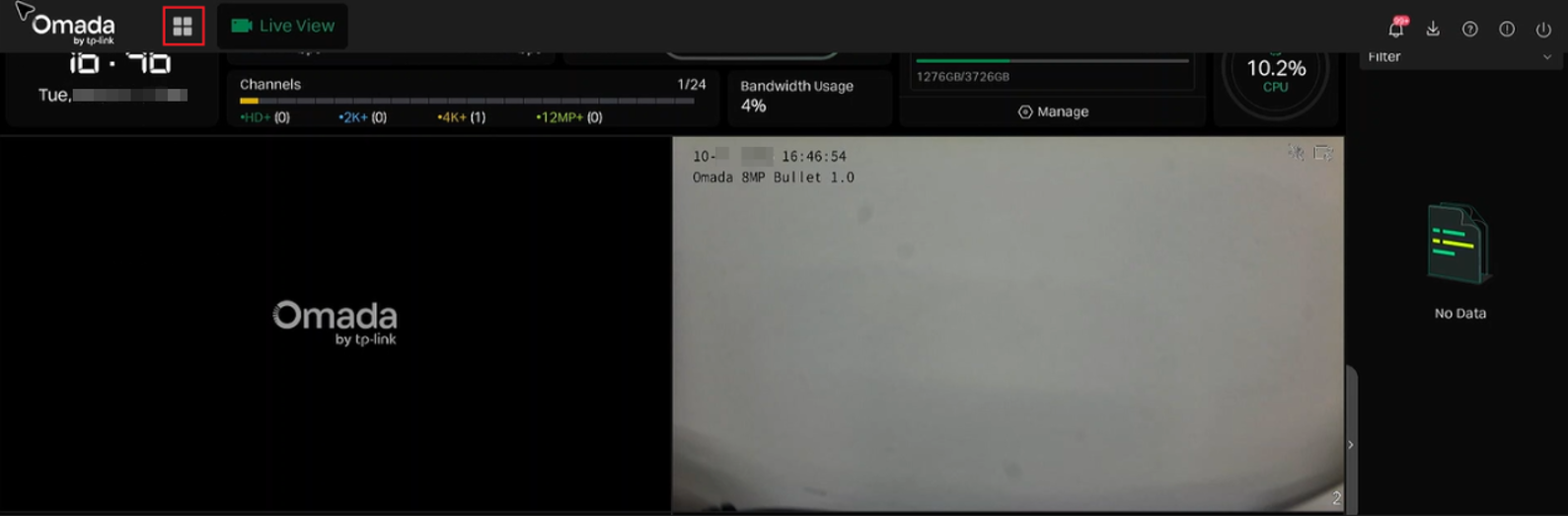
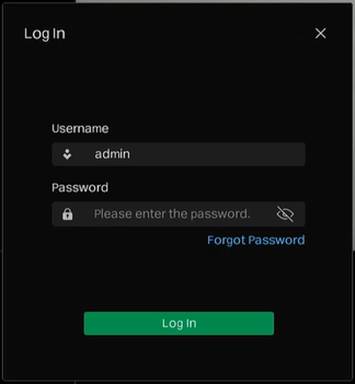
Log in to the NVR GUI. On the Live View page, click the menu icon in the upper-left corner. If prompted, enter the account credentials and click Log In.
Before you begin: NVR Web UI
Complete these preparations before Clip and Export recordings or using Record through the NVR Web UI.
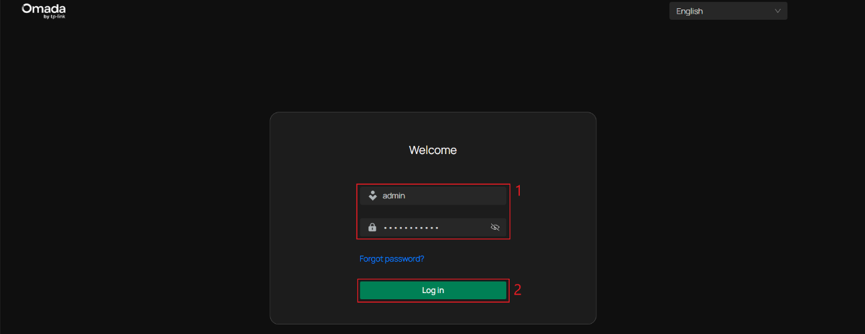
Enter the NVR's IP address in a web browser on a computer with network access to the NVR, and sign in with a valid username and password.
Recordings exported through the Web UI are downloaded to your computer through the browser. The save location depends on your browser's download settings.
Configuration
Search and export recordings
This method is available through the NVR GUI. Make sure you are logged in and an external storage device is connected and detected, you can refer to Before you begin: NVR GUI.
- Search > Video: Use this option to select and export multiple recording files, including continuous recordings and event recordings.
- Search > Event: Use this option to preview an event recording and export it from the Event Detail pane.
Step 1. Open Search.
Click the menu icon in the upper-left corner and select Search.
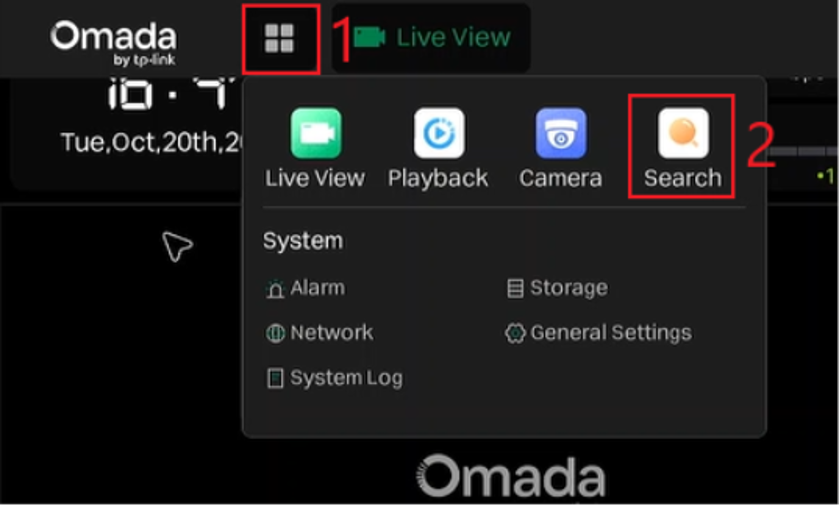
Step 2. Search for recordings and export them using either of the following options.
Option 1. Export recording files from Video
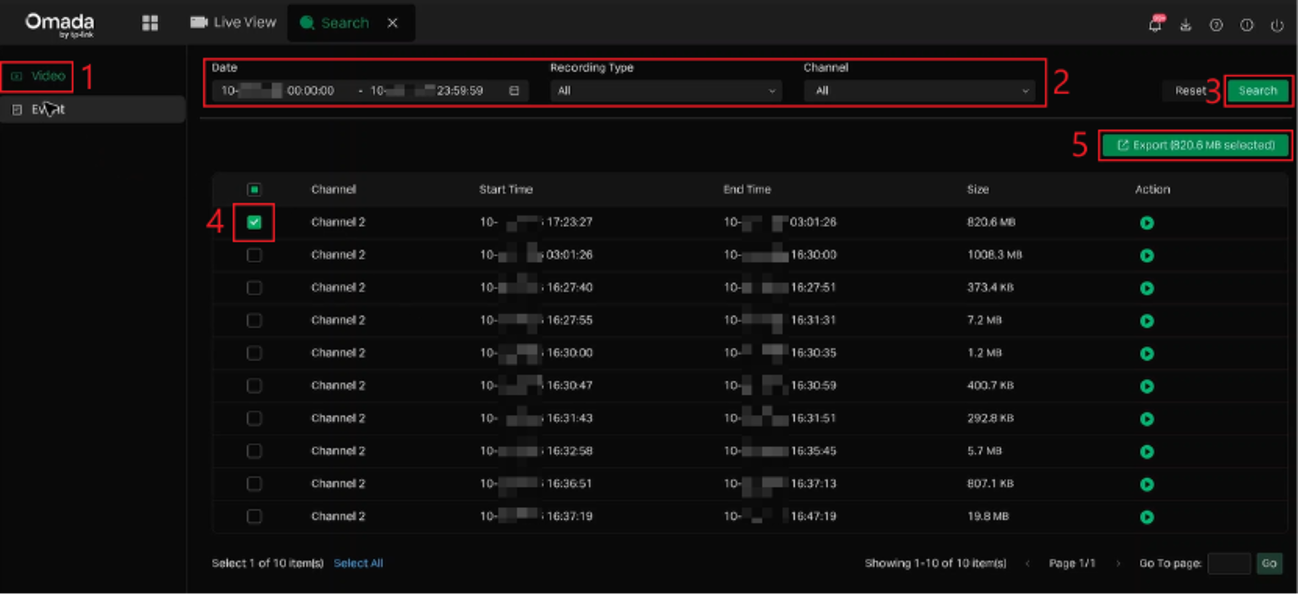
Select Video. Set the Date range, Recording Type, and Channel, then click Search. Select one or more recording files from the results and click Export to save them to the connected external storage device.
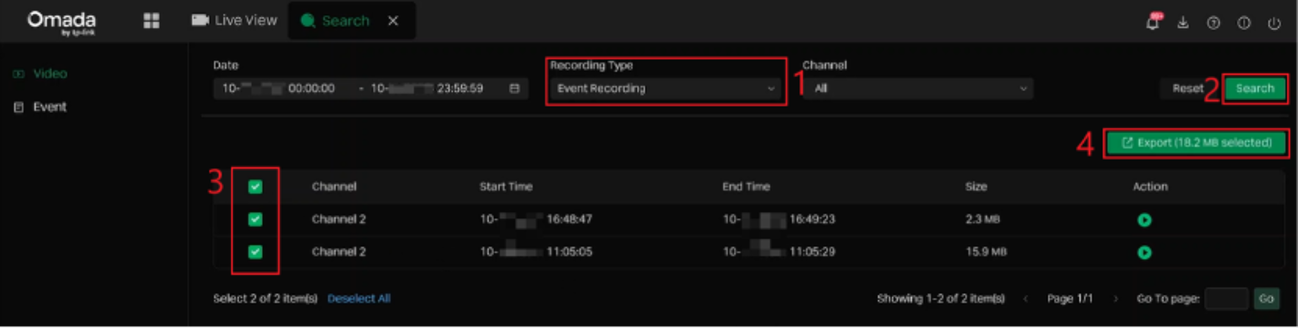
To list only event recordings, set Recording Type to Event Recording and click Search again. Select the required files and click Export. This option also supports selecting multiple files.
Option 2. Export recording files from Event
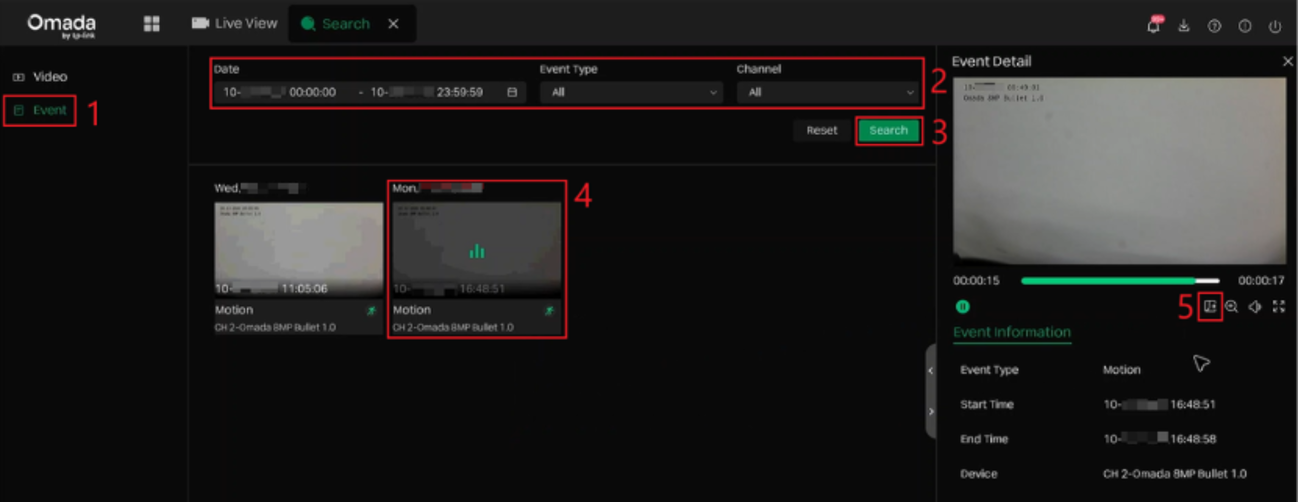
Select Event. Set the Date range, Event Type, and Channel, then click Search. Select an event to open the Event Detail pane on the right. Preview the recording if needed, then click the Export icon below the preview to save the event recording to the connected external storage device.
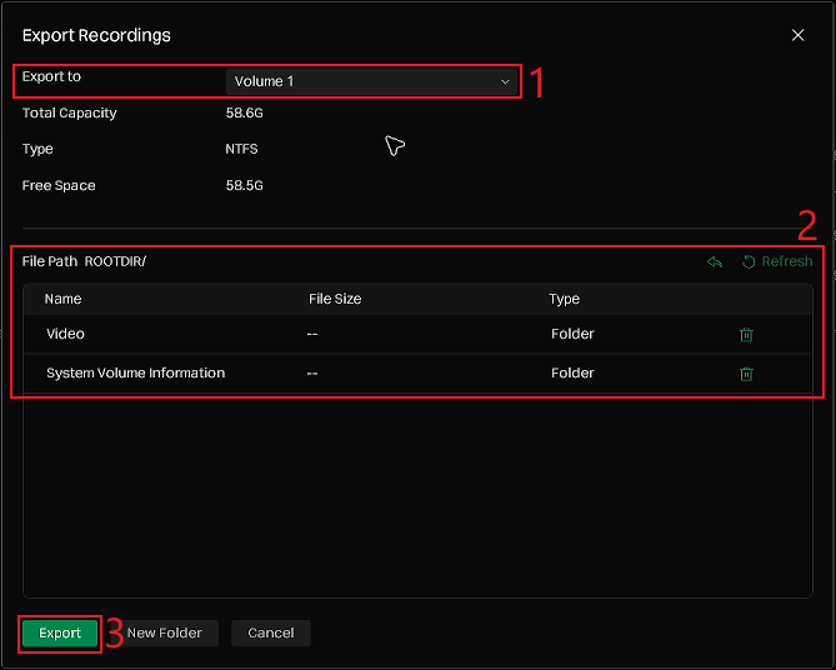
Step 3. In the Export Recordings window, select the external storage volume from Export to and choose the destination folder under File Path. Click Export to start exporting the selected recordings.
Clip and export recordings
Use this method when only a specific portion of a recording needs to be exported.
Option 1. Export a clip through the NVR GUI
Make sure you are logged in and an external storage device is connected and detected, you can refer to Before you begin: NVR GUI.
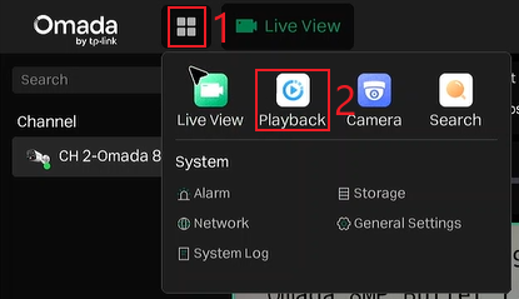
Step 1. Open Playback from the main menu.
Click the menu icon in the upper-left corner and select Playback.
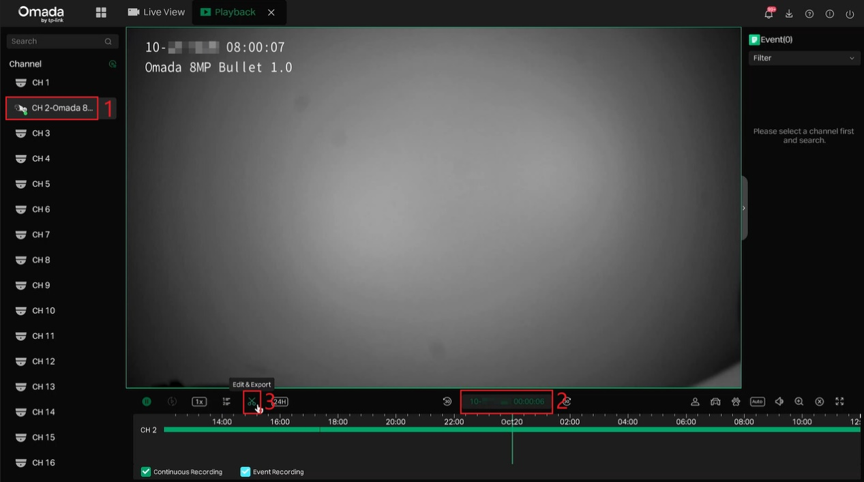
Step 2. Select the recording to clip.
Select the channel and specify the playback date and time, then click Edit & Export (the scissors icon) below the video window.
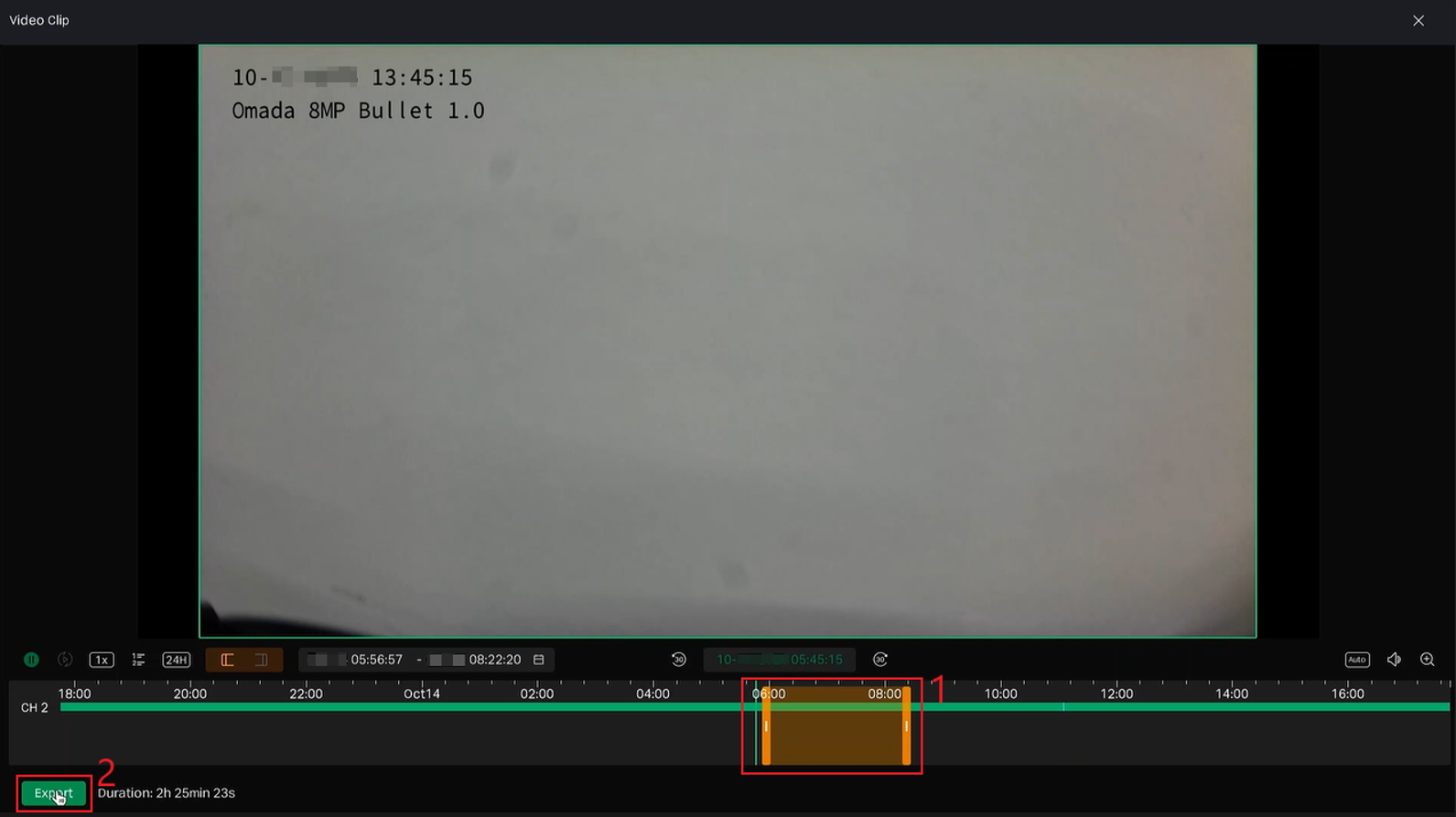
Step 3. Select the clip time range.
In the Video Clip window, adjust the start and end markers on the timeline to select the required time range. Review the selected range and duration, then click Export.
Step 4. Confirm and export the clip.
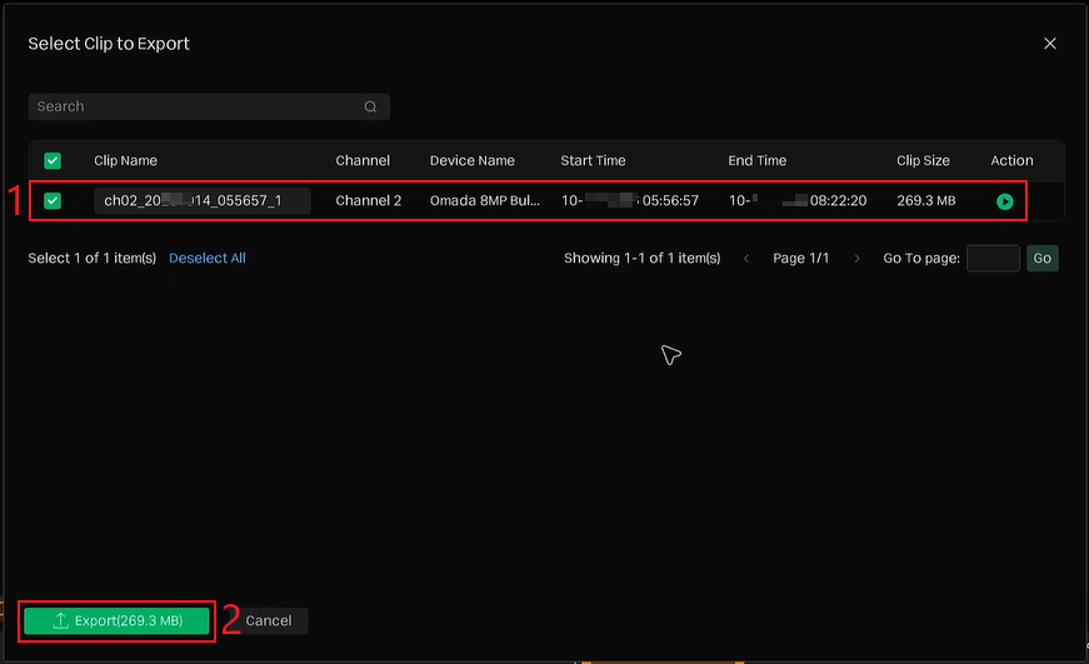
In the Select Clip to Export window, review the clip information and make sure the required clip is selected. Click Export to save it to the connected external storage device.
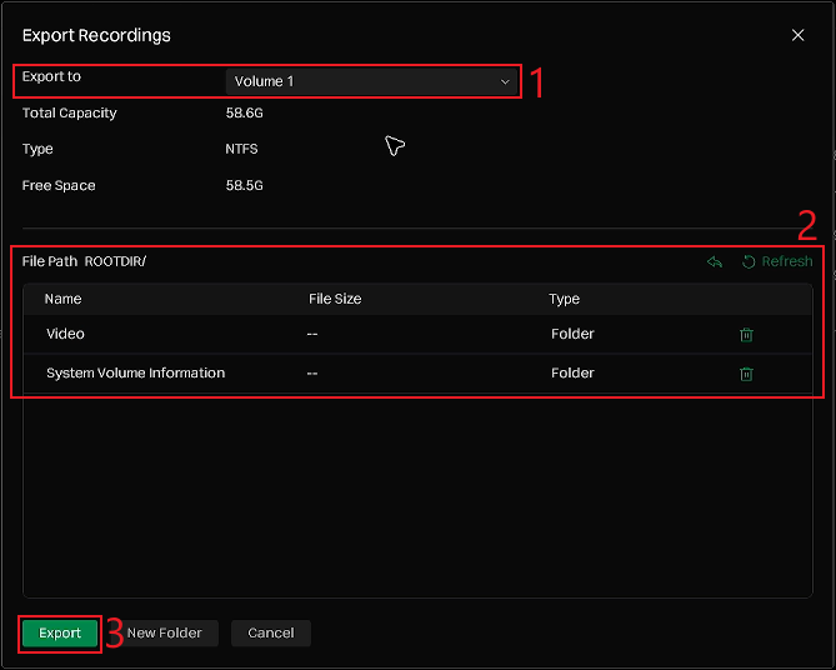
Step 5. In the Export Recordings window, select the external storage volume from Export to and choose the destination folder under File Path. Click Export to start exporting the selected recordings.
Option 2. Export a clip through the NVR Web UI
Recordings exported through the Web UI are downloaded to your computer through the browser, you can refer to Before you begin: NVR Web UI.
Step 1. Open the clip tool.
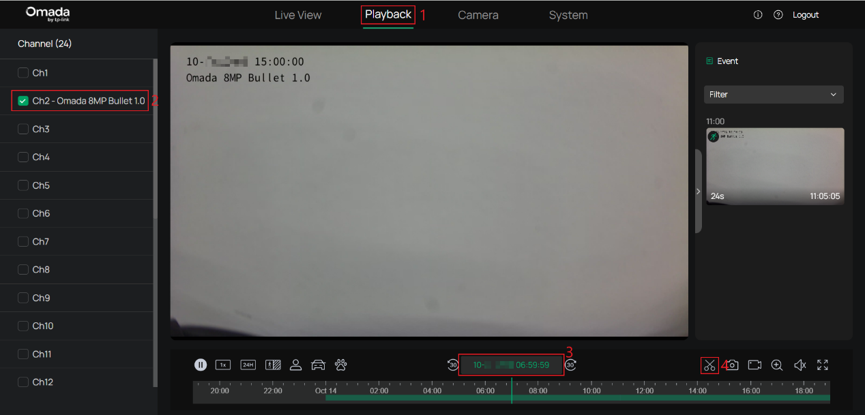
Go to Playback, select the channel, and specify the playback date and time. Click Capture Record (the scissors icon) below the video window to open Video Clip.
Step 2. Select and save the clip.
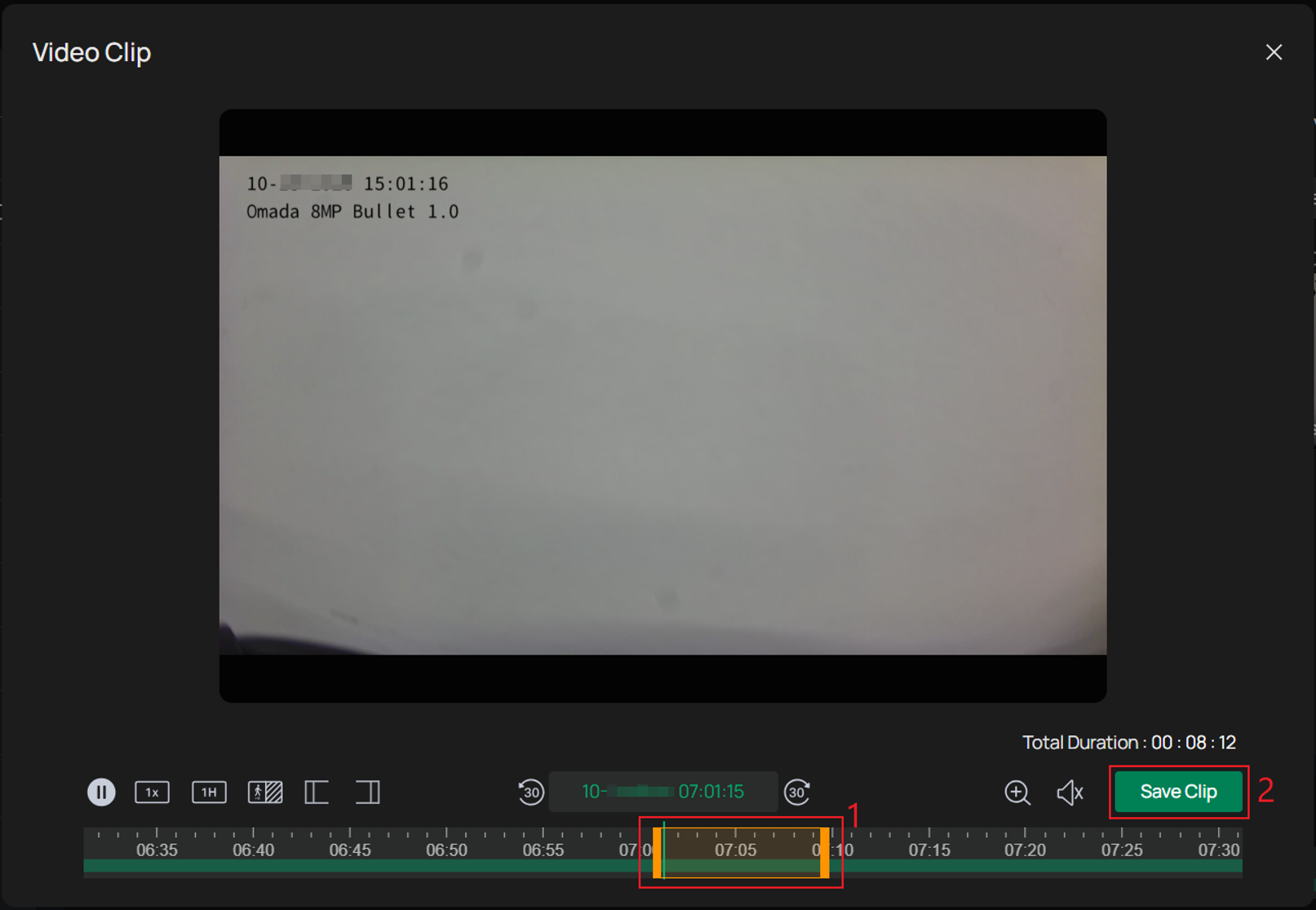
Adjust the start and end markers on the timeline to select the required time range. Review Total Duration, then click Save Clip to download the clip through the browser.
Record and export video
The Record function saves the video as it plays. Start recording at the desired point, then stop recording when you have captured the required content.
This method is available through the NVR Web UI. Recordings exported through the Web UI are downloaded to your computer through the browser, you can refer to Before you begin: NVR Web UI.
Option 1. Record from Live View.
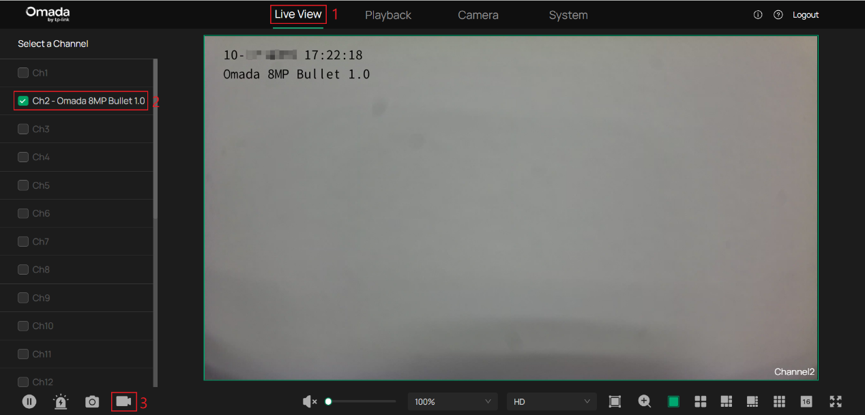
Step 1. Go to Live View and select the channel and its video window. Click Record (the video camera icon) on the bottom toolbar to start recording.
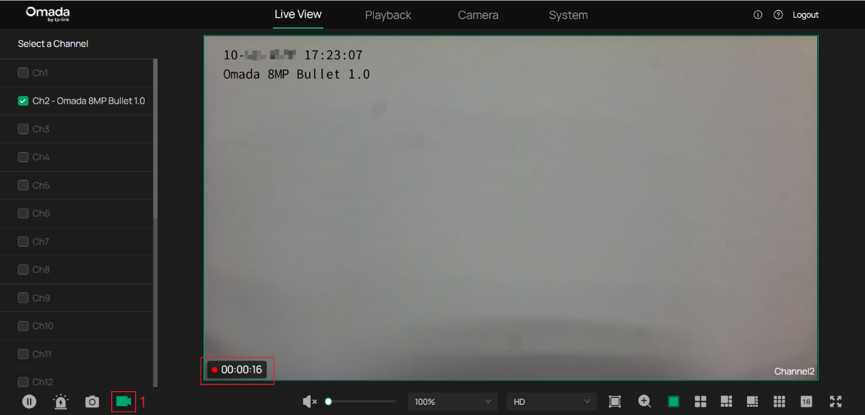
After recording starts, a red recording indicator and the elapsed recording time are displayed in the lower-left corner of the video window, indicating that recording is in progress.
Step 2. Select the recording video window and click Record again to stop recording and download the video through the browser.
Note: In addition to clicking Record again, some other operations in the Web UI can also stop recording. When this happens, the recorded video is also downloaded through the browser.
Option 2. Record from Playback.
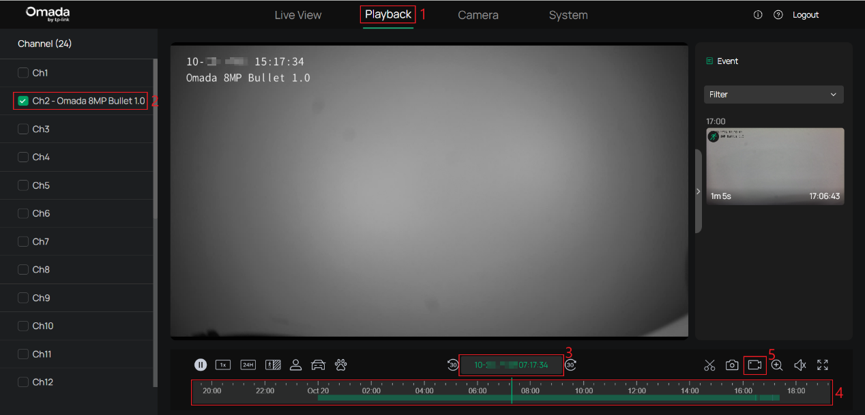
Step 1. Go to Playback, select the channel, and specify the playback date and time. Use the timeline to locate the point where you want to start recording. While the video is playing, click Record (the video camera icon) below the video window.
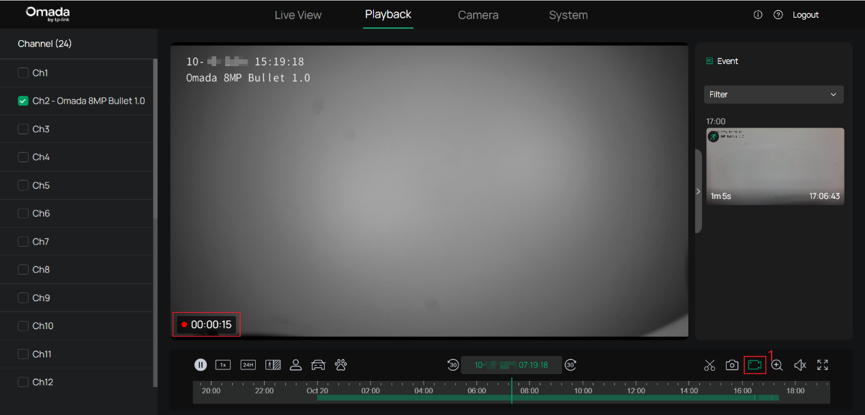
After recording starts, a red recording indicator and the elapsed recording time are displayed in the lower-left corner of the video window, indicating that recording is in progress.
Step 2. Click Record again when you reach the desired end point to stop recording and download the video through the browser.
Note: In addition to clicking Record again, some other operations in the Web UI can also stop recording. When this happens, the recorded video is also downloaded through the browser.
Verification
After exporting the recording, verify that the file has been saved successfully
- For NVR GUI exports: Check the connected USB storage device or external eSATA drive.
- For NVR Web UI exports: Check the browser's download list and the configured download folder. If the browser is configured to prompt for a save location, verify the selected destination folder.
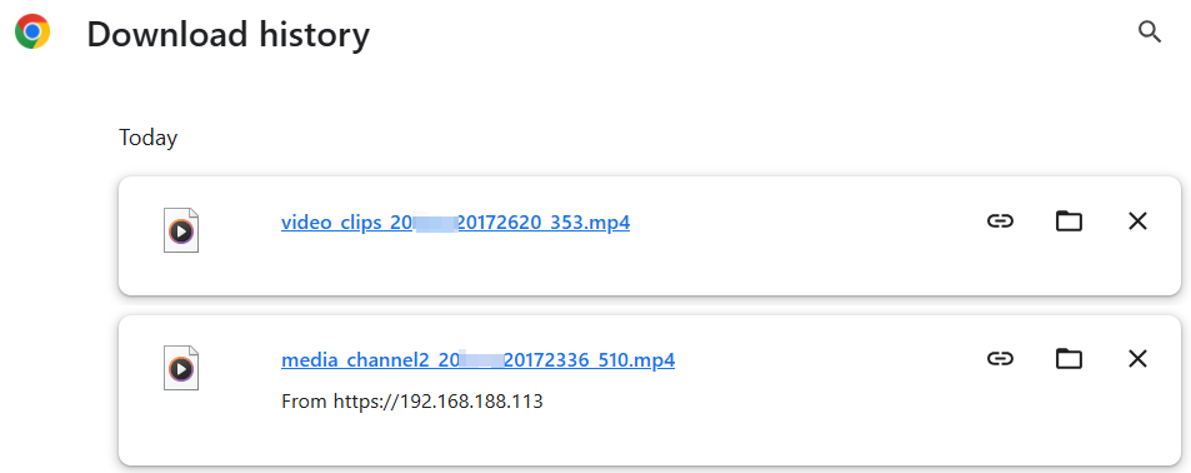
Open the exported file in a compatible video player and confirm that it contains the expected channel and video content. For a clip, also check that the exported start and end points match the selected range.
Conclusion
Omada NVR provides multiple options for exporting recordings based on different operational requirements. Existing recordings can be exported from Search, specific recording segments can be clipped and exported from Playback, and video can be recorded and saved directly from Live View or Playback in the Web UI. Selecting the appropriate export method helps efficiently retrieve, preserve, and share video footage when needed.
To learn more about each function and configuration, please visit Support Home to download or check the manual for your product.
QA
Q1: Why can't I export a recording from the NVR GUI?
A1: GUI export requires an external storage device connected to the NVR. Make sure a supported device is connected and detected by the NVR before exporting. The HDDs used to store recordings inside the NVR are not the external export destination.
Q2: Where are recordings exported from the Web UI saved?
A2: They are downloaded to your computer through the browser. Check the browser's download list or download folder. If your browser asks where to save each file, the recording is saved to the location you select.
Q3: What is the difference between Edit & Export on the GUI and Capture Record on the Web UI?
A3: Both let you select a time range from Playback and export it as a clip. On the GUI, click Edit & Export, select the range in Video Clip, click Export, and confirm the clip in Select Clip to Export. On the Web UI, click Capture Record, select the range in Video Clip, and click Save Clip. The GUI saves the clip to connected external storage; the Web UI downloads it through the browser.
Q4: Can I export only event recordings?
A4: Yes. On the NVR GUI, go to Search > Video and set Recording Type to Event Recording to search for and export one or more event recording files. Alternatively, go to Search > Event, search for an event, select it, and click the Export icon in the Event Detail pane.
Q5: What is the difference between Search > Video and Search > Event?
A5: Search > Video is suited to batch exporting recording files, including continuous recordings and event recordings. Search > Event is suited to previewing and exporting an event recording from the Event Detail pane.
Q6: How can I check the export progress on the NVR GUI?
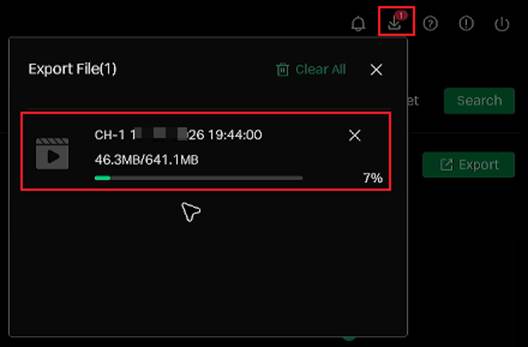
A6: Click the download center icon in the upper-right corner of the NVR GUI to open the Export File panel. You can check the export progress there, including the amount of data exported and the completion percentage. Do not disconnect the external storage device until the export is complete, as doing so may cause the export to fail or corrupt the exported files.