


How to Recover Fusion Gateways That Fail to Boot or Respond


Contents
Introduction
An Omada Fusion Gateway integrates the Omada Central OS, the Network application, and the Guard application into a single appliance, so all management, monitoring, and security services depend on the device booting correctly. If the device stops responding or fails to boot after a firmware upgrade, a power interruption, or an incorrect configuration, the web interface may become unreachable.
The Fusion Gateway provides three ways to bring it back when it stops responding or fails to boot. A power cycle is the first option to try, a factory reset clears the settings and returns the device to its factory defaults, and recovery mode reinstalls the firmware image from a firmware file on a local computer even when the operating system cannot start, while keeping the previous configuration. Because a factory reset clears the configuration, the gateway has to be set up again afterwards and the previous configuration has to be restored from a backup file. This article describes how to prepare a backup, how to bring the gateway back with a power cycle, a factory reset or recovery mode, and how to bring the configuration and the managed devices back online afterwards.
Requirements
- Omada Fusion Gateway
- Omada Fusion Pro Gateway
Recovery Methods
A factory reset and recovery mode solve different problems and are used at different points. Recovery mode keeps the configuration, while a factory reset clears it, so a backup file is what restores the previous configuration after a reset. The table below compares the two methods.
|
Aspect |
Recovery Mode |
Factory Reset |
|
Purpose |
Reinstall the firmware when the gateway cannot boot |
Return the configuration to factory defaults |
|
Configuration kept |
Yes. All previous configuration will be kept, the devices adopted should be auto-connected. |
No. All settings, including the site configuration and the device list, are cleared |
|
Entry method |
Power off the gateway, hold the Reset button, power on and keep holding for about 10 seconds |
Hold the Reset button while the gateway is powered on, and release it when the display shows "restoring factory settings" |
|
Access method |
A dedicated recovery page at 192.168.0.10 |
The login page of the gateway with LAN IP, 192.168.188.1 by default |
|
Typical use |
A failed or interrupted firmware upgrade |
A configuration error that blocks access to the web interface |
A gateway that stops responding can usually be brought back with one of three methods. Try a power cycle first, reset the gateway to factory defaults if that does not help, and use recovery mode as the last option. Recovery mode reinstalls the firmware from a file on a local computer and keeps the configuration, while a factory reset clears the configuration, so a backup file is what restores the site configuration, the accounts and the device list after a reset. All three methods work in the same way on every Fusion model, and the steps below use a Fusion Pro Gateway as the example.
Recommended Preparation
Backing Up the Configuration
A factory reset returns the gateway to its factory defaults, so a troubleshooting session can leave the site without its settings, and a backup file is what makes that situation recoverable. Recovery mode keeps the configuration, so it does not depend on a backup file.
Note: A backup file is the only way to bring the site configuration, the accounts and the device list back after a factory reset. Without a recent backup, the gateway has to be configured again from the beginning and the managed devices have to be added again.
You could manually export a backup file, or set up Backup Schedule to perform auto-backup periodically.
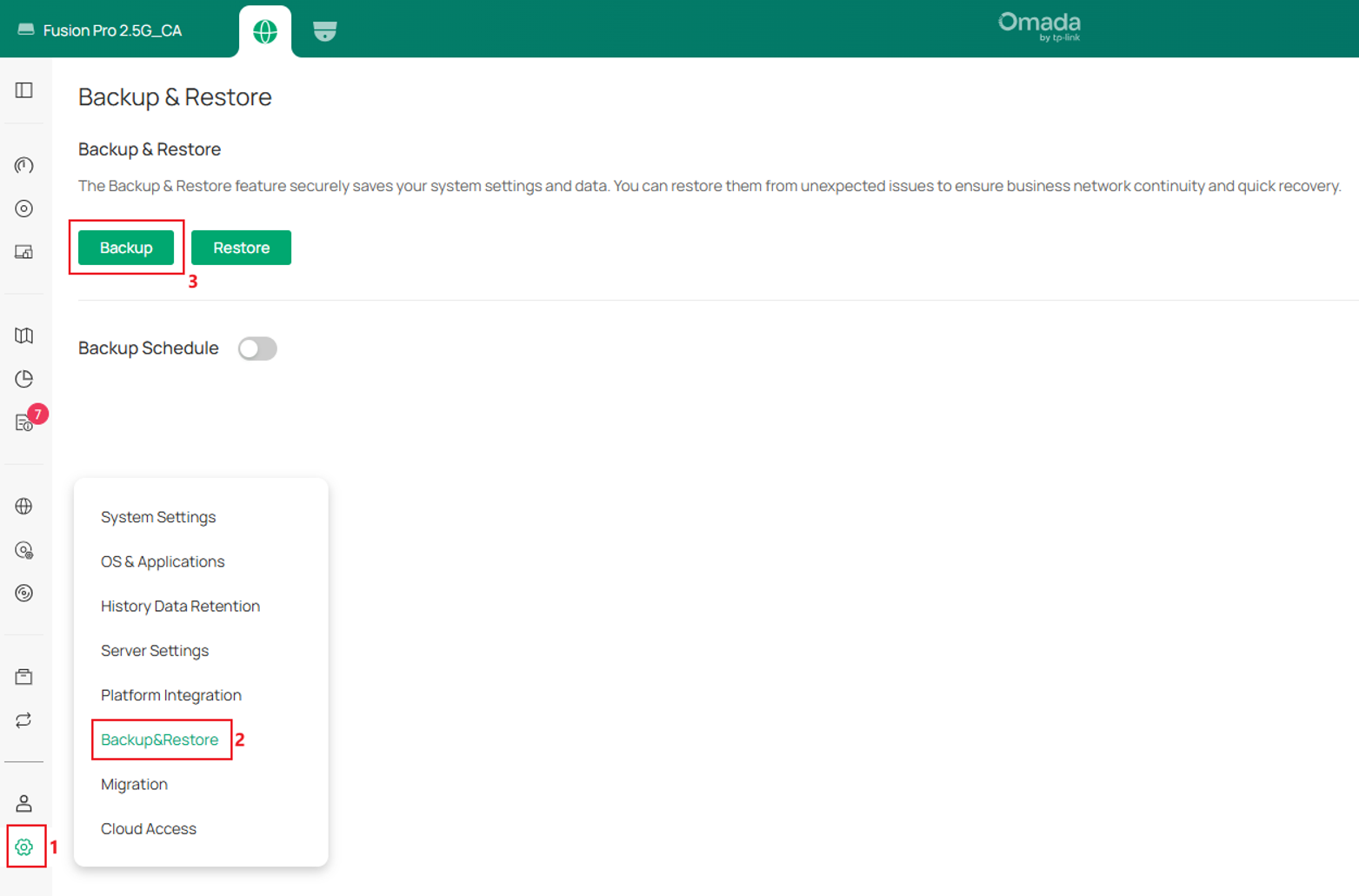
Step 1. Log in to the gateway, then go to Settings > Backup&Restore. Click Backup button.
Step 2. Keep Configuration File selected, and select Omada OS as the backup content. The Settings data of the Network Application and the Guard Application is selected automatically.
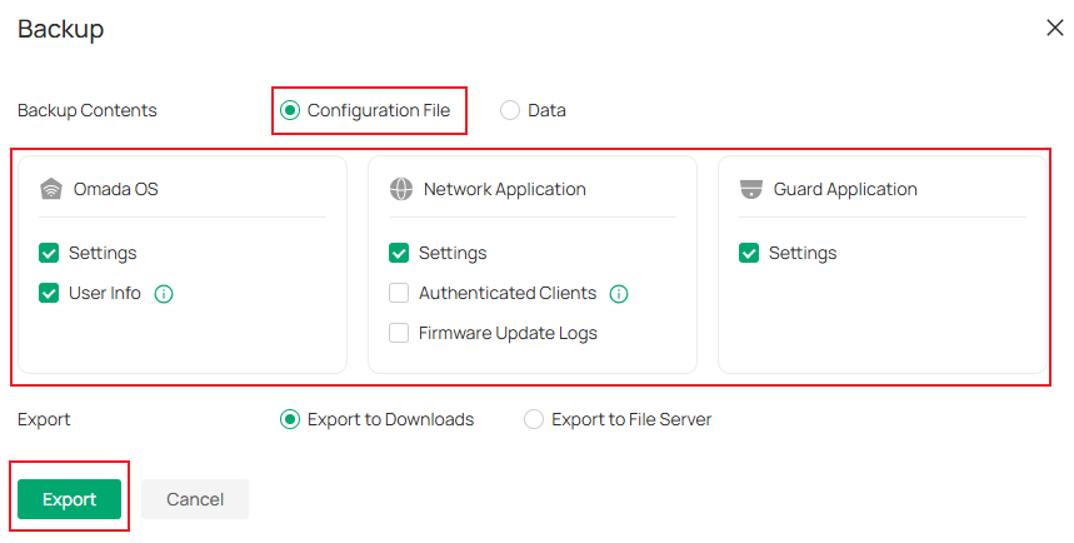
Step 3. If local and cloud users credentials need to kept after the recovery, also select User Info under Omada OS.
Note: With User Info selected, all local and cloud user information except the owner is retained in the backup file. Cloud Access must be enabled on the controller that will be restored, otherwise cloud accounts are not restored correctly.
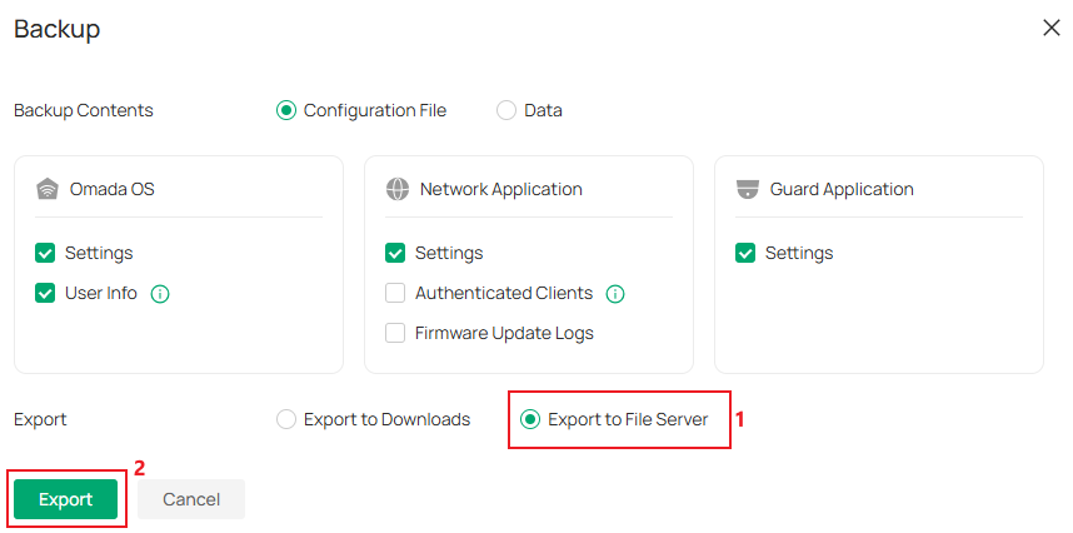
Step 4. Select Export to Downloads and click Export to save the backup file to the computer. Selecting Export to File Server opens a Connect to File Server dialog instead, where the Server Hostname/IP, Port and File Path of the destination folder are entered before Export is clicked.
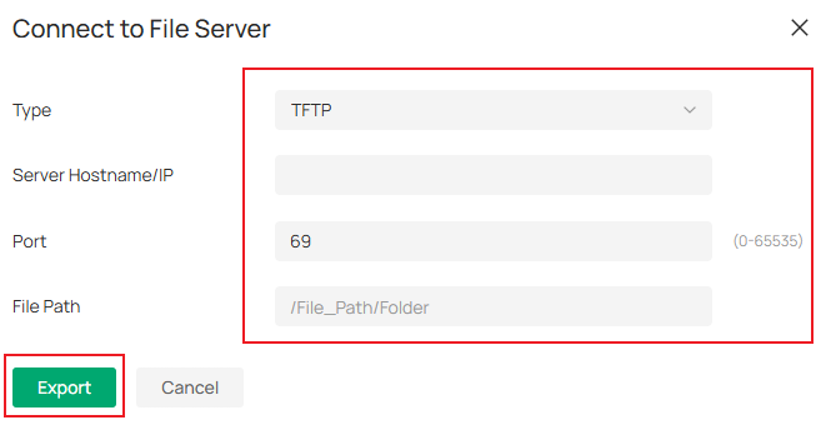
Step 5. (Optional) Click Backup Schedule and enable a daily or weekly schedule. In the Storage section, keep Save to Controller Storage for quick rollbacks on the gateway, or select Save to File Server and fill in the Server Hostname/IP, Port and File Path fields to keep each scheduled backup outside the gateway. Click Save when finished.
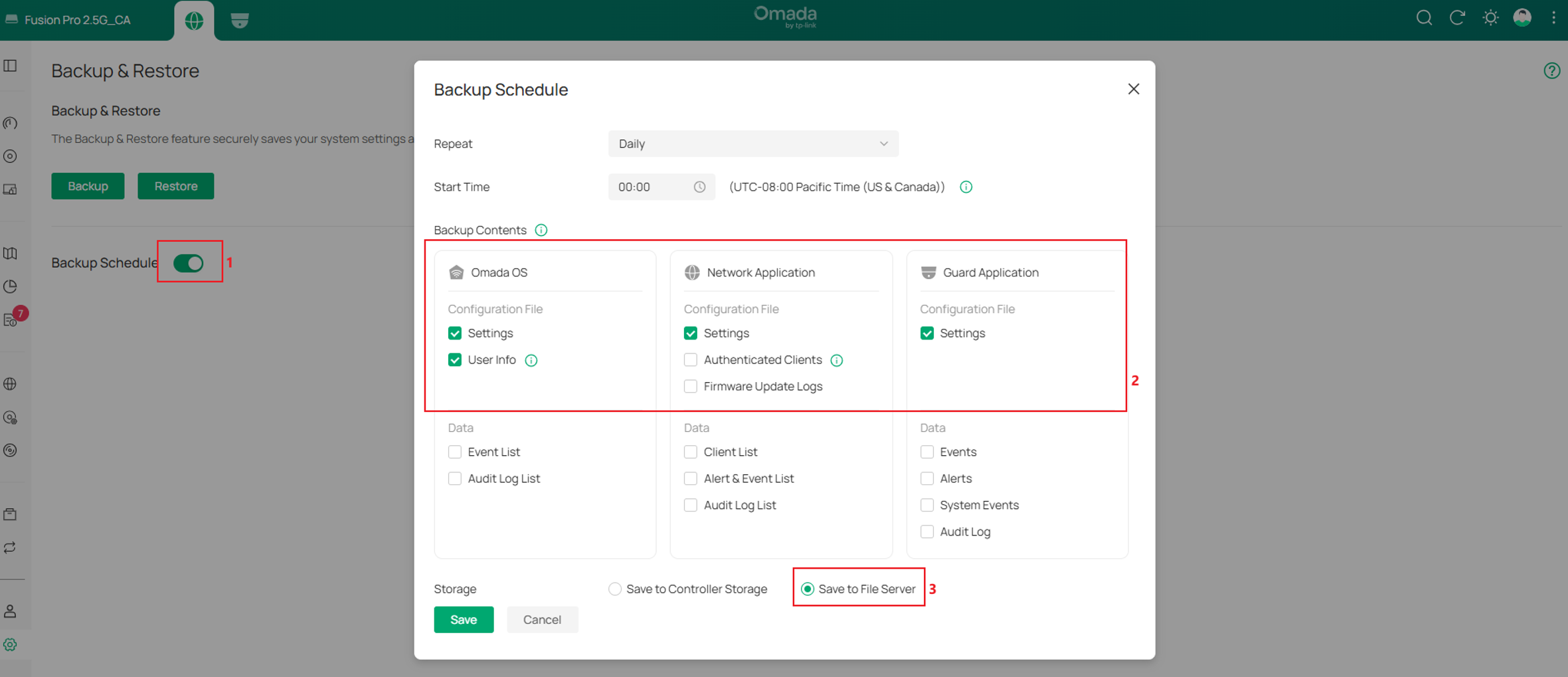
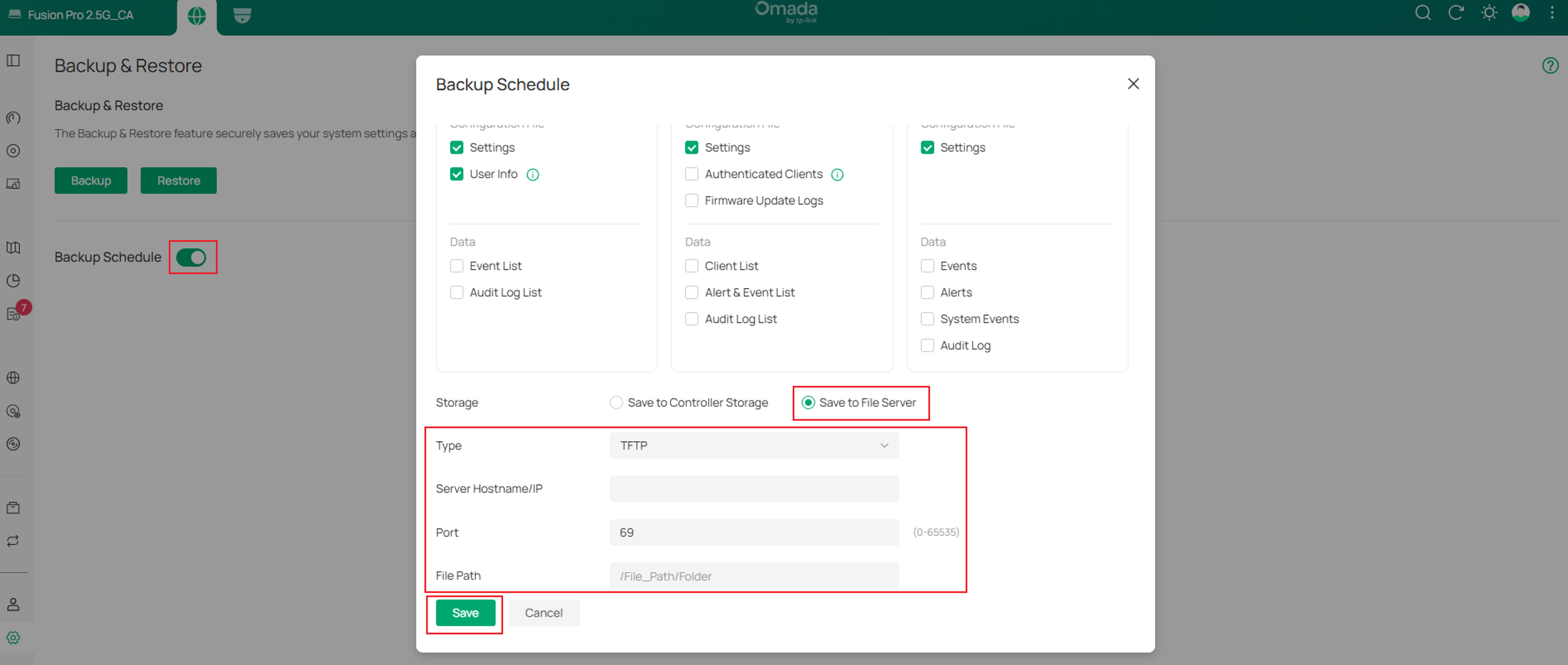
Note: A manual backup can be exported to the computer or to a file server, while a scheduled backup goes to the destination selected under Storage. A schedule that saves to the controller storage is unavailable as soon as the gateway has to be reset, which is exactly the case this article covers, and it can only be selected for a restore while the gateway is healthy.
Note: Backing up to the Omada cloud is under development and will make scheduled backups available off the gateway in a future release.
The contents of a backup file and the restore behavior between backup sets are described in How to Configure Backup & Restore on Omada Fusion Pro Gateway.
Device Account
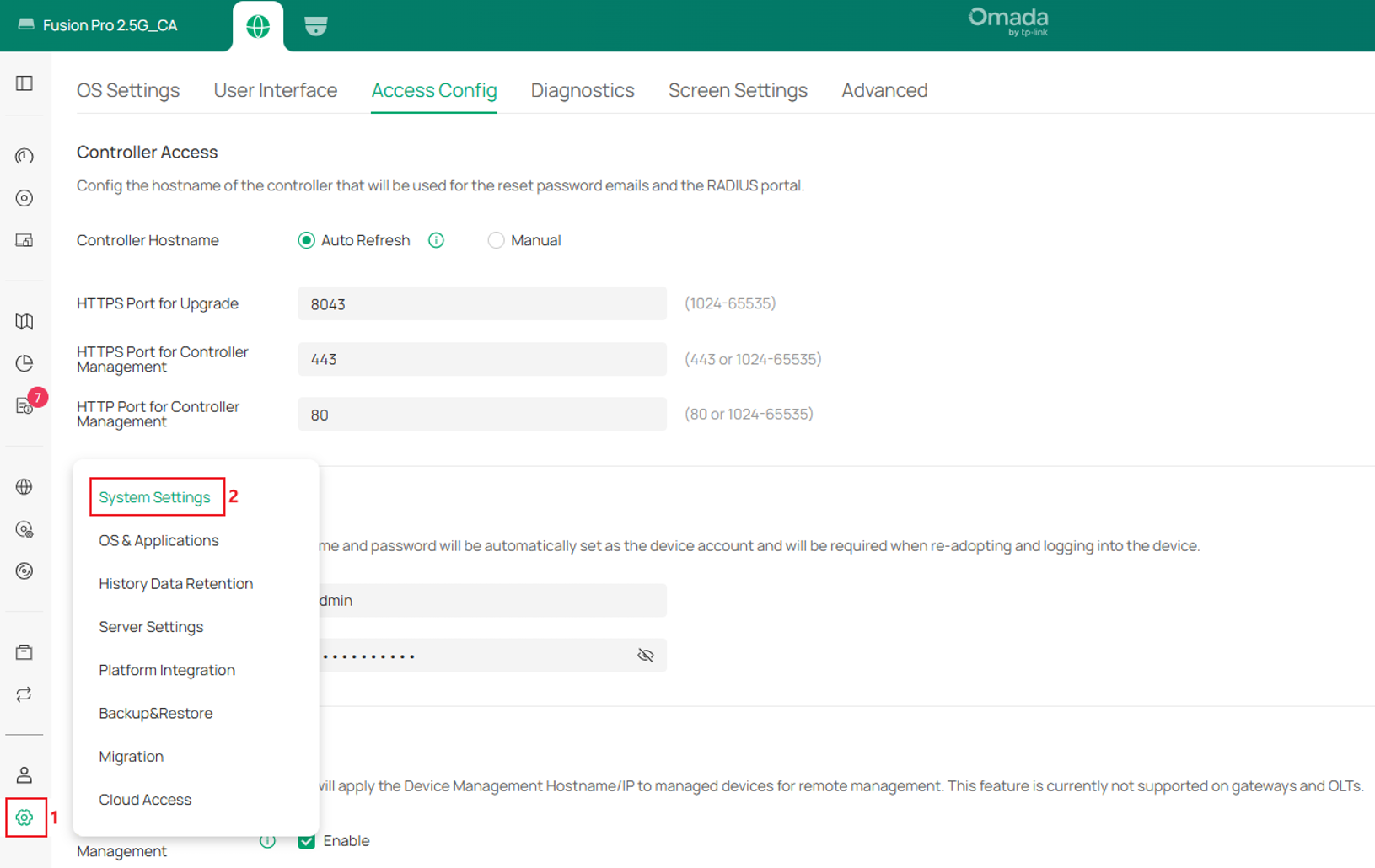
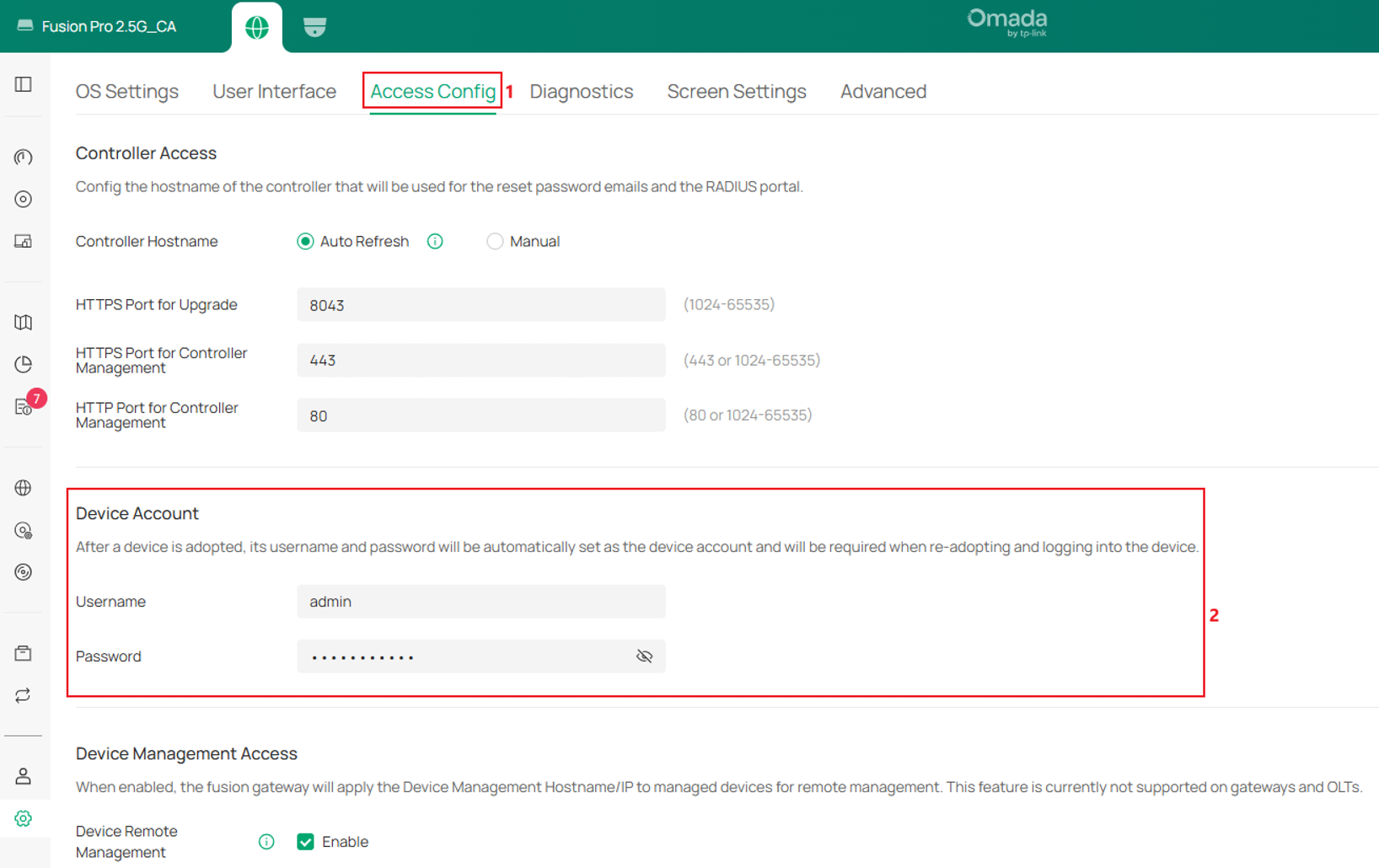
The device account is the username and password that the gateway applies to a device once that device is managed by Fusion. It is requested when the device is adopted by another Omada Controller and when an SSH session is opened to the device. To check it, go to Settings > System Settings > Access Config, scroll to the Device Account section, and note the username and password.
The device account belongs to the configuration of the gateway, so it is stored in the configuration backup file. After a factory reset the adopted devices keep the credentials that they were given, so when the configuration was restored on Fusion, adopted devices should be auto connected back to Fusion. The device account is not the owner account that is created during the initial setup, and it is not a local or cloud user account either; local and cloud users are included in the backup file only when User Info is selected. If no backup file is available, the adopted devices have to be added again, and the device account to enter for such a device is the one of the Omada Controller that managed it before.
Recovery Procedures
If the gateway stops responding or fails to boot, try a power cycle first, and if the gateway is still unreachable, reset it to factory defaults. To perform the reset, press and hold the Reset button while the gateway is powered on, and release it as soon as the display shows "restoring factory settings"; the reset starts at that moment and the gateway restarts afterwards. A factory reset clears the configuration, so the gateway has to be set up again and the configuration and the device records of the site are lost unless the previous configuration is restored from a backup file, as described in Restore the Configuration below. If no recent backup file is available, those settings and devices have to be configured and added again from the beginning. If the reset does not help and the gateway still cannot boot, or if it cannot be reached after the setup has been completed, continue with Recovery Mode.
Recovery Mode
Step 1. Power off the gateway, then connect the computer to any LAN port of the gateway with an Ethernet cable.
Step 2. Press and hold the Reset button, power on the gateway, and keep the button pressed for about 10 seconds before releasing it.
Step 3. Configure the network adapter of the computer with a static IP address in the 192.168.0.0/24 subnet.
Step 4. Open a browser and visit 192.168.0.10 to load the recovery mode page, which shows the current firmware version and a Browse button.
Step 5. Download the released firmware for the exact gateway model from the official website, then click Browse on the recovery page and select the file.
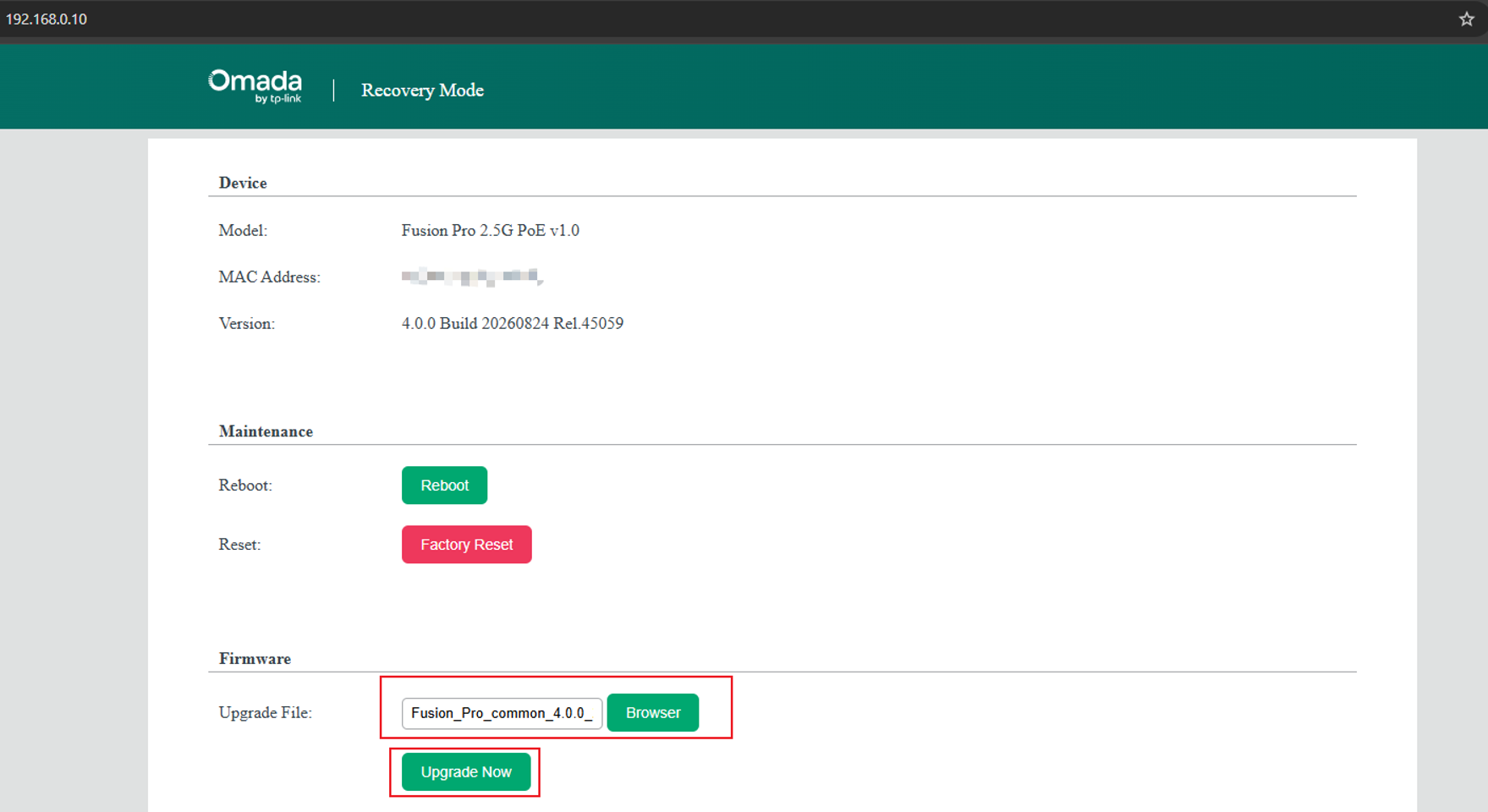
Note: Recovery mode uses the regular released firmware of the model. No dedicated recovery image is required.
Step 6. Click Upgrade to start the recovery. The upgrade takes several minutes.
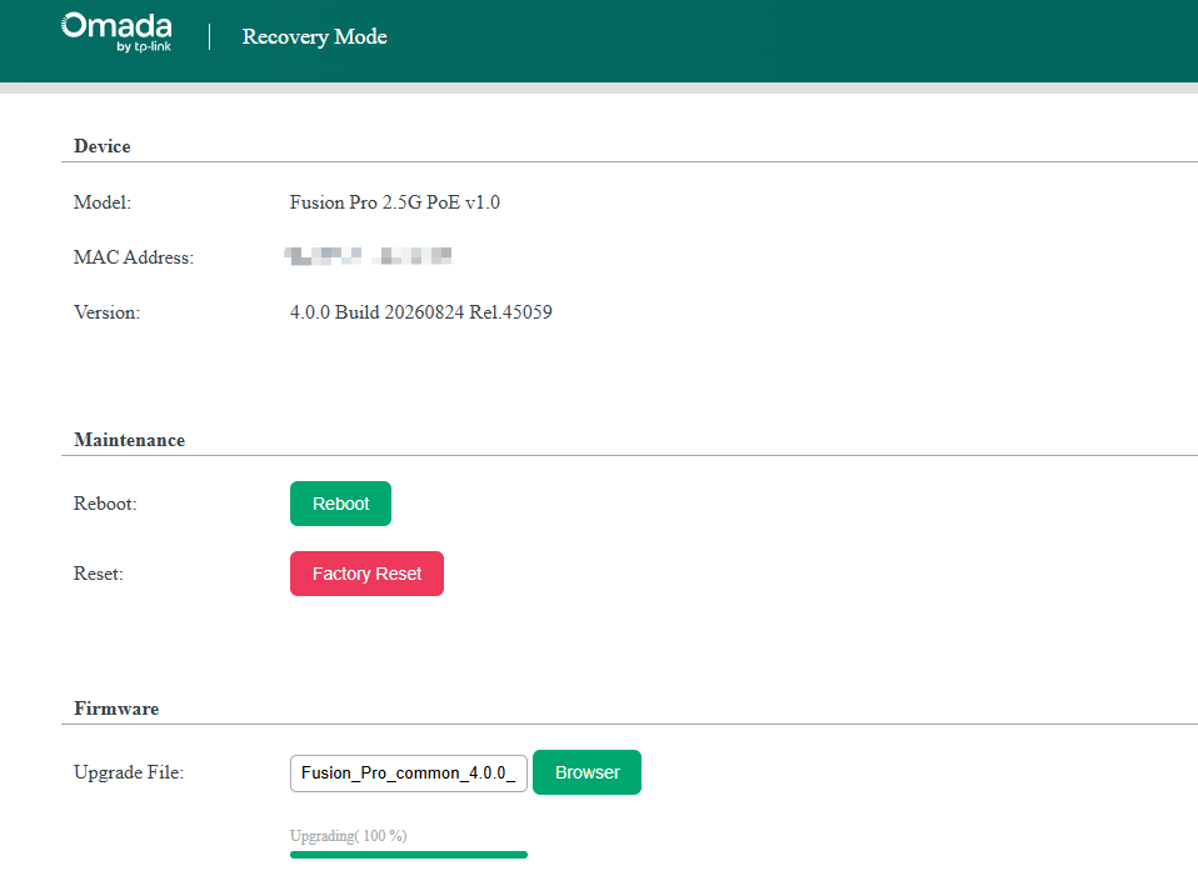
Step 7. Wait for the gateway to reboot. As user may have reset the gateway previously, it may need to go through initial setup process again .
Note: The static IP address is only needed to reach the recovery mode page. Because recovery mode keeps the configuration, the gateway returns with its previous LAN settings, so set the network adapter of the computer back to DHCP, or to a static address in the LAN subnet of the gateway, after the gateway has restarted. Otherwise the gateway and the local network may not be reachable from the computer.
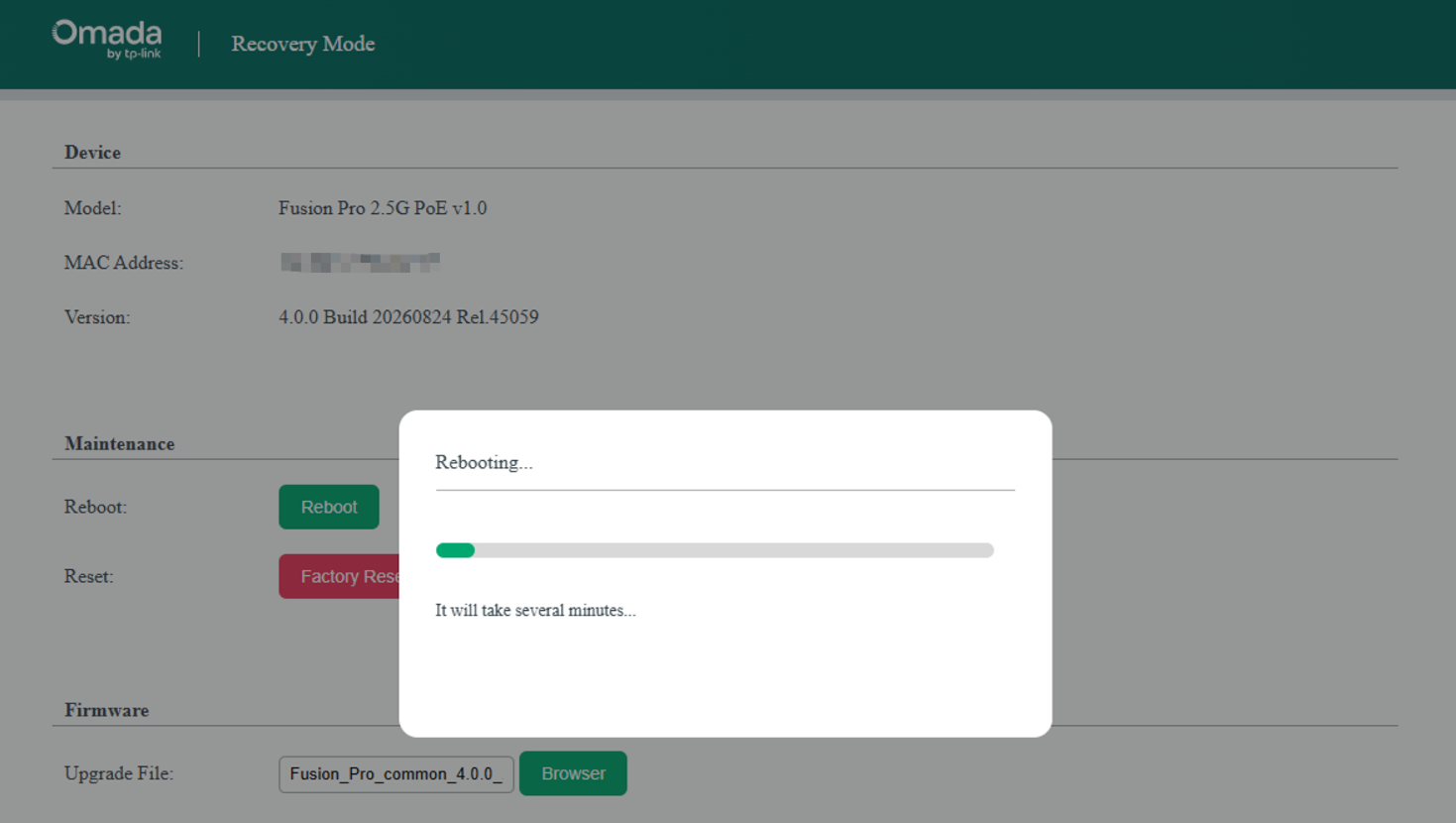
Note: Do not power off the gateway and do not close the browser while the upgrade is running.
If the gateway still cannot start after recovery mode as well, contact Technical Support, because the device can then no longer be recovered with the methods in this article.
Restore the Configuration
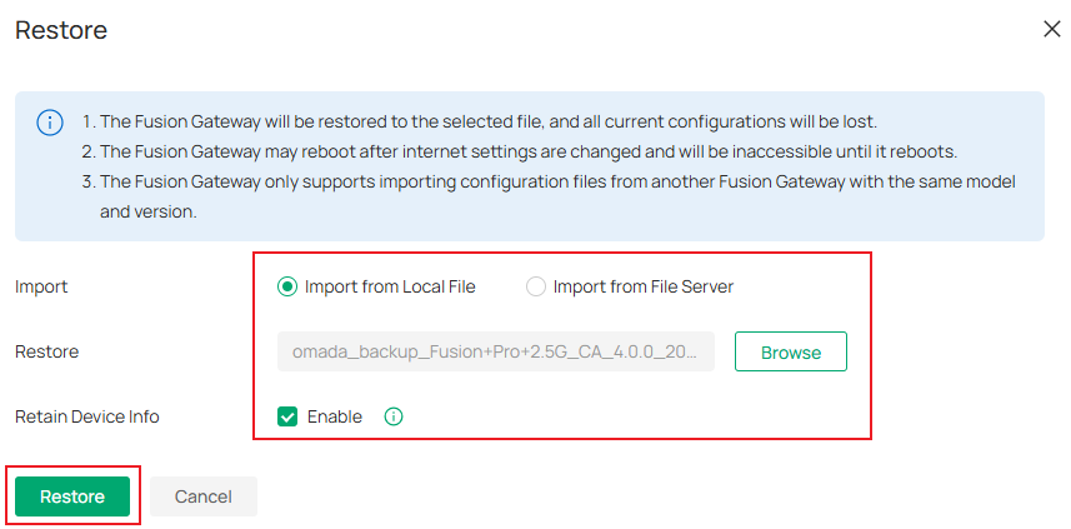
Step 1. Go to Settings > Backup&Restore, click Restore.
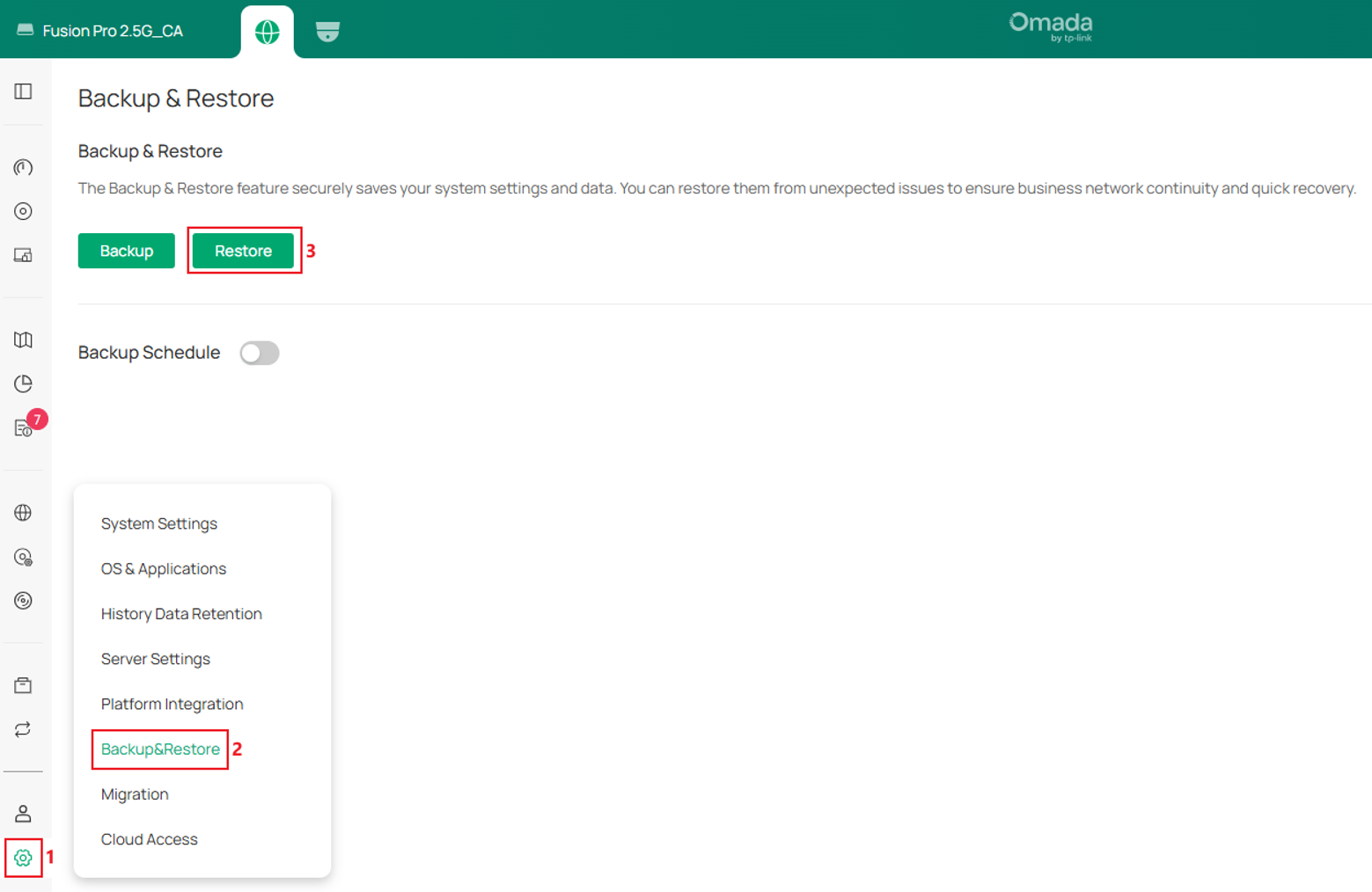
Step 2. Keep Import from Local File selected, click Browse and select the backup file created before the failure. Keep Retain Device Info enabled, then click Restore and wait for the progress to finish.
Keeping Retain Device Info enabled imports the device list information that is stored in the backup file, including the device entries and their configurations. After the import, devices that can communicate with the controller normally are adopted automatically, so they come back without being added again. A device that cannot be reached stays offline until it is available again. If Retain Device Info is disabled, only the system and application settings are restored and the devices have to be added again.
Note: The Fusion Gateway only supports importing a configuration file that was created by a Fusion Gateway of the same model and the same hardware version. The software version does not have to match: a gateway that runs a newer software version can import a configuration file that was created by an older software version.
Note: Retain Device Info covers the devices that the gateway manages directly, including the IP cameras and the Network Video Recorders that are adopted by the gateway itself. The IP cameras that are managed by a Network Video Recorder are not included in the restore and are not recovered automatically.
Verification
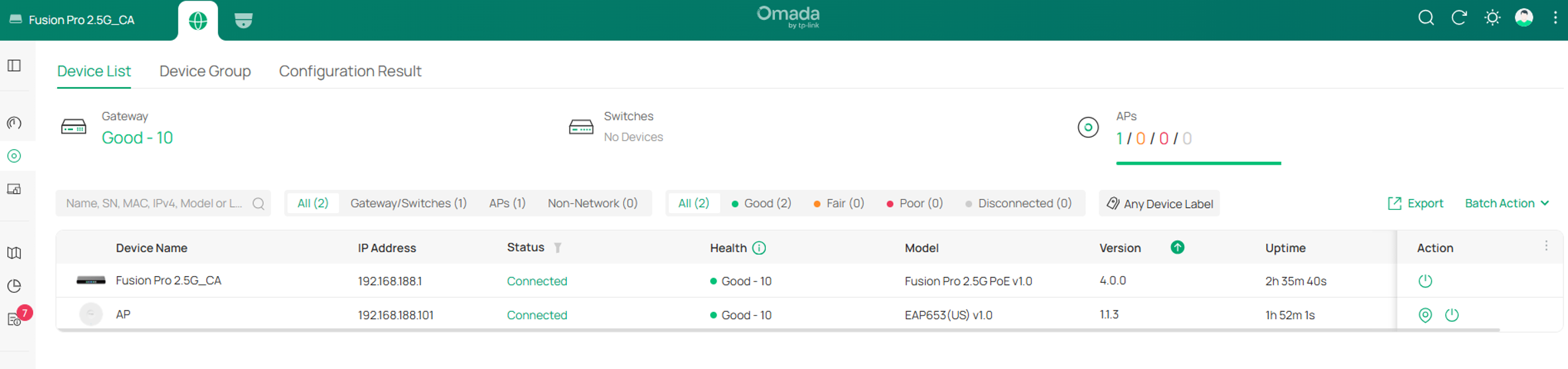
After a power cycle or recovery mode the gateway starts again with its previous configuration, and after a factory reset the initial setup is completed and the backup file is restored first. The managed devices come back on their own when the configuration was kept, or when the backup file was restored with Retain Device Info enabled. Without a backup file, the gateway has to be configured again and the devices have to be added again.
Conclusion
This article describes how to recover an Omada Fusion Gateway that fails to boot or respond. A power cycle is the first thing to try, a factory reset returns the device to its default settings, and recovery mode reinstalls the firmware image from a local file while keeping the existing configuration. A configuration backup is what brings the site configuration, the accounts and the device list back after a reset.
To learn more about each function and configuration, please visit Support Home to download or check the manual for your product.
QA
Q1: What is the difference between recovery mode and a factory reset?
A1: Recovery mode reinstalls the firmware image even when the operating system cannot start, and the configuration is kept, so the gateway continues to work with the previous settings and the adopted devices. A factory reset only clears the settings, so a backup file is needed to bring the previous configuration back.
Q2: What is required before a factory reset?
A2: A recent configuration backup file is recommended, but it is not mandatory. The device account belongs to the configuration of the gateway and is kept in that backup file, so it is back as well once the file is restored. A factory reset can also be performed without a backup file, but the site configuration and the device records are then lost and have to be configured and added again from the beginning.
Q3: Do the managed devices have to be adopted again after the gateway is recovered?
A3: It depends on how the gateway is recovered. In Recovery Mode, the existing configuration and device information are retained, so managed devices remain adopted.
After a factory reset, managed devices can be automatically readopted if a backup file is restored with Retain Device Info enabled. The device information and configurations are restored, and devices that can communicate with the controller are automatically adopted.
If no backup file is restored, or Retain Device Info is disabled, the gateway must be reconfigured and the devices must be adopted again.
Q4: What is the device account used for?
A4: It is the device key that the gateway applies to a device once that device is managed by Fusion, and it is unrelated to recovery mode. It is requested when an SSH session is opened to the device, and when the device is adopted manually. A device that was managed by another Omada Controller still holds the device account of that controller, so the device account of the original controller is the one to enter; the account of a newly initialized controller does not work for that device.
