


Understanding NVR Management Limitations in Fusion Pro


Contents
2. Network isolation limitations
3. ONVIF limitations in mixed-brand deployments
4. IP address management limitations
Introduction
Omada Fusion Pro combines a gateway, controller, and video management system in a single device, delivering unified control for networking and surveillance on one platform. Through one intuitive interface, you can centrally manage APs, switches, cameras, and an NVR, and detect, diagnose, and resolve issues without switching between systems.
However, certain limitations apply when managing an NVR and its connected IP cameras (IPCs) through Fusion Pro. Depending on the network isolation settings, camera adoption protocol, and IP address assignment method, some camera features and management capabilities may be unavailable.
This article explains these limitations and provides guidance to help you plan your deployment and select the appropriate camera management method.
Requirements
- Fusion Pro 2.5G/ Fusion Pro 2.5G PoE
- Omada NVR
- VIGI NVR
Configuration
The following sections provide a brief overview of NVR management and explain the limitations associated with network isolation, mixed-brand ONVIF adoption, and IPC IP address management.
1. Basic NVR management
An NVR can be added to Fusion Pro as a managed device. Once added, you can review the NVR and its managed IPCs, and view the videos and NVR’s storage information.
Step 1. Connect the NVR to the network and ensure that Fusion Pro can communicate with it.
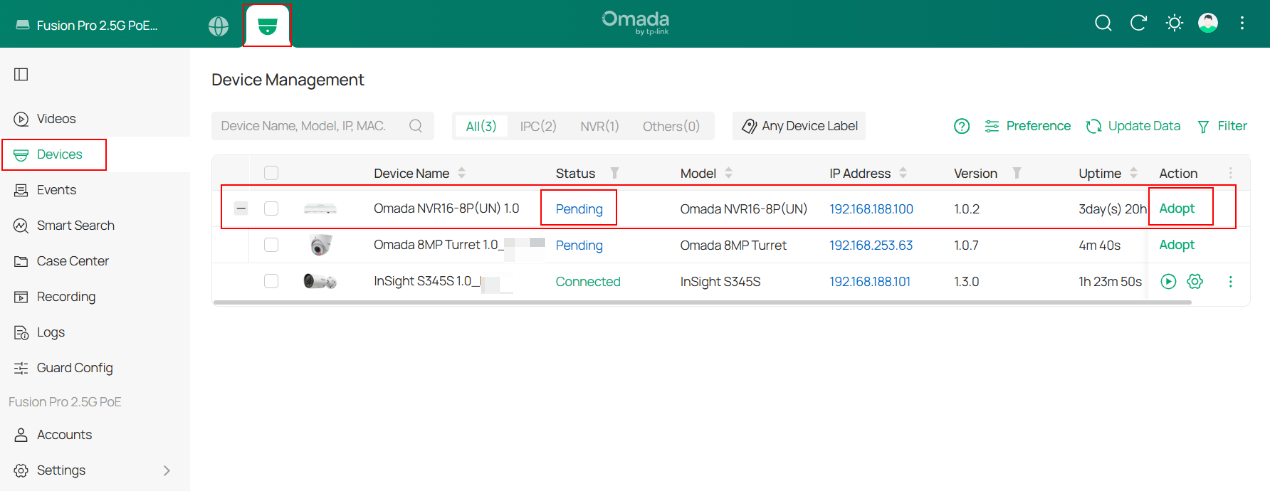
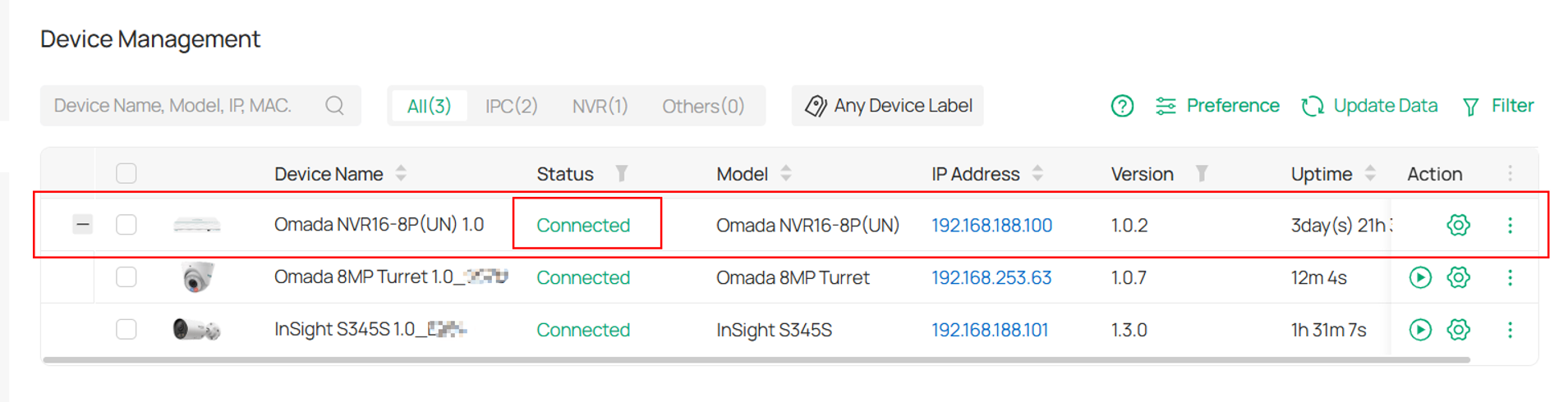
Step 2. Open the Omada Guard > Device page in Fusion Pro and adopt the pending NVR and IPC devices.
2. Network isolation limitations
The Omada NVR’s network isolation setting isolates cameras physically connected to its PoE ports from the LAN. The following limitations apply only to these cameras, not to cameras connected through Fusion Pro PoE directly and managed by the same Omada NVR.
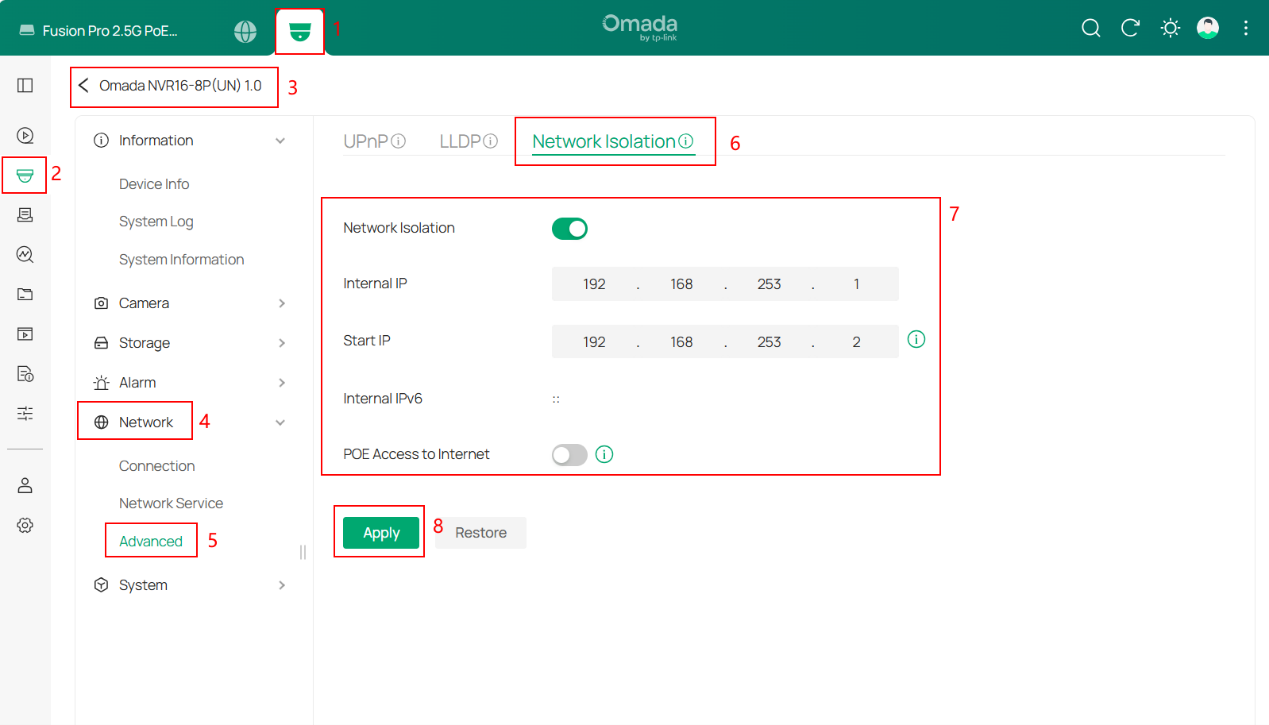
Go to Omada Guard > Device > Omada NVR detailed settings page > Network > Advanced > Network Isolation to enable or disable this feature. Network isolation is enabled by default.
Remote access
When network isolation is enabled, Remote Access is unavailable for the affected IPCs.
If remote access to individual cameras is required, evaluate this limitation before enabling network isolation.
OUI-based VLAN assignment
When network isolation is enabled, OUI-based VLAN cannot assign the affected IPCs to the specified network segment.
Do not rely on OUI-based VLAN assignment to place these cameras in the intended network segment while isolation is enabled.
ONVIF camera disconnection after changing network isolation
Enabling or disabling network isolation causes IPCs previously added through ONVIF to go offline. The affected IPCs must be removed and added again after the change.
Network topology display
When network isolation is enabled, Fusion Pro may be unable to identify the uplink device of an affected IPC. As a result, the topology view may not accurately reflect the camera’s physical connection.
3. ONVIF limitations in mixed-brand deployments
In mixed-brand deployments, such as VIGI IPCs managed by an Omada NVR or Omada IPCs managed by a VIGI NVR, cameras are added through ONVIF. The following limitations apply to this management method.
Feature limitations
IPCs added through ONVIF do not support the following features through Fusion Pro:
- VIGI IPC Smart Search.
- Most event detection features—only tampering detection is supported.
- IPC storage, network, and system configuration.
- Human and vehicle attribute settings.
- Copy to configuration copying.
Firmware upgrade limitations
For IPCs added through ONVIF:
- Cloud firmware updates and local firmware upgrades are unavailable through Fusion Pro.
- Firmware upgrades must be performed through the IPC’s own web interface.
Device initialization limitations
- ONVIF adoption does not support device initialization. Initialize the IPC before adding it.
- For example, if an uninitialized Omada IPC is connected to a VIGI NVR’s PoE port, adding it through Fusion Pro may fail to retrieve camera information. Adding it through the NVR may prompt for a password but reject any password entered.
- This occurs because the IPC has not been initialized, not because an existing password is incorrect. Complete initialization using a supported method, then add the IPC using its configured credentials.
Switching to direct management by Fusion Pro
To access more IPC features and management options (such as Smart Search), consider switching the camera from NVR management to direct management by Fusion Pro, subject to the following requirements:
- Cameras connected directly to the NVR’s PoE ports cannot be managed directly by Fusion Pro.
- The IPC firmware must support direct management by Fusion Pro.
Note: Smart Search availability depends on the IPC model, firmware version, and operating mode. And Smart Analytics must also be enabled under Guard Config > Advanced Settings.
4. IP address management limitations
In the scenario covered by this article, an IPC managed by a downstream NVR is configured with a static IP address. This affects DHCP client visibility and the use of IP address assignment features in Fusion Pro.
DHCP user list visibility
Affected IPCs are not displayed in:
- The DHCP User List on the uplink switch’s device details page.
- The DHCP User List on Fusion Pro’s device details page.
A camera missing from these lists is not necessarily offline. Check its status under the NVR and confirm its actual IP address.
Fixed-IP and DHCP reservation
For these NVR-managed IPCs:
- Fixed-IP does not take effect.
- Manually configured DHCP Reservation does not take effect.
Do not rely on these features to change or reserve the static IP addresses used by the affected cameras.
Address planning recommendations
Before adding cameras to the NVR:
- Plan their IP addresses to avoid conflicts with other devices.
- Coordinate static camera addresses with the network’s DHCP address allocation.
- Record the cameras’ actual addresses for future access and troubleshooting.
- Use the supported NVR or IPC configuration method to review or change their addresses.
Note: If a camera becomes unreachable after a management or network change, check its actual IP address and network connectivity rather than relying only on DHCP records.
Conclusion
When managing NVRs with Fusion Pro, consider how network isolation, ONVIF adoption, and static IP assignment affect the connected IPCs.
Network isolation limits remote access and OUI-based VLAN assignment, and changing it requires previously adopted ONVIF cameras to be added again. Mixed-brand ONVIF deployments have restrictions on smart search, event detection, IPC configuration, firmware upgrades, and initialization. NVR-managed cameras using static IP addresses also cannot be managed as ordinary DHCP clients.
Select the management method based on deployment requirements, and confirm device and firmware compatibility before making changes.
QA
Q1: Where can I view the storage information for an NVR managed by Fusion Pro?
A1: Open Storage Management in Fusion Pro. Storage information for managed NVRs is displayed in this module. This does not imply that all IPC-level storage settings are available.
Q2: Why did my ONVIF cameras go offline after I enabled or disabled network isolation on NVR?
A2: Changing network isolation affects ONVIF cameras physically connected to the NVR’s PoE ports. Wait for the change to take effect, adjust their IP addresses if prompted, then remove the offline entries and add the cameras again.
Q3: Why is Remote Access unavailable for cameras connected to the NVR’s PoE ports?
A3: Check whether network isolation is enabled on the NVR. In the isolated scenario covered by this article, Remote Access is unavailable for the affected IPCs.
Q4: Why can OUI-based VLAN not assign cameras connected to the NVR’s PoE ports to the specified network segment?
A4: This capability is unavailable for the affected IPCs when NVR network isolation is enabled. Review the network design if OUI-based VLAN assignment is required.
Q5: Why is Smart Search unavailable for a VIGI IPC managed by an Omada NVR?
A5: The IPC is added through ONVIF, which does not provide access to Smart Search. Consider direct management by Fusion Pro, subject to the requirements in Q12. Smart Search availability also depends on the IPC model, firmware version, and operating mode. AI analysis must be enabled under Guard Config > Advanced Settings.
Q6: Why does a batch configuration operation fail even though the camera supports the feature?
A6: A feature supported by the camera may not be configurable through its ONVIF connection. For example, person and vehicle attribute settings and Copy to are unavailable through the management method covered by this article.
Q7: How can I upgrade an IPC added through ONVIF?
A7: Open the IPC’s own web interface and follow its firmware upgrade procedure. Cloud firmware retrieval and local firmware upgrades are unavailable through the ONVIF management method described here.
Q8: Why can I not add an uninitialized IPC through ONVIF?
A8: ONVIF adoption does not support initialization. Initialize the IPC through a supported method and configure its login credentials before adding it.
Q9: Why is my NVR-managed IPC missing from the DHCP User List?
A9: In the scenario covered by this article, the NVR configures the IPC with a static IP address. The camera is not displayed in the relevant DHCP user lists. Check its status and actual address under the NVR.
Q10: Why do Fixed-IP and DHCP Reservation not take effect?
A10: These features do not control the static IP addresses used by the affected NVR-managed IPCs. Review or change the camera’s address using the supported NVR or IPC configuration method.
Q11: Why is an IPC’s uplink device missing or incorrect in the topology view?
A11: Network isolation may prevent Fusion Pro from identifying the uplink device of a camera connected to the NVR’s PoE ports. After a camera is moved from Fusion Pro to an NVR, its uplink information may also remain unchanged. Check the physical cabling and NVR camera management information to confirm the actual connection.
Q12: What must I do before uninstalling the Guard application?
A12: Remove all devices managed by the Guard application before uninstalling it. Uninstallation is blocked while any managed devices remain.
To learn more about each function and configuration, please visit Support Home to download or check the manual for your product.
